Showing posts with label Search Engines. Show all posts

Friday, 1 June 2018

Presentation: free search tools for research information

Edited highlights from my recent workshop on search tools for research information are now available. Please note that not all of the services, search tools, examples or issues covered in the workshop are included in this version.

Slides can be viewed on Slideshare  or authorSTREAM. 

Thursday, 1 September 2016

Don't expect advanced search features to exist forever

A couple of weeks ago I wrote about the problems I was having with Google Verbatim (Google Verbatim on the way out?). This morning I ran through a checklist of commands that I am demonstrating in a webinar and it seems that Verbatim is back working as it should. Don't hold your breath, though. Three times this year I have seen Google Verbatim disappear or do strange things and a couple weeks later return to normal. Verbatim may be here to stay or it may not, but you cannot depend on many advanced search commands to always work as you expect. So either learn different ways of making Google treat your search in the way you require or use a different search engine.

Unfortunately, disappearing or unreliable functionality is not confined to just Google. Bing used to have a very useful proximity command that allowed you to specify how close you wanted your words to be to one another. The "near:n"  operator is still listed in Bing's list of advanced search commands and, although it seems to do something and reduce the number of results, it does not behave as described.

There is also the endangered list such as DuckDuckGo's sort by date option. In fact all of DuckDuckGo's web search options will probably soon change or disappear as it is currently powered by Yahoo! which has been bought by Verizon. Who will DuckDuckGo turn to if Verizon does combine Yahoo with AOL as has been stated in the press?

Get to know several different search tools really well and, for the ones that you use regularly, find out how they work and who provides the search results.


Wednesday, 13 July 2016

Alternatives to Google: Carrot Search and eTools.ch

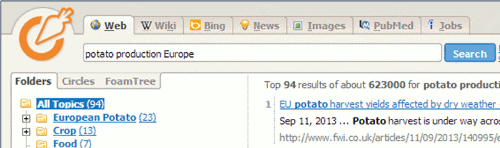
Two of the services I cover in my workshop for researchers on alternatives to Google are Carrot Search and eTools.ch, and recently one of the people who had attended the session in April asked me to confirm what Carrot Search used  to provide its main results. Strictly speaking, neither Carrot Search nor eTools are Google free: eTools is a metasearch tool that has Google as one of its sources and Carrot Search uses eTools for its web search. At the start of the year, Carrot Search offered 7 options for searching under tabs across the top of the search screen including Web, "wiki", Bing, News, Images, PubMed and Jobs. Web search used eTools.ch to provide the results.

[caption id="attachment_3688" align="aligncenter" width="500"]Carrot Search Carrot Search - beginning of 2016[/caption]

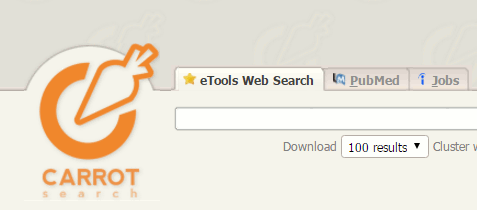
The range of options has now been reduced to just three: the more transparently labelled eTools Web Search, PubMed and Jobs.

[caption id="attachment_3689" align="aligncenter" width="477"]Carrot Search options July 2016 Carrot Search options July 2016[/caption]


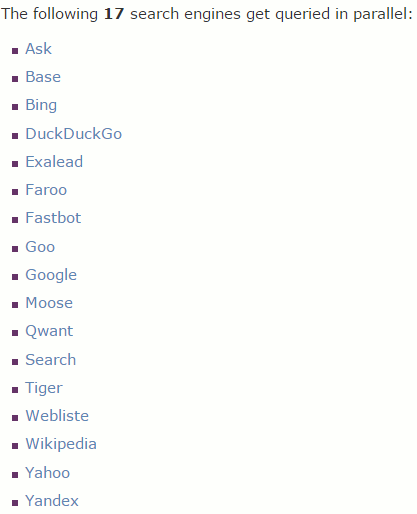
This makes sense as the number of accesses to Bing via the api was always limited and I could never get the news or images options to work. eTools in any case is a metasearch engine covering 17 tools including Google, Bing and Wikipedia so the extra Carrot Search tabs did seem to be unnecessary. The full list can be seen on the eTools home page.

[caption id="attachment_3690" align="aligncenter" width="417"]eTools list of search engines eTools list of search engines[/caption]

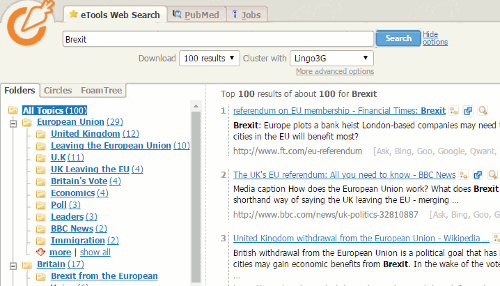
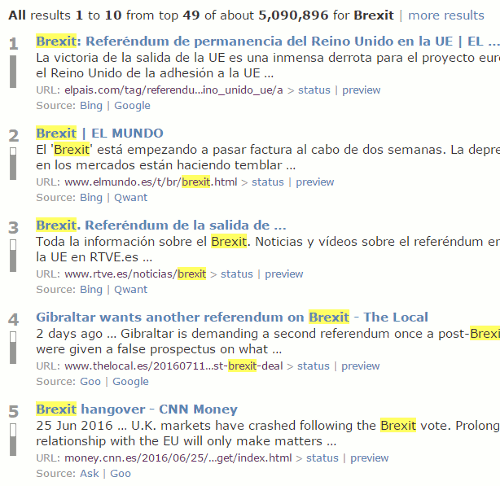
This is where it gets interesting. It appears that Carrot Search does not just copy the results from a search on eTools.  I ran a search on Brexit in Carrot Search and compared the results from eTools Worldwide and eTools United Kingdom. All of the sets  were different so Carrot Search must be doing some additional analysis and processing.

Carrot Search doesn't just list the results but also organises them into topics or Folders that are displayed on the left hand side of the screen. These can be a useful way of narrowing down your search.

Carrot Search Brexit results

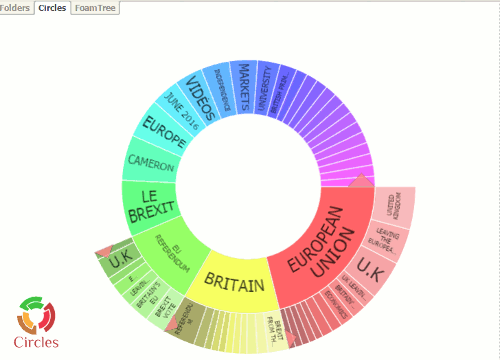
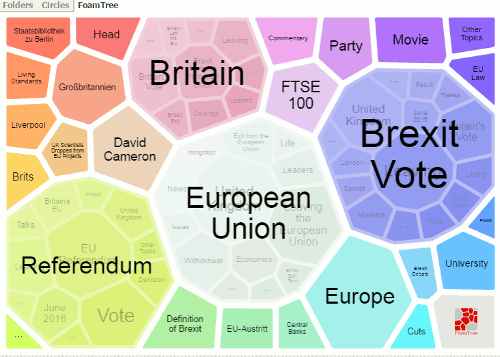
Carrot Search offers two other ways of displaying results: Circles and Foam Tree.

[caption id="attachment_3692" align="aligncenter" width="500"]Carrot Search Circles Carrot Search Circles[/caption]


[caption id="attachment_3693" align="alignnone" width="500"]Carrot Search Foam Tree Carrot Search Foam Tree - 13th July 2016[/caption]

Both show the density of terms in the top 100 results and allow you to click on an area to add the term or phrase to the search.  In addition I am finding that the Foam Tree is an interesting way of monitoring changes in news coverage and social media discussions on a topic, product or company. Yesterday, when I ran the search on Brexit, there was an area representing Theresa May.  Today, that had been replaced with one for David Cameron. I assume that is because the news coverage has been concentrating on David Cameron's last day as Prime Minister and his last Prime Minister's Questions (PMQ) in Parliament . Later he goes to see the Queen to officially resign as Prime Minister. Tomorrow,  with Theresa May as our new Prime Minister and a new Cabinet, the Foam Tree could have a very different structure so I shall be looking at it periodically to see if and how it reflects changes in events.

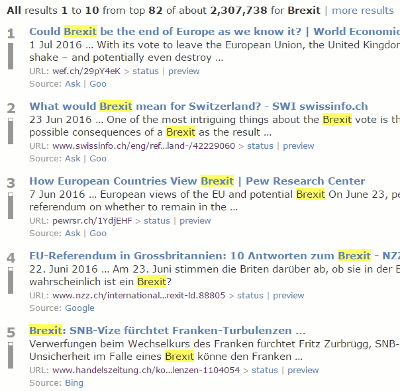
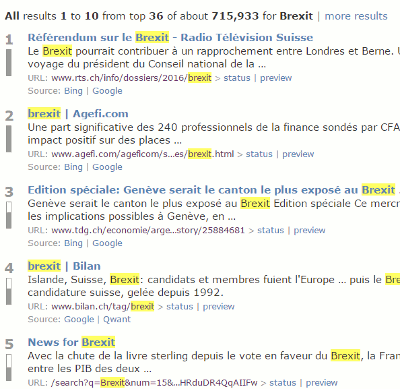
As I mentioned earlier eTools.ch, which is behind the main Carrot Search web search, is a metasearch engine covering 17 tools. It also has options to select a country from a drop down list (Worldwide, Swtzerland, Liechtenstein, Germany, Austria, France, Italy, Spain,  UK) and a language (All, English, German, French, Italian, Spanish). Either or both of these give you completely different views and opinions on a subject.

[caption id="attachment_3695" align="aligncenter" width="400"]eTools - Switzerland, all languages eTools - Switzerland, all languages[/caption]


[caption id="attachment_3696" align="aligncenter" width="400"]eTools_CH_French eTools - Switzerland, French[/caption]


[caption id="attachment_3697" align="aligncenter" width="400"]eTools - Spain, all languages eTools - Spain, all languages[/caption]

It is a convenient way of gathering a range of foreign language information, especially on European events, and is easier than searching individual country versions of Google or Bing. The disadvantages are that the range of countries and languages is limited and many of the articles will not be in English. Nevertheless, I often find it helpful at the start of a piece of research as I get a general feel for the type and range of information that is available.

Carrot Search and eTools.ch are just two of the tools that I cover in my workshop on alternatives to Google. If you are interested in finding out more, the next session is being organised by UKeiG and will be held in London on Wednesday, 7th September 2016. Further details are available on the UKeiG website.

Tuesday, 15 December 2015

"Do not track" does not mean anonymous browsing

A question that I'm often asked is "do search engines that don't track your search history also anonymize your IP address?" DuckDuckGo is the first search tool that often springs to mind with respect to "do not track".  It does not store searches, web history or IP addresses when you use it to search. Also, it does not pass on the search terms you used to the sites that you visit. However, the sites that you visit will still be able to see your IP address.  See https://duckduckgo.com/privacy for further details.

Ixquick (http://ixquick.com/) and StartPage (http://startpage.com/) are similar but have an additional feature that gives you the option to display a page from the results list using a proxy. Run the search as normal and you'll see the usual set of results. Next to each result you should see a "proxy" link. Click on that and you go through a proxy server making you invisible to the website you are visiting.


Any links that you subsequently click on and which are on the same site also go through the proxy. As soon as you follow any links that take you off that site then you are warned that you that you will be "unproxied".


The disadvantages of using the proxy option are that it can be slower, some functions on the page may not work, and I have come across some pages that do not display at all.

Tuesday, 18 March 2014

Anything but Google - Top Tips

This collection of Top Tips is a combined list nominated by those who attended the autumn and spring UKeiG workshops on "Anything but Google". The participants came from all sectors and types of company, and included a couple of self employed researchers. The sessions covered both general search tools and specialist services, and the list is an interesting mix of strategies and specific sites.  A big "Thank- you" to everyone who participated in the workshops.

1. Get to know the advanced search commands and options.
Google is not the only search tool that uses them and they can help focus your search, especially when using general search tools such as Bing.

2. If you are conducting serious research don't stop with the first reasonable looking results.
Information of dubious quality can infiltrate even the most well respected of specialist websites. Put on your "skeptical goggles" as one delegate said! There are plenty of alternative tools and resources out there so get some corroboration from additional sources before acting on the information you find.

3. Allocate time for your search.
If you are carrying out in-depth research don't leave it to the last minute. You will probably need to tweak your strategy and try different search tools to ensure that you are retrieving the best information. It can sometimes take longer than you anticipate.

4. Plan your strategy.
Think about the type of search you want to conduct and the type of information you are looking for. For example if you are carrying out a systematic review and want to use Boolean operators forget about Google; head for Bing instead. And if you need official statistics or company information go straight to specialist sites that provide that data.

5. Don't stick with what you regularly use.
Experiment with other resources, especially if you suspect your default search tool is not telling you the whole story.

6. Country versions of search tools.
Many search tools offer country versions that give priority to the country’s local content, although that might be in the local language. This is a useful strategy when searching for industries, companies and people that are active in a particular country.

7. Learn when to try something else.
If a site's navigation or internal search engine seems to be returning rubbish don't struggle with it. Try another route to get to the information. Either try an alternative source of information or use the 'site:' command - available in Bing as well as Google - to search inside the site.

8. DuckDuckGo http://www.duckduckgo.com/.
This was recommended for its clean, straightforward layout and the range of resources it offers on a topic. A school librarian commented that the pupils at her school loved it.

9. MillionShort  http://millionshort.com/.
If you are fed up with seeing the same results from Google again and again give MillionShort a try. MillionShort enables you to remove the most popular web sites from the results. Originally, as its name suggests, it removed the top 1 million but you can change the number that you want omitted. The page that best answers your question might not be well optimised for search engines or might cover a topic that is so “niche” that it never makes it into the top results in Google or Bing.

10. Carrot Search http://carrotsearch.com/


This was recommended for its clustering of results and also the visualisations of terms and concepts via the circles and "foam tree". There is a link to the live web demo on the left hand side of the home page.

11. Microsoft academic Search  - charts http://academic.research.microsoft.com/
This is a direct competitor to Google Scholar. The site can be slow to load and it sometimes assigns authors to the wrong institution. Nevertheless, the visualisations such as the co-author and citation maps can be useful in identifying who else is working in a particular area of research. The visualisations can be accessed by clicking on the Citation Graph image to the left of the search results or an author profile.

12. Creative Commons and public domain images.
Use the Bing license option (US version only) to search for images with creative commons or public domain licenses, but do go to the original webpage and check that the license is indeed associated with the image you want to use. Alternatively use one of the following:


13. Tineye Multicolr http://labs.tineye.com/multicolr/.
"Search 10 million Creative commons Flickr images by colour."  You can specify more than one colour and move the the dividing bar between two colours to increase/decrease their prominence within the image. Click through to the original Flickr image to double check the license.

14. Company Check http://www.companycheck.co.uk/
Company Check repackages Companies House data and provides 5 years of accounts, and graphs for some financials free of charge. It also lists the directors of a company. Click on a director’s name and you can view other current and past directorships for that person. It provides more free information than Companies House but you have to register (free) to gain full access. Additional information such as credit risk, CCJs, credit reports, and many Companies House documents are priced or available as part of a subscription.

15. Guardian Data Store http://www.guardian.co.uk/data/
For datasets and visualisations relating to stories currently in the news. As well as the graphs and interactive maps the source of the data is always given and there are links to the original datasets that are used in the articles.

16. Zanran http://zanran.com/
This is a search tool for searching information contained in charts, graphs and tables of data and within formatted documents such as PDFs, Excel spreadsheets and images. Enter your search terms and optionally limit your search by date and/or format type. One delegate said "It has changed my life!". (We think/hope she meant her working life.)

17. Keep up to date.
Keep up to date with what the search engines are up to, changes to key resources and new sites. Identify blogs and commentators that are relevant to your research interests and subject areas, and follow them using RSS or email alerts.

Thursday, 15 August 2013

Google adds in-depth articles to results

Google is rolling out a new addition to search results called "In-depth articles" (http://insidesearch.blogspot.ca/2013/08/discover-great-in-depth-articles-on.html):

"To understand a broad topic, sometimes you need more than a quick answer. Our research indicates perhaps 10% of people’s daily information needs fit this category -- topics like stem cell research, happiness, and love, to name just a few. That's why over the next few days we’ll be rolling out a new feature to help you find relevant in-depth articles in the main Google Search results."

The articles appear as a block of three at the bottom of your results, if you only display 10 results per page, or in the middle of the page if you display more. As Google says, they appear if your search is fairly broad and they do not appear for every query. I had to run several different searches before I found an example. At present it is only available in Google.com

My search on thorium reactor started with a Wikipedia article at the top, which seems all too often to be the default.


Further down the page was a block of three "in-depth" articles from Wired, Cosmos Magazine and Nature.


They do not appear at all if you use a Chrome Incognito window or your browser's private browsing option. They also disappear if you apply Verbatim to your results.

How useful are these articles? They are certainly lengthy and in depth but only the one from Nature was fairly recent (December 2012). The one from Wired was published in 2009 and the Cosmos Magazine article appeared in 2006. I tried limiting my search to articles published in just the last year using Search Tools, Any time, Past year. The documents in the main results changed but the in-depth articles remained the same. The Nature article is highly relevant but there are more recent documents to be found than those from Wired and Cosmos. This raises the question as to how these articles are selected. I have not yet found any reliable information on how it is done, although Google's Webmaster Central Blog has provided a checklist that may help get an article into the triumvirate (http://googlewebmastercentral.blogspot.co.uk/2013/08/in-depth-articles-in-search-results.html). The Moz Blog has run an analysis on 352 searches and found that the major news sources feature heavily (see http://moz.com/blog/inside-indepth-articles for further details).

In theory, in-depth articles are a good way to find an overview of a topic but do check the dates. They may be horrendously out of date.

Monday, 1 July 2013

Farewell AltaVista

Yahoo is finally pulling the plug on AltaVista on July 8th. It appears as a one line entry in Yahoo's latest list of closures (http://yahoo.tumblr.com/post/54125001066/keeping-our-focus-on-whats-next) with the comment "Please visit Yahoo! Search for all of your searching needs". AltaVista was started by Digital Equipment in 1995 and quickly became the default search engine for many of us. I still meet people who have remained loyal to AltaVista even though it lost its unique search features a long time ago. Danny Sullivan has written a short history and eulogy for the search engine at http://searchengineland.com/altavista-eulogy-165366 - "A Eulogy for AltaVista, The Google of its Time". Great though it was, some of us had already defected to the Inktomi powered search engine HotBot by the time Google had arrived on the scene. Alas, HotBot is now a shadow of its former self and AlltheWeb, which Yahoo had also acquired, was closed down in April 2011.

I've unearthed the AltaVista chapter and summary that I wrote for an early edition of Search Strategies. The chapter is at http://www.rba.co.uk/search/altavista/AltaVistaChapter.pdf and the summary sheet at http://www.rba.co.uk/search/altavista/avsumm.pdf

Tuesday, 11 June 2013

Google - you can say "NO!"

Picture the scene: an obviously distressed researcher is hunched over a computer screen, sobbing hysterically. All they wanted was a list of donkey sanctuaries in Surrey. How difficult is that? But Google decided that what they really wanted was a field guide to identifying buttercups. Our researcher tries all the advanced search commands and options they know but to no avail. It seems that Google has locked them into its dreaded live experiments (1) with no possibility of escape, and the information is needed NOW.

There is hope, though. There are other search engines out there. Bing may seem consumer/retail focused, but its list of advanced search commands is great at unearthing serious research information that Google buries at around the 2 millionth entry in your results list. My comparison and summary of search commands at http://www.rba.co.uk/search/compare.shtml lists the Bing commands that you are most likely to need. Or if you just want a no nonsense summary of your topic without all of Google's personalisation and experiments look no further than DuckDuckGo. But should you even be using Google or similar, generic search engines in the first place? Think about the type of information you are looking for.

For news, RSS feeds are still a great way to pull together updates from your favourite newspapers, blogs and websites. Google Reader is about to disappear into a black hole but there are other, better RSS readers out there. I use a desktop client called RSS Owl (http://www.rssowl.org/) but if that doesn't suit you Phil Bradley has a list of alternatives on his blog at http://philbradley.typepad.com/phil_bradleys_weblog/2013/03/20-alternatives-to-google-reader.html. Or you could try a different approach: create a Twitter list of essential news sources, or use Paper.li to create daily "newspapers" using keyword searches or hashtags. See my own "daily" at http://paper.li/karenblakeman or the paper.li on biofuels at http://paper.li/karenblakeman/1321447614.
Interested in statistics and open data? Try the University of Auckland's statistics portal (http://www.offstats.auckland.ac.nz/) or the Guardian's Datastore (http://www.guardian.co.uk/data).

If you are looking for images Flickr.com is an obvious alternative. For photos you can re-use without fear of being dragged through the courts for copyright infringement try Geograph (http://www.geograph.org.uk/) or Morguefile (http://www.morguefile.com/).

And when it comes to free search tools for tracking down open access and research information there are dozens, some of which are listed at http://www.rba.co.uk/search/links.shtml#research.

These and many more are covered in my workshop "Anything but Google", which is is being held in Newcastle later this month. Further details are on the UKeiG web site at http://www.ukeig.org.uk/trainingevent/anything-google-karen-blakeman.

We may not be able to avoid Google completely but there are equally good, if not better, tools available. Take the first step and say "No" to Google.

(1) Just Testing: Google Users May See Up To A Dozen Experiments http://searchengineland.com/just-testing-google-searchers-may-see-up-to-a-dozen-experiments-141570

Monday, 4 March 2013

How search works - sort of

Google has put together a site showing how Google search works (http://www.google.com/insidesearch/howsearchworks/thestory/). The main page is a scrolling animated graphic that just gives you some elementary facts but there are links to more detailed information and videos on the main topics of crawling and indexing, the searching and ranking algorithms, fighting spam and Google's general policies. They are a useful set of pages for anyone who does not already know the basics of how Google works, but if you are looking for something that tells you how to get sensible results from Google you'll be disappointed. As Phil Bradley says:

".... boils down to 'we find some stuff, do magic to it, filter out the crap that our magic didn't get and then give it to you.' Yes folks, an entire site to say that. Wasted opportunity."

Wednesday, 27 February 2013

Top tips for finding research information

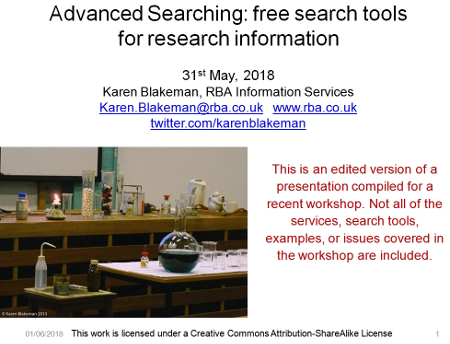
This week I was in Canterbury leading a workshop and discussion on Google and Google Scholar for finding research information. Although the emphasis was on Google we also covered other specialist tools designed to search for scientific and research information. We also had an interesting discussion on h-index, other citation indices and services such as ORCID and ResearchGate. The slides for the session are available on authorSTREAM (http://www.authorstream.com/Presentation/karenblakeman-1706478-google-scholar-research-information/), Slideshare (http://www.slideshare.net/KarenBlakeman/scholar-research-information) and temporarily at http://www.rba.co.uk/as/.

Anyone who has attended one of my workshops knows that I ask the group to propose at the end of the session their top tips. These are the Canterbury group's top 10 tips.

1. What's going on?
Try and find out what's going on behind the scenes and how the different search tools work. For example, Google and Google Scholar are quite different in the way they manage your search. Understanding how they operate means that you can adapt your search strategy accordingly and also manage your expectations; for example Google Scholar does not use the publishers' meta data so author and date search are unreliable.

2. Personalisation and 'unpersonalisation'
Google personalises your search based on past activity, who is in your social networks,and a whole host of other 'stuff'. You can quickly 'unpersonalise' your results by using a separate browser window that does not use cookies or your web history as part of the search algorithm.

If you use Chrome as your browser, open what is called an incognito window. In the top right hand corner of your screen there is an icon with three lines. Click on it and from the drop down menu select New incognito window. Alternatively press the Ctrl Shift N keys on your keyboard

If you use Firefox, from the menu at the top of the screen select Tools followed by Start Private Browsing.

In Internet Explorer select Tools followed by InPrivate Browsing. If you cannot see InPrivate under Tools try looking under the Safety option.

3. Advanced search commands
Use Google advanced commands  such as filetype: to focus on PDFs, presentations, spreadsheets containing data and site: to look for information on just one site or a range of sites such as UK government. Although the advanced search screen has boxes for you to fill in for the commands the file format or filetype option is limited. It does not include options for the newer Microsoft Office formats such as .pptx and xlsx. Use filetype: as part of your search strategy, for example:

nasa dark energy dark matter filetype:pptx

Google Scholar commands are more limited - see slide 28 of the presentation.

4. intext:
Google automatically looks for variations on your terms and sometimes omits words from your search if it thinks the number of results is too low. Prefixing a term with intext: tells Google that it must be included in your search and exactly as you have typed it in. For example:

UK public transport intext:biodiesel statistics

tells Google that biodiesel must be included in the search and exactly as typed in.

5. Reading Level
Use Reading level if Google is failing to return any research oriented documents for a query. Run the search and from the menu above the results select Search toolsAll results and then from the drop menu Reading level. Options for switching between basic, intermediate and advanced reading levels should then appear just above the results. Google does not give much away as to how it calculates the reading level and it has nothing to do with the reading age that publishers assign to publications. It seems to involve an analysis of sentence structure, the length of sentences, the length of the document and whether scientific or industry specific terminology appears in the page.

6. Date options
In Google web search, use the date options in the menus at the top of the results page to restrict your results to information that has been published within the last hour, day, week, month, year or your own date range. Click on Search tools, then Any time and select an option. This works best with news, discussion boards, and blogs and web sites that use blogging software  to generate pages but Google is getting better at identifying the correct date of a web page.

Google Scholar handles publication dates differently. On the results page you can select a date range from the menu on the left hand of the page. Alternatively, you can run a Google advanced search and enter your publication years. However, Google Scholar looks for publication years in the area of the document where the date is most likely to be. As a result it may identify a page number or part of an author's address as a year!

7. Google Scholar alerts
To be used with caution as the searches periodically stop without warning, and so have to be set up again, and they sometimes include documents that are several years old. Whatever your search you can set up an alert by selecting Create alert from the menu on the left hand side of the results page.

If the author has created a profile on Google Scholar, from their profile page you can follow new articles and/or new citations for that author. From past experience I warn you that this is not entirely reliable.


8. Metrics - top publicationsAlthough it claims to search all scholarly literature Google Scholar does not always cover all of the key journals in a subject area. There is no complete source list but there is a top publications for subjects and languages under the ‘Metrics’ link in the upper right hand corner of the Scholar home page.

9. Microsoft Academic Search - visualisations
Microsoft Academic Search (http://academic.research.microsoft.com/) is a direct competitor to Google Scholar. The site is sometimes slow to load and it often assigns authors to the wrong institution. Nevertheless, the visualisations such as the co-author and citation maps can be useful in identifying who else is working in a particular area of research. The visualisations can be accessed by clicking on the Citation Graph image to the left of the search results or author profile.


10. Mednar visual
Deep Web Technologies has developed in conjunction with various institutions a number of science and research specific portals, some of which are publicly available. The sources that they cover are different but they all have similar search and display options. Results are automatically ranked by relevance but this can be changed to date, title or author. In addition to the standard relevance ranked list of results the portals create clusters of topics on the left hand side of the screen. The topics include broad subject headings, authors, publications, publishers, and year of publication and are a useful tool for narrowing down a search. Some of the portals, such as Mednar (http://mednar.com/), offer a clickable 'visual' of topics and sub-topics.
Thursday, 18 October 2012

Oi, Google! NO!!

I've been seeing what looks like a new annoying Google search "feature" for a few weeks. I have been trying to ignore it in the hope that it would go away but it hasn't. The problem is that Google has started giving me long lists of YouTube videos for some of my queries, even though I am in web search. For example a search on comfrey compost tea came up with about a dozen videos before giving me web pages with text describing the benefits of comfrey compost, which was what I wanted. In addition, in the menus on the left hand side of the screen Google offered me options to refine my video search by duration. But, Dear Google, I did NOT want videos at all!


It did not matter whether or not I was signed in to my Google account. The videos were still given priority. I wondered if this was just an issue with Chrome so I switched to Firefox. The list of videos disappeared and was replaced by just one entry for YouTube at the top.


This gave me a clue as to what might be going on. I use Chrome for most of my "personalised" search. I generally stay logged in to my account, have enabled web search history and do not clear out the search cookies. In contrast I use Firefox for "de-personalised" search. I stay logged out of Google and social networks, and cookies and history are cleared after each session. I usually watch permaculture and gardening videos in Chrome, which probably explains why YouTube was taking pride of place in many of my search results. To test the theory I paused and deleted my web search history, and cleared cookies and browsing data. I then signed out of Google, cleared cookies again and re-ran the search. The blasted videos were still there.

What if I ran the search in a Chrome incognito window? The results were identical to those when using Firefox. Back to a normal Chrome window and the videos returned. I then checked that my web history was off and deleted. It wasn't and it steadfastly refused to go away. Then the penny dropped. All my Chrome data - bookmarks, history etc - are synced to my Google account so no matter how often I try and delete the stuff locally it will all come back down again from my account. I disconnected my Google account under Chrome's settings and, "Hey presto", no more videos. I reconnected and they were back. It appears that if you are using Chrome and have synced it with your Google account you will get personalised results, even if you are signed out of your account.

So, if you are a Chrome user you may think that you have switched off personalisation by logging out of your account but that may not be the case. If you are conducting serious research it is always worth running your searches in an Incognito window, using a different browser or a completely different search engine like DuckDuckGo (http://duckduckgo.com/).

Postscript: I forgot to mention that I also tried Verbatim, but to no avail. Verbatim makes sure that all your terms are in the pages/documents exactly as you have typed them in but that still gives Google plenty of leeway in presenting those results. Google still bombarded me with videos although some were different from my original search.

Friday, 5 October 2012

Rediscovering BananaSlug for "long tail" search

I think it must have been seeing Phil Bradley the other night that made me think of revisiting BananaSlug.com (http://bananaslug.com/). I don't mean that Phil reminds me of a banana slug but he did introduce me to the search tool via his blog way back in 2005. I have been looking at ways of getting out of what I call "search ruts". You keep seeing the same results again and again but suspect that there may be something more relevant if only you could get to it. Million Short, which I mentioned in a previous blog post (http://www.rba.co.uk/wordpress/2012/10/04/million-short-unearthing-stuff-hidden-in-the-dungeons-of-googles-results/), is one way to tackle the problem. BananaSlug takes a different approach to what is known as long tail search. It adds a random term to your search and pulls up pages buried way down in the results list that you would probably never see. Just type in your search and then select a category, for example Animals, Great Ideas, Random Number, Themes from Shakespeare. BananaSlug then adds a random word from that category to your terms.

At first glance this approach to search may seem appropriate for frivolous, fun stuff only but I find that it works really well with serious research topics. Running one of my test searches zeolites "environmental remediation" through the categories pulled up information that could have taken me hours or even days to find otherwise. Bear in mind that BananaSlug uses Google so synonyms and variations of the random word will be included in the search. When I selected Colors as my category red was added to my search and Google included reddish and reds.


Most of the categories came up with something useful although Random Number, inevitably for this type of search, came up with page numbers of journal articles. I didn't think Themes from Shakespeare would work but the random word it suggested was storm and there were several interesting papers on storm water management and treatment.


This may seem a bizarre way to explore search alternatives but if you are stuck for ideas give it a go.

Note: for more information on the banana slug Ariolimax see http://en.wikipedia.org/wiki/Banana_slug. The Pacific banana slug is the second-largest species of terrestrial slug in the world, growing up to 25 centimetres (9.8 in) long.

Thursday, 4 October 2012

Million Short: unearthing stuff hidden in the dungeons of Google'sresults

Fed up with seeing the same results from Google again and again? Wondering if that elusive document is buried somewhere at the bottom of Google's 2,000,000 hits? Then get thee hence to Million Short (http://millionshort.com/). Million Short runs your search and then removes the most popular web sites from the results. Originally it removed the top 1 million, as its name suggests, but the default has changed to the top 10,000. The principle remains the same, though: exclude the more popular sites and you could uncover a real gem. The page that best answers your question might not be well optimised for search engines or might cover a topic that is so "niche" that it never makes it into the top results. Million Short does not say what it uses for search results or how it determines what are the most popular web sites. According to Webmonkey "Sanjay Arora, founder of Exponential Labs, tells Webmonkey that Million Short is using "the Bing API... augmented with some of our own data" for search results. What constitutes a "top site" in Million Short is determined by Alexa and Million Short's own crawl data." (http://www.webmonkey.com/2012/05/million-short-a-search-engine-for-the-very-long-tail/).

Using Million Short is straightforward. Type in your search and select how many sites you want to exclude (top 10K, top million, top 100). The results page includes a list of the sites that have been removed and you can opt to add one or more back in. You can also block a site using a link next to it in the results or click on "Boost!" so that pages from the site go to the top.


Million Short automatically tries to detect which country you are in but you can change it under "Manage Settings and Country". I didn't notice much difference when I changed countries but then most of the queries I pass through Million Short tend to be scientific or technical. On the same page you can manage sites that you have blocked, added or boosted.

Does it work? I would not use it instead of the existing major search engines such as Google, Bing or DuckDuckGo but as an additional tool to surface material that is not easily found in the likes of Google. As well as web search there are image and news searches, but I'm not convinced that I'd find those all that useful.

If you are interested in comparing Million Short with Google try Million Short It On at http://www.millionshortiton.com/index.html. I had several goes at this and most of the results were a draw. That is no surprise as the searches I ran were very specific and I wanted to see if Million Short would pull up additional information, which it did. Million Short won outright on a couple and Google on one. The Google win was by default because Million Short did not come up with anything for comparison (the search in question was biofuels public transport carbon emissions).

There are a number of techniques that you can use to improve Google results for example changing the order of the words in your search, Verbatim, filetype or Reading Level but I would also recommend trying Million Short. The results should at least be different and may reveal vital information for your research.

Monday, 3 September 2012

Top search tips from North Wales

August is usually a quiet month for me with respect to work. Time for a holiday away and then a couple of weeks ambling along the Thames Path or pottering around the garden. This year, though, as soon as I was I back from my travels I was knuckling down and updating my notes for two search workshops in North Wales. Both were for the North Wales Library Partnership (NWLP), the first taking place at Coleg Menai in Bangor and the second at Deeside College. Both venues had excellent training facilities and IT, which meant we could concentrate on getting to grips with what Google is doing with search and experiment with different approaches to making Google do what we want it to do.

At the end of the workshops both groups were asked to come up with a list of  Top 10 Tips. I've combined the two lists and removed the duplicates to generate the list of 16 tips below.
  1. Repeat one or more of your search terms one or more times
    Fed up with seeing the same results for your search?  Repeat your main search term or terms to change the order of your results.

  2. Menus on left hand side of Google results pages
    Use the menus on the left hand side of the results page to focus your search and see extra search features. To see all of the options click on the ‘More’ and ‘More search tools’ links. The content of the menus changes with the type of search you are running, for example Image search has a colour option.

  3. Verbatim
    Google automatically looks for variations of your terms and no longer looks for all of your terms in a document. If you want Google to run your search exactly as you have typed it in, click on the ‘More search tools’ options at the bottom of the left hand menu on your results page and then on Verbatim at the bottom of the extended menu that appears.

  4. intext:
    Google's automatic synonym search can be helpful in looking for alternative terms but if you want just one term to be included in your search exactly as you typed it in then prefix the word with intext:. For example carbon emissions buses intext:biofuels flintshire. The command sometimes has the effect of prioritizing pages where your term is the main focus of the article.

  5. Advanced search screen and search commands
    Use the options on the advanced search screen  or the search commands (for example filetype: and site:) in the standard search box to narrow down your search. A link to the advanced searchscreen can usually be found under the cog wheel in the  upper right hand area of the screen. If you can't see a cog wheel or the link has disappeared from the menu go to http://www.google.co.uk/advanced_search. A list of the more useful Google commands is at http://www.rba.co.uk/search/SelectedGoogleCommands.shtml

  6. Try something different
    Get a fresh perspective by trying something different. Two most popular during these two workshops seemed to be DuckDuckGo (http://duckduckgo.com/) and Millionshort (http://millionshort.com). Other search engines to try include Bing (http://www.bing.com/) and Blekko (http://blekko.com/).

  7. Use the country versions of Google for information that is country specificThis will ensure that the country's local content will be given priority, although it might be in the local language. Useful for companies and people who are based in or especially active in a particular country, or to research holiday destinations. Use Google followed by the standard ISO two letter country code, for example http://www.google.de/ for Google Germany or http://www.google.no/ for Google Norway.

  8.  Filetype to search for document formats or types of informationFor example PowerPoint for experts or presentations, spreadsheets for data and statistics, or PDF for research papers and industry/government reports. Note that filetype:ppt will not pick up the newer .pptx so you will need to include both in your search, for example filetype:ppt OR filetype:pptx. You will also need to look for .xlsx if you are searching for Excel spreadsheets and .docx for Word documents. The Advanced Search screen file type box does not search for the newer Microsoft Office extensions.

  9. Clear cookies
    Even if you are logged out of your Google account when you search, information on your activity is stored in cookies on your computer. These can personalise your results according to your past search and browsing history. Many organisations have set up their IT systems so that these tracking cookies are automatically deleted at least once a day or whenever a person logs in or out of their computer account. At home, your anti-virus/firewall software may perform the same function. If you want to make sure that cookies are deleted or want to control them manually How to delete cookies at http://aboutcookies.org/Default.aspx?page=2 has instructions on how to do this for most browsers.

  10. Looking for research papers? Google Scholar (http://scholar.google.com/) is one place to look but there may be additional material hidden somewhere on an academic institution's web site. Include advanced search commands, for example filetype:pdf site:ac.uk, in your search.

  11. For the latest news, comments and analysis on what is happening in an industry or research area carry out a  Google blog search and limit your search by date. Simply run your search as usual in the standard Google search box. On the results page click on Blogs in the menu on the left hand side of the screen and then select the appropriate time option.

  12. site: and -site:
    Use the site:command to search within a single site or type of site.For example:2011 carbon emissions public transport site:statistics.gov.uk to search just the UK official statistics web siteasthma prevalence wales site:gov.uk OR site:nhs.ukto search all UK government and NHS web sites
    If you are fed up with a site dominating your results use -site: to exclude it from your search.

    For example:

    Dylan Thomas -site:bbc.co.uk

  13. Reading level - from tourism to research
    Use this to option in the menus on the left had side of your results page to change the type of information. For example run a search on copper mines north wales. Then click on Reading Level in the left hand menus. Selecting "Basic" from the options that appear at the top of the results gives you pages on tourism and holiday attractions. "Advanced" gives you research papers, journal articles and mineral databases. Google does not give much away as to how it calculates the reading level and it has nothing to do with the reading age that publishers assign to books. It could involve sentence structure, grammar, the length of sentences on a web page, the length of the document, the terminology used and doubtless many other criteria.

  14. Google.com
    Apart from presenting your search results in a different order Google.com is where Google tries out new features. As well as seeing pages that may not be highly ranked in Google.co.uk you will get an idea of how Google search may look in the UK version in the future.

  15. Numeric range search
    Use this for anything to do with numbers – years, temperatures, weights, distances, prices etc. Use the boxes on the Advanced Search screen or just type in your two numbers separated by two full stops as part of your search.For example:world oil demand forecasts 2015..2030

  16. An understanding of copyright is important if you intend to re-use information found in the web and absolutely essential if you are going to use images. Creative Commons licences clearly state what you can and can't do with an image but they are not all the same. The list at Creative Commons http://creativecommons.org/licenses/ outlines the terms and conditions. "FAQs - Copyright - University of Reading" at http://www.reading.ac.uk/internal/imps/Copyright/imps_copyrightfaqs.aspx gives some guidance on copyright but if in doubt always ask! An example of what can happen if you get it wrong is demonstrated by "Bloggers Beware: You CAN Get Sued For Using Pics on Your Blog" http://www.roniloren.com/blog/2012/7/20/bloggers-beware-you-can-get-sued-for-using-pics-on-your-blog.html.

Friday, 20 July 2012

Yet another irritating Google feature

There was a time when Google would aggregate pages from the same website in your search results. There might be just a couple of entries for the site with a "More from...." link next to the result.


Alternatively you might see a mini sitemap:


This has the advantage that you are not swamped with results from a single website but are given instead a variety of options that might provide you with a better answer to your question.

Not any more.

You may have noticed that multiple entries from single websites have started appearing in your results. For example, rather than just one Wikipedia entry you see 4, 5, 6 or even more. On the other hand, you might not have noticed anything at all. Some of my colleagues are seeing this and some are not. Google tests new features and algorithms on a small percentage of its users to see how they react so new or test features are not seen by everyone (see How Google makes improvements to its search algorithm - YouTube http://www.youtube.com/watch?v=J5RZOU6vK4Q). As far as I'm concerned this particular "improvement" is a disaster.

I was running a very general search on the use of biofuels by public transport in the UK. I just want to get an idea of some of the issues that were being discussed before refining my search and went, by default, to Google. My first screen had nothing but results from the UK government Department for Transport (DfT).


I scrolled down and saw more DfT pages. I scrolled down further and yet MORE dft pages. OK, Google, so dft.gov.uk is a good place for me to look at biofuels in public transport. I get the message. STOP! There were 27 DfT pages in total flooding the top of my results page, which I have set to display 100 entries at a time. Creeping in at number 28 came the Guardian with 5 results.


The Friends of the Earth website had 7 results, and then at last I started to see more variety in my results at around number 40, but still with a lot of repetition.

Google may think that the DfT is a very important source of information on the topic but I want to decide whether or not to explore more of a particular site. Spamming my results list annoys me and makes me want to go elsewhere. So I did.

DuckDuckGo (http://www.duckduckgo.com/) is my main Google alternative and it came up with a decent and varied set of results without repetition, hesitation or deviation.


Bing (http://www.bing.com/) and Yandex (http://www.yandex.com/) came up with similar, non-repetitive results.

Blekko (http://www.blekko.com/) came up with some interesting alternative pages for me to consider. These would not have been that useful to me in the earlier stages of my research but this test confirmed my feeling that Blekko is good at pulling up information that explores more than the mainstream issues.


If you want to stay with Google how do you deal with multiple listings of sites? The most obvious approach would be to incorporate a '-site:' command in your search, for example:

biofuels public transport -site:dft.gov.uk

If you are conducting in depth research and are likely to be running many variations on a search, incorporating '-site:' each time can become a chore. Google's own browser Chrome has a Personal Blocklist extension that enables you to block selected sites from results (https://chrome.google.com/webstore/detail/nolijncfnkgaikbjbdaogikpmpbdcdef). Once installed a block link appears next to each entry in your results. Click on the link to block the site from all future results. A message appears at the bottom of searches that would normally contain pages from the blocked site warning you about exclusions.


The 'show' link displays and highlights the previously blocked pages and offers an option to unblock them.


Neither the -site: option nor the Blocklist approach should be necessary. There was nothing wrong with the previous ways of offering additional pages from a site in search results. It wasn't broke but Google did break it by trying to fix it. For me, there are now several Google alternatives that produce quality results and with less irritation. I shall be using them more in future.

Tuesday, 29 May 2012

Personalised vs non-personalised search - a word cloud comparison

My talk at the recent INFORUM 2012 conference held in Prague was about the issue of personalisation and the impact of our social network activities on search results. I believe that personalisation, and in particular contributions from our social and professional networks and even Google+, can present us with an alternative view of a topic or person that can be an important part of our analysis of a situation. I always have two different browsers open. One is not logged in to any account of any sort, has all cookies cleared at the end of each research session, and has search history disabled. The other is permanently logged in to a Google+ enabled account, social and professional accounts, and has web history enabled. This enables me to quickly switch between two very different environments to give me very different results when I am conducting research on Google or even Bing. Demonstrating this at a workshop or conference can be difficult, though, because postings and comments from the social elements of the search results may have been restricted to friends or limited circles.

For the INFORUM 2012 conference I decided to generate word clouds for personalised and non-personalised results for a Google.co.uk search on the single word Prague. The titles and up to the first 250 words of the top 20 results for the searches were scraped into a document from which the clouds were generated. In the graphic below, which has been taken from my presentation, the first word cloud represents a search that is as non-personalised as I could make it and the second has been personalised by several weeks of research on what to do and see in Prague. There are no prizes for guessing what we were interested in visiting!


Wednesday, 14 March 2012

Use more than Google

If you need more evidence - other than me telling you! -  that you need more than Google then take a look at The Disruptive Searcher (Sanity checking Google http://disruptivesearcher.wordpress.com/2012/02/27/sanity-checking-google/):

"if I hadn’t searched across more than Google for data on a small, new company that I was asked to research recently, I would have missed out on some very significant information that Google just wasn’t showing me."

So take a look at Bing (http://www.bing.com/), DuckDuckGo(http://duckduckgo.com/) and Blekko (http://blekko.com/) for starters. The Disruptive Searcher also mentions Dogpile (http://www.dogpile.com/), which combines results from Google, Bing and Yahoo.

Monday, 30 January 2012

And the next Google killer is....Google!

Many of us have been saying for a while that the search engine that will kill Google is Google itself. It has come so close in the past, two of the more recent incidents being the removal of the plus sign from general web search and stopping the 'ANDing' of search terms. Prefixing search terms with the plus sign enabled searchers to disable Google's synonym and variation search so that it carried out an exact match search. It still works in Google Scholar but not in general web search; Google is now using the '+' prefix within Google+ to help users find Google+ business pages, for example +BASF will quickly take you to the BASF business page.  Google redeemed itself to some extent by hastily bringing in the Verbatim option, which can be found in the left hand menu of your results page. This will run your search exactly as you specify it (Google: Verbatim for exact match search http://www.rba.co.uk/wordpress/2011/11/18/google-verbatim-for-exact-match-search/). However, while it works with Google commands such as 'filetype:' and 'site:' it gives up as soon as you start using some of the options in the left hand menu on the results page, such as date.

And now enter Google+ and Search Plus Your World (SPYW). If you decided to add Google+ to your Google account Google has seriously messed up altered the way it handles your search if you are logged in. It now incorporates and gives priority to results from your Google+ network. (For more details from Google see Search, plus Your World - Inside Search http://insidesearch.blogspot.com/2012/01/search-plus-your-world.html). At present it is only available if you are signed in on Google.com and searching in English. "Search Plus Your World" is now the default and personalizes your results based on both your own behaviour and social connections, and content that has been shared with you through Google+.  Phil Bradley has written an excellent posting on how this works (Why Google Search Plus is a disaster for search http://philbradley.typepad.com/phil_bradleys_weblog/2012/01/why-google-search-plus-is-a-disaster-for-search.htmll).

Initially I was in two minds about SPYW. I thought I might find it useful if I wanted to check what people in my Google circles were saying about a particular issue but then realised that most of them prefer to post on Twitter rather than in Google+ and Google+ does not cover Twitter! The Search+ results include
  • listings from the web
  • pages from the web that have been given priority because of your search behavior
  • pages from the web given priority because of your social connections
  • both public and private (or limited) Google+ posts, photos and Google Picasa photos
When it comes to serious research Search+ includes far too much irrelevant information. So how easy is it to turn it off? If you are logged in when you run your search you will see a message above your results that tells you the number of personal results and "other results” that have been found. There is also a toggle that enables you to switch between personalised and unpersonalised results. You can also switch it off permanently within your search settings.


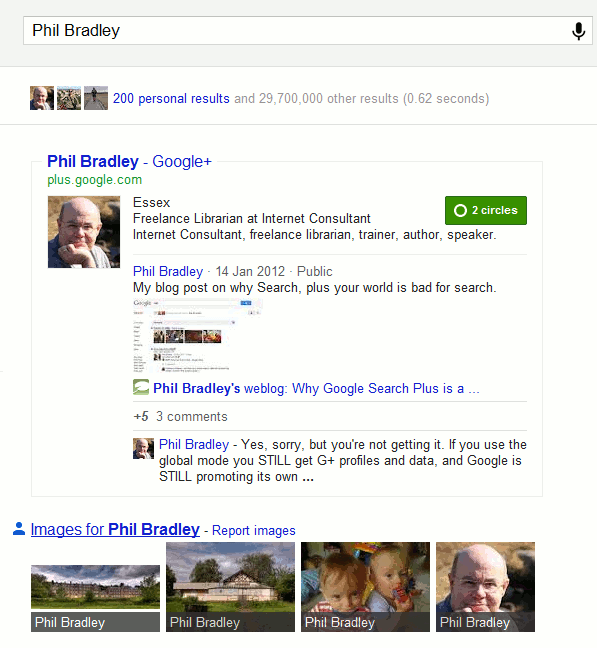
You can of course just log out of your Google account before you run a search, or never sign up for Google+ in the first place. But Google is making the latter increasingly difficult. Let's look at the results that might be popping up on your screen and as an example I'll use a search on Phil Bradley, search and social media expert and President of CILIP. First of all a search on Phil Bradley before Search+ arrived:


On my screen I see pages from his web site, his blog and a Wikipedia entry (which is not the Phil Bradley I am looking for!). When I sign in to a Google account that has Google+ associated with it I see something completely different:


Phil's Google+ profile is given priority above everything else and takes up most of the screen regardless of whether or not it is the most relevant or most up to date (Real-Life Examples Of How Google's "Search Plus" Pushes Google+ Over Relevancy http://searchengineland.com/examples-google-search-plus-drive-facebook-twitter-crazy-107554).  And don't think you can escape with a Google account that does not include Google+. Google has ways of enticing you to "upgrade":


Even worse, if you sign up now for a new Gmail, YouTube or Blogger account you are automatically joined to Google+ (http://searchenginewatch.com/article/2140440/New-Gmail-YouTube-Blogger-Users-Join-Google-by-Default).

Search+ has even tainted the suggestions that pop up as you type in your search:


Phil's Google+ profile is given prominence and if you click on the link without having an account yourself your are invited to join:


To see what the suggestions should look like a group called Focus on the User (http://www.focusontheuser.org/) has produced a bookmarklet for Chrome, Firefox and Safari and extensions for Chrome and Firefox. This tries - and succeeds most of the time - to display your search results without the intrusion of Google+ results. For my search on Phil his Google+ profile is replaced with Twitter.


When I run a search on my own name my Google+ entry is supplanted by my LinkedIn profile.

"What Google should be" does not, though, remove the extra "content" that Search+ sometimes adds to the right of your results. Run a subject search and you may see "People and Pages on Google+" that are supposedly related to your search terms.


I have not yet found these entries to more relevant than standard search results and the link "Learn how you could appear here too" indicates that Google sees this as another way of persuading people and organisations to join Google+. Switching it off is not easy. It is still there if you are logged out of your Google account. It is still there if you add &pws=0 to the search URL (in fact &pws=0 does not seem to work any more at all for depersonalising results). It does disappear, though, if you use Incognito in Chrome. The intrusion of Google+ is most obvious when running searches with just one or two terms or more consumer biased searches. As soon as you start building more complex searches involving filetype: or site: for example, or research more scientific subjects then Google+ takes a back seat.

Search+ is not all that is affecting how Google presents results. Google is simplifying its privacy policies and combining user data from all of its services (Official Google Blog: Updating our privacy policies and terms of service http://googleblog.blogspot.com/2012/01/updating-our-privacy-policies-and-terms.html). It sounds innocent enough but I've already spotted major changes. Google knows I live in Reading because I have told it and I do find that useful when I am carrying out local searches for restaurants, builders etc. Google has now decided, though, to bombard my YouTube home page with videos about Reading.


The videos of the Reading railway station redevelopment are vaguely interesting but I see enough of that in real life on a daily basis when I pass through the centre of town. The football videos are of no interest to me whatsoever. So the crossover of content has already started and I am not looking forward to what Google decides to put in my web search results as a consequence of my YouTube activity!

It is becoming increasingly difficult to make Google behave. Using advanced search commands is one way but many searches do not require them. The best method I have found so far is to use Chrome as your browser and open an incognito window. This depersonalises your results, ignores your web history and existing cookies, and leaves no traces of your search activity. Alternatively, since Google has clearly lost the plot when it comes to search, try another service. The three that I would currently recommend are Bing (http://www.bing.com/), DuckDuckGo (http://duckduckgo.com/) and Blekko (http://blekko.com/).