If you are a user of Exalead (http://www.exalead.com/search/) and use the filetype command you will need to make note of some changes to the file extensions. If you are looking for Excel spreadsheets you will now have to include ‘filetype:excel’ in your search strategy, for PowerPoint it is ‘filetype:powerpoint’ and for Word documents type in ‘filetype:word’. I assume that the changes are to ensure that the ‘new’ Microsoft Office 2007 extensions pptx, docx and xlsx are picked up. Alternatively, you could run just a keyword search and select the filetype from the menu down the right hand side of the results page.
In Google you have to run separate command line searches if you want to pick up both ppt and pptx files. The advanced search screen file format drop-down menu options only search for pre Microsoft Office 2007 file extensions. Bing does not seem to recognise the newer file extensions at all but you can search for them in Yahoo using the ‘originurlextension:’ command. Like Google, Yahoo’s advanced search screen file format box does not pick up the 2007 extensions.
Most people who use Microsoft Office 2007 generally convert files to 97-2003 format before uploading them to the web, but Office 2010 is well into beta testing and the new extensions will start to become more commonplace. It will be interesting to see if and how Google, Yahoo and Bing manage search for these new filetypes.
Showing posts with label Exalead. Show all posts
Showing posts with label Exalead. Show all posts
Thursday, 25 February 2010

Tuesday, 6 October 2009
Presentation: Internet Search - a challenging and ever changinglandscape
CILIP in the Thames Valley, 6th October 2009, Great Expectations, Reading
The presentation I gave to CILIP in the Thames Valley on 6th October is now available in a number of locations. At least one of these should be accessible through your firewall!
PowerPoint presentation - RBA web site
Slideshare
Authorstream
Slideboom
Some of the slides have annotations from my blog and new comments so make sure you check out the notes to the slides. Many of the slides are screen shots so they won't make much sense without the notes or unless you were at the live presentation.
Wednesday, 16 September 2009
Searching for images by colour
This is not a frequently asked question on my workshops but when it is raised by one of the participants it generates a great deal of interest amongst the rest. So far I have come across three that I would recommend trying.
The first is Exalead's Chromatik, which is part of the Exalead Labs experimental area. This enables you to search a selection of Flickr images by colour and optionally by keyword. You first select one or more colours or hues from a palette which are added to a bar below the palette. You can adjust the proportions of the colours in the photos by moving the separators between the colours in the bar. Luminosity can be toggled between bright and dark, and saturation between colourful and grey levels. The last option in the list is to search for specific images using keywords (I assume this searches the titles, tags and descriptions associated with the Flickr images). The implication is that once you have selected your colours you can then limit your search to particular objects. In practice, if you search for colour followed by keyword, Chromatik ignores your colour choices and searches only on your keywords. If, for example, you want to search for apples of a particular colour you must first search on apples and then pick your colours.
It pays to keep the number of colour choices to two or three, even if you require very specific colours, as this will give you a wider range of images to choose from. When the thumbnails are displayed you can hover over the best match and select "show images with same colors". Click on an image and it is displayed full size, but in order to see further information about it you have to right click and select properties. This will give you a URL for the original image on Flickr but only for the image itself. It does not take you to the "full" Flickr page for the photo, which means that you cannot check ownership and copyright.

The second tool is Multicolr Search Lab from Idée Inc. This uses "10 million of the most “interesting” Creative Commons images on Flickr". As with Chromatik you select colours from a palette. You can select up to ten colours and click on the same colour several times if you wish to increase its prominence in the photo. Unfortunately there is no keyword search. On the plus side, if you find an image you like simply click on the image to go straight to its page on Flickr where you can double check the copyright situation.

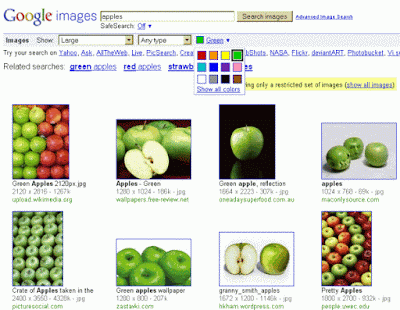
And of course there is Google's image search. Carry out a search on your keywords in Google images and above the results there is an option to select a colour. There are only twelve colours from which to choose and you can only select one but it works well enough. If you want to search only Creative Commons images then carry out the first stage of your search in the Advanced Image Search screen and select the appropriate option from the Usage Rights menu.
The first is Exalead's Chromatik, which is part of the Exalead Labs experimental area. This enables you to search a selection of Flickr images by colour and optionally by keyword. You first select one or more colours or hues from a palette which are added to a bar below the palette. You can adjust the proportions of the colours in the photos by moving the separators between the colours in the bar. Luminosity can be toggled between bright and dark, and saturation between colourful and grey levels. The last option in the list is to search for specific images using keywords (I assume this searches the titles, tags and descriptions associated with the Flickr images). The implication is that once you have selected your colours you can then limit your search to particular objects. In practice, if you search for colour followed by keyword, Chromatik ignores your colour choices and searches only on your keywords. If, for example, you want to search for apples of a particular colour you must first search on apples and then pick your colours.
It pays to keep the number of colour choices to two or three, even if you require very specific colours, as this will give you a wider range of images to choose from. When the thumbnails are displayed you can hover over the best match and select "show images with same colors". Click on an image and it is displayed full size, but in order to see further information about it you have to right click and select properties. This will give you a URL for the original image on Flickr but only for the image itself. It does not take you to the "full" Flickr page for the photo, which means that you cannot check ownership and copyright.

The second tool is Multicolr Search Lab from Idée Inc. This uses "10 million of the most “interesting” Creative Commons images on Flickr". As with Chromatik you select colours from a palette. You can select up to ten colours and click on the same colour several times if you wish to increase its prominence in the photo. Unfortunately there is no keyword search. On the plus side, if you find an image you like simply click on the image to go straight to its page on Flickr where you can double check the copyright situation.

And of course there is Google's image search. Carry out a search on your keywords in Google images and above the results there is an option to select a colour. There are only twelve colours from which to choose and you can only select one but it works well enough. If you want to search only Creative Commons images then carry out the first stage of your search in the Advanced Image Search screen and select the appropriate option from the Usage Rights menu.

Monday, 30 July 2007
Live Search Images adds face search
First Exalead adds an option to limit your image search to faces, then Google, and now Live Search has joined the gang. In terms of ease of use, it is not as slick as Exalead's but not quite as clunky as Google's. You first of all carry out a search in Live Images and then add filter:face to your search search strategy or filter:portrait. If you want to look for black and white images you add filter:bw. At present you have to remember the commands but they say they are looking at how to make these features intuitively accessible through a drop-down menu or some other means.
On my image test searches on Live.com I cannot honestly say it was better or worse than Exalead or Google. None of them are perfect. They do remove most of the non-people images but all three also lose relevant faces and 'portraits'.
On my image test searches on Live.com I cannot honestly say it was better or worse than Exalead or Google. None of them are perfect. They do remove most of the non-people images but all three also lose relevant faces and 'portraits'.
Friday, 13 July 2007
Exalead to access scientific articles
Exalead has announced on its blog that it has reached an agreement with the Institute of Scientific and Technical Information (INIST) that will allow Exalead to offer its public search engine users access to INIST’s database of 13 million English, French, Spanish and Italian-language scientific articles. According to the press release "Exa-searchers will soon be able to explore this rich resource using Exalead’s practical search refinement tools, like dynamically generated lists of related terms and concepts".
As a regular user of scientific databases myself, anything that highlights good quality, reliable and consistent resources is great news. I am becoming increasingly tired of explaining to people why I have problems with Google Scholar. I will delay my final verdict on the Exalead-INIST offering, though, until I have seen it in action.
As a regular user of scientific databases myself, anything that highlights good quality, reliable and consistent resources is great news. I am becoming increasingly tired of explaining to people why I have problems with Google Scholar. I will delay my final verdict on the Exalead-INIST offering, though, until I have seen it in action.
Tuesday, 29 May 2007
New Exalead Video Search (Beta)
Exalead have launched a video search for the YouTube, Dailymotion, Metacafe, Kewego and IFILM web sites. There is a link to the new beta service on the Exalead home page.
On the results page a pull-down box enables you to sort results by relevance, most recent, most rated, most viewed, or
length. You can also use the “Narrow your search panel to refine your search by source (website) or video length. Below the “Narrow your search panel is a tag cloud showing the the tags and categories of the videos appearing in your results, allowing you to refine your search further. Each entry in the results list includes a thumbnail image of the video, a title, summary, author, duration, upload date, and a viewer score represented by stars.
This video search option is different from the one that is offered to the right of the web search results page. The latter is the one to to go for if you want more serious, business items for example television news reports and interviews.
On the results page a pull-down box enables you to sort results by relevance, most recent, most rated, most viewed, or
length. You can also use the “Narrow your search panel to refine your search by source (website) or video length. Below the “Narrow your search panel is a tag cloud showing the the tags and categories of the videos appearing in your results, allowing you to refine your search further. Each entry in the results list includes a thumbnail image of the video, a title, summary, author, duration, upload date, and a viewer score represented by stars.
This video search option is different from the one that is offered to the right of the web search results page. The latter is the one to to go for if you want more serious, business items for example television news reports and interviews.
Saturday, 5 May 2007
Exalead UK and new search features
Exalead now has a UK version of its search engine that includes an option to limit your search to UK pages only. Both Exalead.com and UK have added a Wikipedia search and options to limit your results to blogs or forums. Alternatively, you can choose to exclude those types of sites. The Wikipedia search includes a “Narrow your search" panel on the results page that lists 'tags' for categories, related terms, people, location and organizations.

Exalead has also launched a new version of its image search with over one billion images indexed. The new 'Face' filter enables you to narrow your search results to images containing faces. It is not a hundred per cent accurate and sometimes excludes images that are of faces and includes some in which there are no faces at all, but it is close enough. Other options include size of image, wallpapers, image colour, layout and file type.

Exalead has also launched a new version of its image search with over one billion images indexed. The new 'Face' filter enables you to narrow your search results to images containing faces. It is not a hundred per cent accurate and sometimes excludes images that are of faces and includes some in which there are no faces at all, but it is close enough. Other options include size of image, wallpapers, image colour, layout and file type.
Wednesday, 23 August 2006
New version of Exalead under test
A new version of Exalead (http://preview.exalead.com/search/), one of my favourite search engines, is currently in beta test. The beta home page thankfully remains minimalist and uncluttered but has retained the short cut options that enable you to add other sites and search engines to your own personalised version of the page. Exalead say that they will be increasing the size of the web database from 4 to 8 billion pages and there is a separate image search option on the home page.
The major changes are on the Advanced Search and the results screens. The Advanced Search has been simplified and the phonetic search and approximate spelling have gone. A pity .... er, no they are still there but under ‘What?', 'More’. For heaven’s sake, list them by default along with NEAR, Boolean search and the pattern matching/regular expression options! It was only when Phil Bradley mentioned their location in his blog that I realised they had not been axed. And if I missed the link, so will a lot of other people. If you have never tried ‘regular expression’, it is a pattern matching search that you can use to mask one or more letters in the middle of a word. For example the search /psych.*ist/ will find psychologist, psychiatrist, psychotherapist etc. You start and end the word with a forward slash, and a full stop followed by an asterisk stands in for one or more letters. I find it very useful when searching on chemical names.
The results screen has also been simplified. To limit your search by language, file type, location, RSS feed, video or audio you now have to click on 'Refine your search' on the right hand side of the screen. I think that is a mistake as I suspect that a lot of people will not bother to investigate it. Furthermore, because these options are not on the advanced search screen, they will think that Exalead’s search functionality is limited. I know some people find the current results screen overpowering and confusing, but Exalead could at least restore the RSS, Video and Audio buttons to the results page and include the refine options in Advanced Search as well.
A new feature that I do like is the page preview button on the thumbnails next to the results. If you have opted to display text only results there is preview link included in each entry. Preview enables you to look at Exalead’s own cached copy with your search terms highlighted. This has always been available but it has never been obvious how you do it.
As this is still in beta, changes are continually being made. Watch this space, as they say, for further developments. In the meantime you can compare and contrast at http://www.exalead.com/ and http://preview.exalead.com/search/
The major changes are on the Advanced Search and the results screens. The Advanced Search has been simplified and the phonetic search and approximate spelling have gone. A pity .... er, no they are still there but under ‘What?', 'More’. For heaven’s sake, list them by default along with NEAR, Boolean search and the pattern matching/regular expression options! It was only when Phil Bradley mentioned their location in his blog that I realised they had not been axed. And if I missed the link, so will a lot of other people. If you have never tried ‘regular expression’, it is a pattern matching search that you can use to mask one or more letters in the middle of a word. For example the search /psych.*ist/ will find psychologist, psychiatrist, psychotherapist etc. You start and end the word with a forward slash, and a full stop followed by an asterisk stands in for one or more letters. I find it very useful when searching on chemical names.
The results screen has also been simplified. To limit your search by language, file type, location, RSS feed, video or audio you now have to click on 'Refine your search' on the right hand side of the screen. I think that is a mistake as I suspect that a lot of people will not bother to investigate it. Furthermore, because these options are not on the advanced search screen, they will think that Exalead’s search functionality is limited. I know some people find the current results screen overpowering and confusing, but Exalead could at least restore the RSS, Video and Audio buttons to the results page and include the refine options in Advanced Search as well.
A new feature that I do like is the page preview button on the thumbnails next to the results. If you have opted to display text only results there is preview link included in each entry. Preview enables you to look at Exalead’s own cached copy with your search terms highlighted. This has always been available but it has never been obvious how you do it.
As this is still in beta, changes are continually being made. Watch this space, as they say, for further developments. In the meantime you can compare and contrast at http://www.exalead.com/ and http://preview.exalead.com/search/
Sunday, 2 April 2006
Exalead enhances NEAR command
Exalead has enhanced its NEAR command by allowing searchers to specify how close they want their search terms to be to one another. By default, NEAR looks for your terms within 16 words of one another in the order specified. You can now specify the maximum number of words that can separate your terms by using NEAR/n.
For example:
climate NEAR/2 change
finds climate followed by change but separated by up to 2 words.
climate NEAR/5 change
finds your terms separated by up to 5 words.
It is interesting that Exalead is resurrecting some of the search options that used to be standard but have been dropped by most of the major search engines. AltaVista used to have a NEAR command but this disappeared soon after it was bought by Yahoo.
For example:
climate NEAR/2 change
finds climate followed by change but separated by up to 2 words.
climate NEAR/5 change
finds your terms separated by up to 5 words.
It is interesting that Exalead is resurrecting some of the search options that used to be standard but have been dropped by most of the major search engines. AltaVista used to have a NEAR command but this disappeared soon after it was bought by Yahoo.
Friday, 10 February 2006
Exalead reaches 4 billion pages
Exalead is now searching over four billion Web pages and aims to reach eight billion by July. As many information professionals say, the size of the web database is irrelevant if it generates rubbish results but a critical mass is essential to encourage users to use a search engine, and Exalead has certainly done that now.
I am a great fan of Exalead: it has several unique features and has resurrected a couple that were discarded by the other main stream engines long ago. You can use wildcards (*) at the end of a word and the NEAR command looks for your terms within 16 words of each other. Unique features include phonetic and approximate spelling search options, and the pattern matching option enables you to cheat - ahem, I mean - can help you find that final, elusive solution for your crossword puzzle.
And if you want to run your search in other search tools after running it through Exalead, you can set up short cuts to them from Exalead's home page. (For further details see Tales From the Terminal Room October 2005: Exalead revamps web search.
I am a great fan of Exalead: it has several unique features and has resurrected a couple that were discarded by the other main stream engines long ago. You can use wildcards (*) at the end of a word and the NEAR command looks for your terms within 16 words of each other. Unique features include phonetic and approximate spelling search options, and the pattern matching option enables you to cheat - ahem, I mean - can help you find that final, elusive solution for your crossword puzzle.
And if you want to run your search in other search tools after running it through Exalead, you can set up short cuts to them from Exalead's home page. (For further details see Tales From the Terminal Room October 2005: Exalead revamps web search.
Monday, 19 September 2005
Exalead one:desktop
Exalead is the latest to join the desktop search club, with its preview launch of exalead one:desktop. This has been tested for several months by a selected group of users (I was one of them), but the non-disclosure agreement forbade us to mention that the software even existed! I can't say that I have tested it exhaustively; I rarely need to use a desktop search program and Exalead's does not yet index Thunderbird email or Star/Open Office documents. Support for these applications is promised for later in the year.
If your documents are mostly Microsoft, Adobe, html or Wordperfect then exalead one:desktop is worth considering for its unique advanced search options. As well as the standard phrase searching, OR and NOT commands there is a NEAR command which searches for words within 16 words of one another, a phonetic search, approximate spelling and pattern matching. You can also have word stemming switched on by default.
When you install the program, you can specify which directories and areas of your hard disk you want it to index and you can also control when it indexes. The results are displayed with preview thumbnails for some of the formats, but you can switch this off if you prefer to view the results as text only. On the left had side of the screen, there are options that enable you to narrow down your search by folder, author, date, size and document type. This will all be very familiar to users of the Exalead's web search. For web search Exalead is the default but you can set up shortcuts to other tools.
Overall, definitely worth a try - especially for the advanced search features.
Link: http://www.exalead.com/
If your documents are mostly Microsoft, Adobe, html or Wordperfect then exalead one:desktop is worth considering for its unique advanced search options. As well as the standard phrase searching, OR and NOT commands there is a NEAR command which searches for words within 16 words of one another, a phonetic search, approximate spelling and pattern matching. You can also have word stemming switched on by default.
When you install the program, you can specify which directories and areas of your hard disk you want it to index and you can also control when it indexes. The results are displayed with preview thumbnails for some of the formats, but you can switch this off if you prefer to view the results as text only. On the left had side of the screen, there are options that enable you to narrow down your search by folder, author, date, size and document type. This will all be very familiar to users of the Exalead's web search. For web search Exalead is the default but you can set up shortcuts to other tools.
Overall, definitely worth a try - especially for the advanced search features.
Link: http://www.exalead.com/
Subscribe to:
Posts (Atom)