Monday, 31 October 2016

WebSearch Academy presentations - edited highlights

Edited highlights from the presentations I gave at the WebSearch Academy on 17th October 2016 at the Olympia Conference Centre, London are now available on SlideShare.  They are also available on authorSTREAM. These are selected slides from the presentations; if you attended the event and would like copies of the full sets please contact me.

The presentations are:

New Dimensions in Search: seeing, hearing viewing (takes you to authorSTREAM). Searching for images, video and audio.

WebSearch Academy: If not Google then what? (takes you to authorSTREAM). Looks at alternatives to Google and some specialist tools.

SlideShare options for both are given below.


Saturday, 22 October 2016

Google results: review stars may not refer to what you think they do

The contract for our domestic electricity supply is ending next month so I am trawling through cost comparison and energy supplier websites to check tariffs for our next contract. (UK readers can skip the rest of this explanatory paragraph). I don't know what the situation is in other countries but in the UK the gas and electricity suppliers are forever inventing a variety of tariffs priced significantly less than their "standard" rates to entice you to sign up. The lower priced tariffs are generally only available for a year, or two years at most. At the end of the contract the customer is usually transferred to the more expensive standard rate unless they actively seek out an alternative. The existing supplier is obliged to inform the customer of the new tariffs that will be on offer but the onus is on the customer to inform the company which tariff, if any, they wish to switch to.  For other suppliers' tariffs the customer has to do their own research.

Price comparison sites are a good starting point to identify potential alternatives but the only way to check that the a tariff meets all of your criteria, of which price may be just one of many, is to go direct to the supplier's website. Today I spent most of the morning drawing up the shortlist.

The next step in my strategy was to look at customer reviews on the comparison websites, social media, discussion boards and to run a Google search on each supplier. The reviews and comments generally spanned several years and while the history of a company's customer service performance can be useful it is the last 12-18 months that are most relevant. This is where limiting the search to more recent information by  using Google's date option comes into play. Having spent an hour or so to get this far, and with my brain beginning to wilt, it was tempting to read just the Google snippets for the reviews; but they can convey the wrong overall impression. Google sometimes creates snippets by pulling together text from two or more sections of a page that may be separated by several paragraphs and which may be about completely different products or topics. Never take the snippet at face value and always click through to the original, full article.

One of the energy providers on my short list is Robin Hood Energy, which is a not-for profit company run by Nottingham City Council and has only recently been made available to customers outside of Nottingham.  Customer reviews are therefore less plentiful than for many of the other utilities. The results from a search on

Robin Hood Energy customer reviews

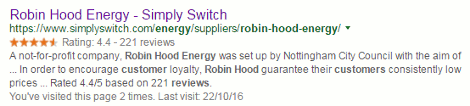
included one from Simply Switch. Underneath the title and URL is a star rating of 4.4 from 221 reviews and one could be forgiven for assuming that this refers to Robin Hood Energy. This is reinforced by the text in the second half of the snippet: "Robin Hood guarantee their customers consistently low prices ... rated 4.4/5 based on 221 reviews".  robin_hood_customer_reviews

The dots are important in that they represent a missing chunk of text between the two pieces of information. When I looked at the web page itself the rating was nowhere to be found in the main body of the text. It was in the footer of the page and referred to the Simply Switch site.

simply_switch_reviews

A reminder, then, to never rely on the snippets for an answer, and always click through and read the whole web page.

Thursday, 6 October 2016

Google Blogger loses links and blog lists: what to do next

Google Blogger has done it again. A major update to the service was rolled out at the end of September and many users woke up to find that the links and blog lists they had so carefully created had gone.   See the Blogger Help Forum for some of the postings and comments on the incident.  Blogger engineers are supposedly working to restore the lost information  but it "may take up to several days." Or never! This is not the first time that blog content has gone missing after an update. A few years ago an update somehow removed the most recent posts from people's blogs. Most of them were eventually recovered but a few disappeared without trace.

The lesson learned from that experience was back up your blog. In Blogger the import and backup tool is under Settings, Other and at the top of the page. Note, though that this will only backup the text of pages, posts and comments. It does not backup any changes you have made to the template, or the content of the gadgets in your sidebars such as links lists and blogrolls. For the  template click on Template in the lefthand sidebar and then on Backup/Restore. This will save the general layout of the gadgets but not the content. For that you will need to copy and save the content for each gadget or save a copy of the content and HTML of your blog.  Back up your Blogger blog: photos, posts, template, and gadgets has details of what you need to do.

And don't forget your photos. For those use Google's Takeout service at https://www.google.com/settings/takeout.

If you don't have a copy of your lists of links then see if you can access an older cached version of your blog  via Google or Bing and save the whole page, or take screen shots. If you try this several days after the event you may be out of luck. Mine were still in the cached page for up to 2 days but have now gone. In Google, use the 'cache:' command, for example:

cache:yourblogname.blogspot.com

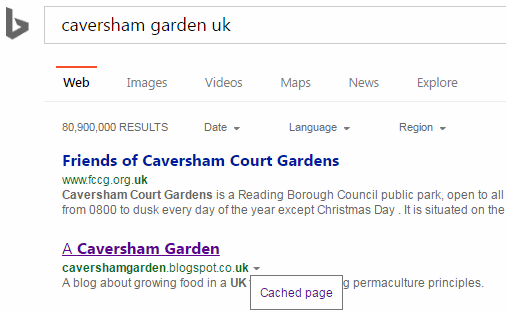
An alternative is to search for your blog and next to your entry in the results lists there should be a small downward pointing green arrow. Click on it and then on the 'Cached' text to view the page.  This works in both Google and Bing  and, again, the sooner you do this the better.

bing_cached_option

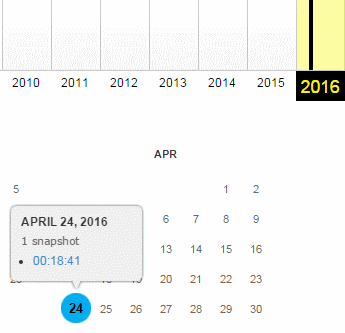
If none of that works then try the Wayback Machine. Type in the URL of your blog and see if they have any snapshots.

wayback_blog

Still no joy? Then either hang around a while longer to see if the Blogger engineers manage to revive your lists or start rebuilding them from scratch. If you haven't looked at them in a while, maybe now is the time to review the content anyway.

Monday, 19 September 2016

Essential Non-Google Search Tools for Researchers - Top Tips

This is the list of Top Tips that delegates attending the UKeiG workshop on 7th September 2016 in London came up with at the end of the training day.  Some of the usual suspects such as the 'site:' command, Carrot Search and Offstats are present but it is good to see Yandex included in the list for the first time.

  1. Carrotsearch http://search.carrotsearch.com/carrot2-webapp/search or http://carrotsearch.com/ and click on the “Live Demo” link on the left hand side of the page.
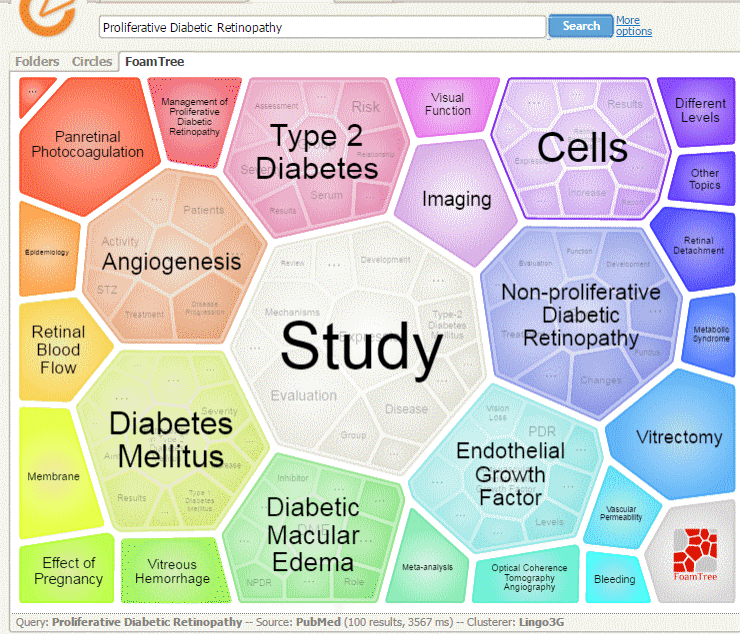
    This was recommended for its clustering of results and also the visualisations of terms and concepts via the circles and “foam tree”. The Web Search uses eTools.ch for the general searches and there is also a PubMed option.

    [caption id="attachment_3731" align="aligncenter" width="400"]Carrot Search Foam PubMed Foam Tree Carrot Search Foam PubMed Foam Tree[/caption]


  1. Advanced Twitter Search http://twitter.com/search-advanced
    The best way to search Twitter! Use the Advanced Search http://twitter.com/search-advanced or the click on the “More Options” on the results page. There is a detailed description of the commands and how they can be used at https://blog.bufferapp.com/twitter-advanced-search 


  1. Yandex http://www.yandex.com/
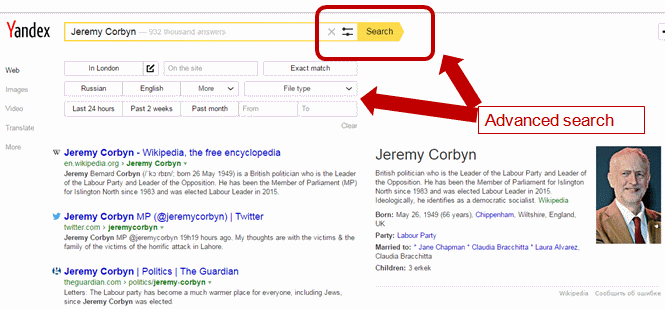
    The international version of the Russian search engine with a collection of advanced commands - including a proximity operator - that makes it a worthy competitor to Google. Run your search and on the results page click on the two line next to search box.

    [caption id="attachment_3734" align="aligncenter" width="400"]Yandex Advanced Search Yandex Advanced Search[/caption]

    Alternatively, use the search operators. Most of them are listed at https://yandex.com/support/search/how-to-search/search-operators.xml. There is also a /n operator that enables you to specify that words/phrases must appear within a certain distance of each other, for example:

    "University of Birmingham" nanotechnology /2 2020

    There are country versions of Yandex for Russia, Ukraine, Belarus, Kazakhstan and Turkey. You will, though, need to know the languages to get the best out of them and apart from Turkey they use a different alphabet.


  1. Millionshort http://millionshort.com/
    If you are fed up with seeing the same results from Google again and again give MillionShort a try. MillionShort enables you to remove the most popular web sites from the results. The page that best answers your question might not be well optimised for search engines or might cover a topic that is so specialised that it never makes it into the top results in Google or Bing.Originally, as its name suggests, it removed the top 1 million but you can change the number that you want omitted. There are filters to the left of the results enabling you to remove or restrict your results to ecommerce sites, sites with or without advertising, live chat sites and location. The sites that have been excluded are listed to the right of the results.


  1. site: command
    Use the site: command to focus your search on particular types of site, for example include site:ac.uk in your search for UK academic websites. Or use it to search inside large rambling sites with useless navigation, for example site:www.gov.uk. You can also use -site: to exclude individual sites or a type of site from your search. All of the major web search engines support the command.


  1. Microsoft Academic Search http://academic.research.microsoft.com/
    An alternative to Google Scholar.“Semantic search provides you with highly relevant search results from continually refreshed and extensive academic content from over 80 million publications.”This was recently revamped and although it now loads and searches faster than it used to the new version has lost the citation and co-author maps that were so useful. It can be a useful way of identifying researchers, publications and citations but do not rely on the information too much. It can get things very wrong indeed. For example, I’ve found that for some reason the affiliation of several authors from the Slovak Technical University in Bratislava is given as the Technical University of Kenya!


  1. Wolfram Alpha https://www.wolframalpha.com/
    This is very different from the typical search engine in that it uses its own curated data. Whether or not you get an answer from it depends on the type of question and how you ask the question. The information is pulled from its own databases and for many results it is almost impossible to identify the original source, although it does provide a possible list of resources. If you want to see what WolframAlpha can do try out the examples and categories that are listed on its home page.


  1. OFFSTATS - The University of Auckland Library http://www.offstats.auckland.ac.nz/
    This is a great starting point for locating official statistical sources by country, region or subject. All of the content in the database is assessed by humans for quality and authority, and is freely available.


  1. Meltwater IceRocket http://www.icerocket.com/
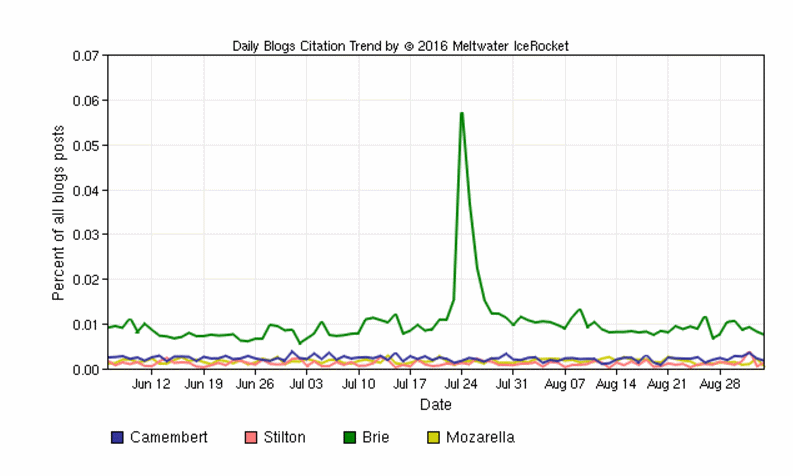
    IceRocket specialises in real-time search and was recommended for inclusion in the Top Tips for its blog search and advanced search options. There is also a Trends tool that shows you the frequency with which terms are mentioned in blogs over time and which enables you to compare several terms on the same graph.

    [caption id="attachment_3739" align="aligncenter" width="400"]IceRocket Trends IceRocket Trends[/caption]

    Very useful for comparing, for example, mentions of products, companies, people in blogs.


  1. Behind the Headlines NHS Choices http://www.nhs.uk/news/Pages/NewsIndex.aspx
    Behind the headlines provides an unbiased and evidence-based analysis of health stories that make the news. It is a good source of information for confirming or debunking the health/medical claims made by general news reporting services, including the BBC. For each “headline” it summarises in plain English the story, where it came from and who did the research, what kind of research it was, results, researcher’s interpretation, conclusions and whether the headline’s claims are justified.

Thursday, 1 September 2016

Don't expect advanced search features to exist forever

A couple of weeks ago I wrote about the problems I was having with Google Verbatim (Google Verbatim on the way out?). This morning I ran through a checklist of commands that I am demonstrating in a webinar and it seems that Verbatim is back working as it should. Don't hold your breath, though. Three times this year I have seen Google Verbatim disappear or do strange things and a couple weeks later return to normal. Verbatim may be here to stay or it may not, but you cannot depend on many advanced search commands to always work as you expect. So either learn different ways of making Google treat your search in the way you require or use a different search engine.

Unfortunately, disappearing or unreliable functionality is not confined to just Google. Bing used to have a very useful proximity command that allowed you to specify how close you wanted your words to be to one another. The "near:n"  operator is still listed in Bing's list of advanced search commands and, although it seems to do something and reduce the number of results, it does not behave as described.

There is also the endangered list such as DuckDuckGo's sort by date option. In fact all of DuckDuckGo's web search options will probably soon change or disappear as it is currently powered by Yahoo! which has been bought by Verizon. Who will DuckDuckGo turn to if Verizon does combine Yahoo with AOL as has been stated in the press?

Get to know several different search tools really well and, for the ones that you use regularly, find out how they work and who provides the search results.


Thursday, 11 August 2016

Google Verbatim on the way out?

Update: 1st September 2016 - Verbatim seems now to be working as it should. I hope it stays that way but on three occasions this year I have seen it work one day, then not the next and then back to working again.

We have become accustomed to Google rewriting and messing about with our searches, and dropping search features that are infrequently used. The one option that could control most of Google's creative interpretation of our queries was Verbatim but that now looks as though it could be destined for the axe as well.

A reminder of what Verbatim does. If you want to stop Google looking for variations on your terms, ignoring double quote marks around phrases,  or dropping words from the search Verbatim is, or rather was, the quickest way to do it. If you are using a  desktop or a laptop computer,  run your search as normal. On the results page click on 'Search Tools' at the end of the line of options that appears at the top. Then, from the second line of options that should appear,  choose 'All results' followed by Verbatim. The location of Verbatim on other  devices varies.

Verbatim has been invaluable when searching on titles of research papers, legislation or researching topics for which you expect or want to retrieve very few or zero results. You might be researching rare adverse events associated with a pharmaceutical drug or wanting to confirm that what you are about to patent has not  already been published and is out there for all to see. Or the topic is so specific that you only expect to see a  handful of documents, if that. So, sometimes, no or a low number of results is a good thing. But Google does not like zero or small numbers of results and that is when Google's search rewrite goes into overdrive.

I had noticed for a few months that Verbatim was not always working as expected but had hoped it was one of Google's experiments. The problem has not gone away and the really confusing part is that Verbatim is still doing something but not what I would expect.

I was working in Penryn in July and took the opportunity to wander around the place. Inevitably, I googled some of the sites I had seen for further information but one threw up the Verbatim problem.  I was particularly interested in what looked like a memorial but didn't have time to seek out information on site. Looking at the photo afterwards I can where the plaque was (to the right and next to the flagpole) but I missed it on the day.

[caption id="attachment_3714" align="aligncenter" width="300"]Memorial Garden Penryn The memorial and garden commemorates 18 residents of Penryn who were killed during an air raid in May 1941.[/caption]

I did see a sign on the wall surrounding the area, though, telling me that it was "two" on the Penryn Heritage Trail.

Penryn Heritage Trail

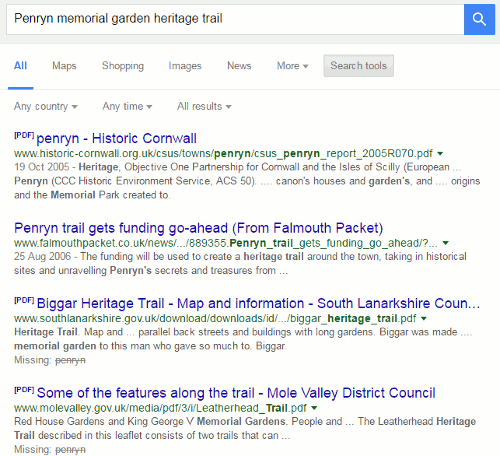
A quick, basic search told me that it is called the Memorial Garden but I wanted to find out more. I searched  on Penryn memorial garden heritage trail.

Google test search omitting terms 1

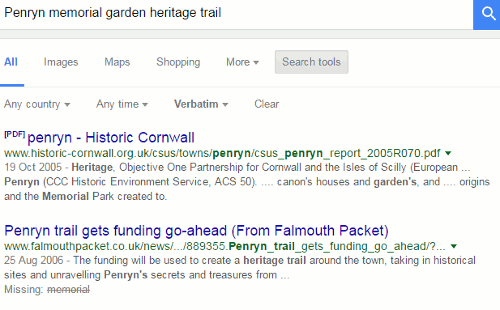
This gave me 15,900 results but Google had decided to leave out Penryn so I was seeing plenty of information about heritage trails but they were not all in Penryn. I prefixed Penryn with intext: to force Google to include it in the search but then the word heritage was dropped. I applied Verbatim to the search without the intext: command.

Verbatim-failure-2

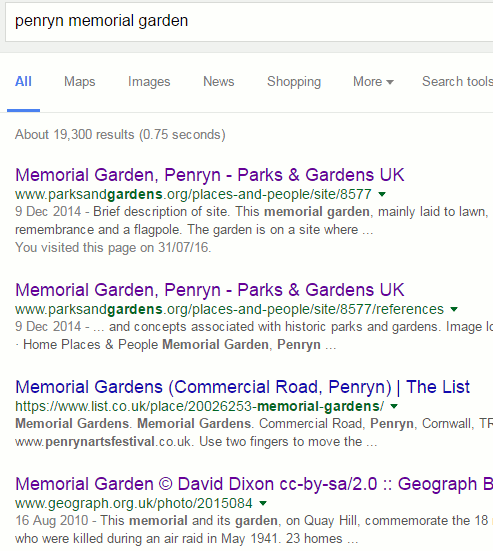
This gave me 732 results but even though I had applied Verbatim Google had dropped 'memorial' from the search. I prefixed memorial with intext: and got 1230 results with little change to the top entries. And no, I have no idea why there are more hits for this more specific search. I can only assume that other terms were omitted but I was not seeing that in my top 50. I then did what I should have done right from the start and searched on Penryn, and "memorial garden" and "heritage trail" as phrases. When Verbatim was applied this came back with  22 results but no detailed information about the garden. I started to tweak the search terms a little more. Verbatim would drop one, I would 'intext:' them and they were then included but I began to suspect that I was being too specific. So I dropped "heritage trail" from the search and cleared Verbatim: 19,300 results with all of the top entries being relevant and informative.

Search on Penryn memorial garden

This emphasises that it often pays to keep your search simple, and I mean really simple. Including too many terms, however relevant you may think they are, can be counter-productive. I would have realised earlier that my strategy was too complex had Verbatim behaved as I assumed it would and it had included all of my terms with no variations or omissions.

I ran a few of my test searches to see if this is now a regular feature. One was:

prevalence occupational asthma diagnosis agriculture UK


The results came back as follows:

Ordinary search - prevalence missing from some of the documents, 1,750,000 results
Verbatim search - diagnosis and agriculture missing from some of the documents, 15,300 results
Verbatim with quote marks around missing terms - same results as plain Verbatim with diagnosis and agriculture still missing
Verbatim search but prefixing missing terms with intext:, 14,200 results


I changed the search slightly to:

incidence occupational asthma diagnosis agriculture UK


Some of the results were:

Ordinary search - incidence and agriculture missing from some of the documents, 2,210,000 results
Verbatim search - incidence and agriculture missing, 15,500 results
Ordinary search on intext: incidence occupational asthma diagnosis intext:agriculture UK, 848,000 results
Verbatim intext:incidence occupational asthma diagnosis intext:agriculture UK, 15,000 results


I saw the same pattern with a few other searches. I also tested the searches in incognito mode, and both signed in and signed out of my Google account. There was very little difference in the results and Verbatim behaved in the same way.

It looks as though Verbatim still runs your search without any variations on your terms or synonyms but that it now sometimes chooses to omit terms from some of the documents.  To keep those terms in the search you have to prefix them with intext:. Double quote marks around the words are sometimes ignored. This is an unnecessary change and defeats the object of having an option such as Verbatim.

More worrying, though, is that Google obviously thinks Verbatim needs "fixing". But what it has done is to make the option more difficult to use, which in turn will result in people using it less often than they do already. And if Google sees that use is decreasing it will simply get rid of it altogether. Time to swot up on the few remaining Google commands, or use a different search tool.

If you are interested in learning more I am running workshops about Google and alternative search tools in September in London.

Friday, 22 July 2016

Google's 'daterange:' command gone for good

It looks as though Google's daterange: command really has gone for good. Over the last 6 months it has been a case of "now it works, now it doesn't" but I've been testing it regularly over the past couple of months and it seems to have permanently stopped working . People have been reporting the problem in various forums since the start of this year.

So why bother using "daterange:" instead of the date/time option under Search tools? Because the latter does not work with Verbatim. It doesn't happen often but there are occasions when I need Google to search using my terms exactly as I have typed them without any omissions or variations AND limit the search to a specified time period. The only way to do that was to first run the search with the daterange included in the string and then apply Verbatim to the results.

It is getting to the point where  Google is totally useless for advanced, focussed research. What will be next for the chop? filetype? site? If you haven't done so already, it is time to learn how to use the alternative search tools. Cue blatant plug for my September workshop with UKeiG : Essential non-Google search tools !