It looks as though Google's daterange: command really has gone for good. Over the last 6 months it has been a case of "now it works, now it doesn't" but I've been testing it regularly over the past couple of months and it seems to have permanently stopped working . People have been reporting the problem in various forums since the start of this year.
So why bother using "daterange:" instead of the date/time option under Search tools? Because the latter does not work with Verbatim. It doesn't happen often but there are occasions when I need Google to search using my terms exactly as I have typed them without any omissions or variations AND limit the search to a specified time period. The only way to do that was to first run the search with the daterange included in the string and then apply Verbatim to the results.
It is getting to the point where Google is totally useless for advanced, focussed research. What will be next for the chop? filetype? site? If you haven't done so already, it is time to learn how to use the alternative search tools. Cue blatant plug for my September workshop with UKeiG : Essential non-Google search tools !
Showing posts with label advanced search. Show all posts
Showing posts with label advanced search. Show all posts
Friday, 22 July 2016

Tuesday, 9 February 2016
Google advanced search - get it right!
When running advanced search workshops, and especially Google sessions, I prefer not to dwell on commands and search options that are no longer supported. They are gone and that is that, and it is far better to concentrate on how to get the best out of what is left. Of course it is unavoidable when your slides have been prepared several days before the event and Google decides to pull the plug on one of your favourite search features just before you start! Similarly I tend not to show "this is how NOT to use...." a command or incorrect syntax. It is often the incorrect format that one remembers. Recently, though, I have added slides to my presentations that cover both defunct commands and errors in syntax and format.
The problem is that not only are many people unaware that some search options are no longer available but also some fact sheets and articles covering advanced search are getting it wrong. The recent Guardian article on top search tips for Google almost got it right but referred to the tilde, which was dropped in 2013, and did not really understand how Google automatically looks for synonyms and variations on a term (see my earlier blog posting Guardian’s top search tips for Google not quite tiptop). I have also seen a couple of recently produced Google fact sheets riddled with mistakes.
The wonderful thing about Google is that it can take the most tortuous and error ridden search string and still come back with something that is sensible - most of the time. The downside of this is that one assumes the search query has worked as intended when in fact Google has totally rewritten the search for you. At some point, though, Google will rewrite the search in such a way that it brings back rubbish. So, it is important to know what commands are available and how they should be used.
Let's get started.
Plus (+) sign before a word to force an exact match.
This was discontinued in October 2011 because Google intended to use it as a way to search for Google+ pages. That has been abandoned and it is now a searchable character. If you want to force an exact match search on a term precede the term with intext: for example intext:agriculture.
I have also seen examples claiming that a plus sign between words acts as a Boolean AND. No, it doesn't. If you do get different results when using + it is because Google is searching for that as well as your terms.
Tilde (~) for synonyms
This was withdrawn in June 2013 because not many people used it and it was no longer needed. Google now looks for synonyms by default.
thesaurus: for alternative terms
'thesaurus:' sort of works because Google treats 'thesaurus', having ignored the colon, as a search term. So 'thesaurus:eclectic' will give you links to pages and websites of dictionaries and definitions that give synonyms for eclectic. It does not give you a straightforward list of alternatives in the same way that 'define' does. If you use thesaurus you have to go the websites in turn to view the synonyms.
The asterisk *
The asterisk (*) is a placeholder for terms between two words e.g. solar * panels finds solar photovoltaic panels, solar PV panels, solar thermal panels. It is NOT a truncation symbol. Again, you might think it is because Google ignores the asterisk and automatically looks for words that begin with the letters you have typed in.
The example I gave in my earlier blog posting was a search on phenobarb*. I expected Google to pick up references to phenobarbitone. It picked up 76,000 results including phenobarbital but there was no mention of phenobarbitone in the first 100. Phenobarb without the asterisk picked up the exact same results. A search on phenobarbitone, with and without the asterisk came up with 241,000 results. I have no idea how or when Google decides to stop looking for variations on your string but it is obvious from the above example that the asterisk is not a truncation symbol.
Do NOT capitalise the first letter of commands, and NO spaces
Commands such as intitle:, intext:, filetype: and site: must be all lower case and NO spaces between the colon and the search term. Capitalise the first letter or add a space after the colon or both and Google treats the command as an ordinary searchable word.
The correct format for an intitle: search is, for example, intitle:caversham and finds the following:

Capitalise the first letter of the command or insert a space or both and you find:

I do understand why so many fact sheets, and presentations, show commands with an initial capital letter. You spend ages preparing your information and when you have sent off your slides for printing or converted your document to a PDF you discover that Microsoft Office has changed the format of the command. Because your search example is on a separate line with the command at the start Office, bless it, decides to auto-correct and capitalise the first letter. I know, it has happened to me! So, please, check and double check your support materials.
Google searches for all of your terms by default
Not always. If your search, as it stands, finds zero or a low number of results then Google will drop one or more terms that are usually shown as strikethroughs. In the above screenshot you can see that the third entry in the results has a "Missing:
caversham" at the end of the snippet.
If Google is dropping a term that is essential to your search then prefix it with intext:, for example intext:caversham. If you want all of your terms to be included, and without any variations, then use the Verbatim search option. If you are using a desktop or laptop run your search and then click on the Search tools option at top of your results. A second line of options will appear. Click on All results and select Verbatim. The layout and location of Verbatim on mobile devices will usually be different.
Double quotation marks around phrases
Double quotation marks around phrases, titles of papers, song titles, famous sayings etc. works most of the time. But, again, if Google finds zero or only a handful of results it will ignore the marks. Google may also alter the spelling of one or more words within the double quotation marks. Use Verbatim if you are sure that the phrase is correct and you want to bring Google to heel.
Full nested Boolean search
Google has NEVER supported full nested Boolean search. I still meet people who are adamant that Google does, but when pushed they admit that they often get unexpected results. You can , though, use OR for alternative terms and the minus sign before a term to exclude documents containing that term.
This is how Google interprets the search (confectionery OR chocolate) AND (production OR manufacture) AND (france OR Germany OR UK OR switzerland) NOT belgium

Note that pages containing Belgium are included rather than excluded.
Remove the 'NOT Belgium' and this is what we see:

Add '-belgium' to the end of the search instead of 'NOT belgium' and we get:

Running Verbatim on our original Boolean search shows that Google is treating AND and NOT as lower case, searchable words:

If you want to learn more about Google search Dan Russell, who works at Google, is currently running an online course on Power Searching with Google. Alternatively, if you want a more business or academic research and UK/European oriented workshop on what Google can do I am running an advanced Google workshop with UKeiG on April 13th, 2016.
The problem is that not only are many people unaware that some search options are no longer available but also some fact sheets and articles covering advanced search are getting it wrong. The recent Guardian article on top search tips for Google almost got it right but referred to the tilde, which was dropped in 2013, and did not really understand how Google automatically looks for synonyms and variations on a term (see my earlier blog posting Guardian’s top search tips for Google not quite tiptop). I have also seen a couple of recently produced Google fact sheets riddled with mistakes.
The wonderful thing about Google is that it can take the most tortuous and error ridden search string and still come back with something that is sensible - most of the time. The downside of this is that one assumes the search query has worked as intended when in fact Google has totally rewritten the search for you. At some point, though, Google will rewrite the search in such a way that it brings back rubbish. So, it is important to know what commands are available and how they should be used.
Let's get started.
Plus (+) sign before a word to force an exact match.
This was discontinued in October 2011 because Google intended to use it as a way to search for Google+ pages. That has been abandoned and it is now a searchable character. If you want to force an exact match search on a term precede the term with intext: for example intext:agriculture.
I have also seen examples claiming that a plus sign between words acts as a Boolean AND. No, it doesn't. If you do get different results when using + it is because Google is searching for that as well as your terms.
Tilde (~) for synonyms
This was withdrawn in June 2013 because not many people used it and it was no longer needed. Google now looks for synonyms by default.
thesaurus: for alternative terms
'thesaurus:' sort of works because Google treats 'thesaurus', having ignored the colon, as a search term. So 'thesaurus:eclectic' will give you links to pages and websites of dictionaries and definitions that give synonyms for eclectic. It does not give you a straightforward list of alternatives in the same way that 'define' does. If you use thesaurus you have to go the websites in turn to view the synonyms.
The asterisk *
The asterisk (*) is a placeholder for terms between two words e.g. solar * panels finds solar photovoltaic panels, solar PV panels, solar thermal panels. It is NOT a truncation symbol. Again, you might think it is because Google ignores the asterisk and automatically looks for words that begin with the letters you have typed in.
The example I gave in my earlier blog posting was a search on phenobarb*. I expected Google to pick up references to phenobarbitone. It picked up 76,000 results including phenobarbital but there was no mention of phenobarbitone in the first 100. Phenobarb without the asterisk picked up the exact same results. A search on phenobarbitone, with and without the asterisk came up with 241,000 results. I have no idea how or when Google decides to stop looking for variations on your string but it is obvious from the above example that the asterisk is not a truncation symbol.
Do NOT capitalise the first letter of commands, and NO spaces
Commands such as intitle:, intext:, filetype: and site: must be all lower case and NO spaces between the colon and the search term. Capitalise the first letter or add a space after the colon or both and Google treats the command as an ordinary searchable word.
The correct format for an intitle: search is, for example, intitle:caversham and finds the following:
Capitalise the first letter of the command or insert a space or both and you find:
I do understand why so many fact sheets, and presentations, show commands with an initial capital letter. You spend ages preparing your information and when you have sent off your slides for printing or converted your document to a PDF you discover that Microsoft Office has changed the format of the command. Because your search example is on a separate line with the command at the start Office, bless it, decides to auto-correct and capitalise the first letter. I know, it has happened to me! So, please, check and double check your support materials.
Google searches for all of your terms by default
Not always. If your search, as it stands, finds zero or a low number of results then Google will drop one or more terms that are usually shown as strikethroughs. In the above screenshot you can see that the third entry in the results has a "Missing:
If Google is dropping a term that is essential to your search then prefix it with intext:, for example intext:caversham. If you want all of your terms to be included, and without any variations, then use the Verbatim search option. If you are using a desktop or laptop run your search and then click on the Search tools option at top of your results. A second line of options will appear. Click on All results and select Verbatim. The layout and location of Verbatim on mobile devices will usually be different.
Double quotation marks around phrases
Double quotation marks around phrases, titles of papers, song titles, famous sayings etc. works most of the time. But, again, if Google finds zero or only a handful of results it will ignore the marks. Google may also alter the spelling of one or more words within the double quotation marks. Use Verbatim if you are sure that the phrase is correct and you want to bring Google to heel.
Full nested Boolean search
Google has NEVER supported full nested Boolean search. I still meet people who are adamant that Google does, but when pushed they admit that they often get unexpected results. You can , though, use OR for alternative terms and the minus sign before a term to exclude documents containing that term.
This is how Google interprets the search (confectionery OR chocolate) AND (production OR manufacture) AND (france OR Germany OR UK OR switzerland) NOT belgium
Note that pages containing Belgium are included rather than excluded.
Remove the 'NOT Belgium' and this is what we see:
Add '-belgium' to the end of the search instead of 'NOT belgium' and we get:
Running Verbatim on our original Boolean search shows that Google is treating AND and NOT as lower case, searchable words:
If you want to learn more about Google search Dan Russell, who works at Google, is currently running an online course on Power Searching with Google. Alternatively, if you want a more business or academic research and UK/European oriented workshop on what Google can do I am running an advanced Google workshop with UKeiG on April 13th, 2016.
Friday, 8 May 2015
Google dumps Reading Level search filter
It seems that Google has dumped the Reading Level search filter. This was not one that I used regularly but it was very useful when I wanted more serious, in-depth, research or technically biased articles rather than consumer or retail focused pages. It often featured in the Top Tips suggested by participants of my advanced Google workshops.
It was not easy to find. To use it you had to first run your search and then from the menu above the results select ‘Search tools’, then ‘All results’, and from the drop menu ‘Reading level’. Options for switching between basic, intermediate and advanced reading levels then appeared just above the results.

So another tool that helped serious researchers find relevant material bites the dust. I daren't say what I suspect might be next but, if I'm right, its disappearance could make Google unusable for research.
Saturday, 1 March 2014
Is Bing dropping search terms?
Google has been automatically dropping terms from searches that give few or no results for some time. It now looks as though Bing may be doing the same. Unfortunately I cannot give the details of the search that brought this to light as it was confidential research. In general, though, what we were searching for were announcements or news articles about two companies involved in a particular project. We hadn't found anything in Google so we tried various alternative search engines including Bing (http://www.bing.com/). The results seemed quite promising until we started looking at the individual pages. None of them had all of our terms. It is possible that the missing terms appeared in links to the pages but the content of the documents suggested that this was unlikely, and there is no reliable free tool that shows you who is linking to a specific page. So it looks as though Bing is now dropping terms in the same way that Google does.
There are two ways to stop Bing doing this. The first is to use the Boolean AND operator between all of your terms. The second is to prefix the term that must be present in a document with 'inbody:', for example inbody:aardvark.
Did we find anything that answered our question? No, but sometimes I don't expect to and it is frustrating when the search engine thinks it knows best and unilaterally decides to rewrite the search strategy.
For a list of all of the Bing advanced search commands go to http://msdn.microsoft.com/en-us/library/ff795620.aspx
Thursday, 28 November 2013
Top search tips from Exeter and Bristol
A couple of weeks ago I was in Exeter and Bristol leading workshops for NHS South West on "Google & Beyond". We covered advanced Google commands, Google Scholar and alternatives to Google. Below are the combined top tips from the two sessions. I may have missed a couple from the list as I could not read my writing, so if you attended one of the workshops let me know if I've omitted your suggested tip.
- Verbatim Yet again, this has topped the list of useful Google search options. Google automatically looks for variations on your search terms and sometimes drops terms from your search without telling or asking you. To make Google run your search exactly as you have typed it in, first run your search. Then click on ‘Search tools’ in the menu above your results, in the second line of options that appears click on ‘All results’ and from the drop down menu select Verbatim.
- Be aware of personalisation. Even if you are not signed in to a Google account Google personalises your results according to your search and browsing behaviour. Personalisation is not necessarily a bad thing but if your want to burst out of the filter bubble, as it is often called, use a private browser window or incognito (Chrome). Google will then ignore tracking and search cookies on your machine and will not personalise your results. To call up a private browser or incognito window use the following keys:
Chrome - Ctrl+Shift+N
FireFox - Ctrl+Shift+P
Internet Explorer - Ctrl+Shift+P
FireFox - Ctrl+Shift+P
Internet Explorer - Ctrl+Shift+P
- site: Use the site: command to focus your search on particular types of site, for example site:nhs.uk, or to search inside a large, rambling site. You can also use -site: to exclude sites from your search.
- intext: Google’s automatic synonym search can be helpful when looking for alternative terms, but if you want a term to be included in your search exactly as you have typed it then prefix the word with
intext:. - filetype: Use the filetype: command to limit your research to PowerPoint for presentations, spreadsheets for data and statistics or PDF for research papers and industry/government reports. Note that in Google filetype:ppt and filetype:xls will not pick up the newer .pptx and xlsx formats so you will need to include those in your strategy, for example filetype:ppt OR filetype:pptx, or run separate searches for each one. In Bing.com, though, filetype:pptx will pick up both .ppt and .pptx files.
- Advanced search commands and search options Learn how to use the search commands (for example
intext:, filetype:andsite:). Many of these can be used on the advanced search screen that can usually be found under the cog wheel in the upper right hand area of the screen, but that link sometimes disappears so learning the commands is a better bet. A list of the more useful Google commands is at http://www.rba.co.uk/search/SelectedGoogleCommands.shtml. - Combine advanced search commands. Practise combining the advanced search commands for a more precise, focused set of results.
- Google Reading level. This changes the type of results that you see. Run your search and from the menu above the results select ‘Search tools’, ‘All results’ and from the drop menu ‘Reading level’. Options for switching between basic, intermediate and advanced reading levels should then appear just above the results. Click on the Advanced option to see results biased towards research. Google does not give much away as to how it calculates the reading level and it has nothing to do with the reading age that publishers assign to publications. It seems to involve an analysis of sentence structure, the length of sentences, the length of the document and whether scientific or industry specific terminology appears in the page.
- Numeric range. This command is unique to Google. Use it for anything to do with numbers – years, temperatures, weights, distances, prices etc. Simply type in your two numbers separated by two full stops as part of your search. This is a good way of limiting your search, for example, to forecasts over the few years.
- Limiting your search by date. To limit your search by date, for example the last month or year, first run your search. Then click on 'Search tools' in the menu above the results and from the second row of options that appears click on 'Any time'. Select your time period or a custom range from the drop down menu.
- Use the minus sign to exclude documents containing a word. If you do not want documents containing a specific word prefix that word term with a minus sign. The minus sign can also be used with commands such as site: and filetype: to remove an individual site or type of document from your results.
- Million Short http://millionshort.com/. If you are fed up with seeing the same results from Google again and again give Million Short a try. Million Short runs your search and you can choose to remove the most popular web sites from the results. Originally, as its name suggests, it automatically removed the top 1 million but now you can choose to remove the most popular 100, 1000, 10k, 100k or million sites. The page that best answers your question might not be well optimised for search engines or might cover a topic that is so “niche” that it never makes it into the top results in Google or Bing.
- Creative commons searches for images. Rather than search for images and go through them individually to find one that you can legally use in your document or presentation, use advanced search options or tools that allow you to select the appropriate license from the start. In Google, use the usage rights menu on the image advanced search screen to search for images with the license you need. The US version of Bing images includes a license option in the menu at the top of your results.
Double check the license of the photo on the website or blog hosting it. The license you need may be associated with a different image and yours could, for example, be 'all rights reserved'.Flickr has a page where you can search for images with a specific Creative Commons license at http://www.flickr.com/creativecommons.
- Compare in Google. This is not a Google command but if you type in a search such as
compare carrots with cabbageGoogle will create a table comparing the properties of the two items. Google has been known to get some of the data wrong, though, so it's worth double checking the figures before you use them. - Web archives. Want to see what was on a website a few years ago or trying to track down a document that seems to have vanished from the web? Try the Internet Archive Wayback Machine at http://www.archive.org/. Enter the URL of the website or document and you should then see a calendar of the snapshots that the archive has of the site or document. Choose a date from the calendar to view the page. The archive does not have everything but it is worth a try. See also the UK National Archives of old government websites and pages at http://www.nationalarchives.gov.uk/webarchive/ and the UK Web Archive at http://www.webarchive.org.uk/ukwa/.
- Statistics sites. Although you can often find statistics via Google, you may find dedicated official statistics sites quicker and more reliable. Some of the sites we covered during the workshops were:
NHS Statistics Links http://www.nhs.uk/Pages/LinkListing.aspx?CategoryId=Statistics
UK National Statistics Publication Hub http://www.statistics.gov.uk/
Office for National Statistics http://www.ons.gov.uk/
Welsh Government Statistics http://wales.gov.uk/topics/statistics/
Welsh Assembly Government StatsWales http://statswales.wales.gov.uk/
UK Open data http://data.gov.uk/
Eurostat http://ec.europa.eu/eurostat/
European Union Open Data Portal http://open-dat.europa.eu/en/
Zanran http://www.zanran.com/
Monday, 3 September 2012
Top search tips from North Wales
August is usually a quiet month for me with respect to work. Time for a holiday away and then a couple of weeks ambling along the Thames Path or pottering around the garden. This year, though, as soon as I was I back from my travels I was knuckling down and updating my notes for two search workshops in North Wales. Both were for the North Wales Library Partnership (NWLP), the first taking place at Coleg Menai in Bangor and the second at Deeside College. Both venues had excellent training facilities and IT, which meant we could concentrate on getting to grips with what Google is doing with search and experiment with different approaches to making Google do what we want it to do.
At the end of the workshops both groups were asked to come up with a list of Top 10 Tips. I've combined the two lists and removed the duplicates to generate the list of 16 tips below.
At the end of the workshops both groups were asked to come up with a list of Top 10 Tips. I've combined the two lists and removed the duplicates to generate the list of 16 tips below.
- Repeat one or more of your search terms one or more times
Fed up with seeing the same results for your search? Repeat your main search term or terms to change the order of your results. - Menus on left hand side of Google results pages
Use the menus on the left hand side of the results page to focus your search and see extra search features. To see all of the options click on the ‘More’ and ‘More search tools’ links. The content of the menus changes with the type of search you are running, for example Image search has a colour option. - Verbatim
Google automatically looks for variations of your terms and no longer looks for all of your terms in a document. If you want Google to run your search exactly as you have typed it in, click on the ‘More search tools’ options at the bottom of the left hand menu on your results page and then on Verbatim at the bottom of the extended menu that appears. - intext:
Google's automatic synonym search can be helpful in looking for alternative terms but if you want just one term to be included in your search exactly as you typed it in then prefix the word withintext:. For example carbon emissions buses intext:biofuels flintshire. The command sometimes has the effect of prioritizing pages where your term is the main focus of the article. - Advanced search screen and search commands
Use the options on the advanced search screen or the search commands (for examplefiletype:andsite:) in the standard search box to narrow down your search. A link to the advanced searchscreen can usually be found under the cog wheel in the upper right hand area of the screen. If you can't see a cog wheel or the link has disappeared from the menu go to http://www.google.co.uk/advanced_search. A list of the more useful Google commands is at http://www.rba.co.uk/search/SelectedGoogleCommands.shtml - Try something different
Get a fresh perspective by trying something different. Two most popular during these two workshops seemed to be DuckDuckGo (http://duckduckgo.com/) and Millionshort (http://millionshort.com). Other search engines to try include Bing (http://www.bing.com/) and Blekko (http://blekko.com/). - Use the country versions of Google for information that is country specificThis will ensure that the country's local content will be given priority, although it might be in the local language. Useful for companies and people who are based in or especially active in a particular country, or to research holiday destinations. Use Google followed by the standard ISO two letter country code, for example http://www.google.de/ for Google Germany or http://www.google.no/ for Google Norway.
- Filetype to search for document formats or types of informationFor example PowerPoint for experts or presentations, spreadsheets for data and statistics, or PDF for research papers and industry/government reports. Note that
filetype:pptwill not pick up the newer .pptx so you will need to include both in your search, for examplefiletype:ppt OR filetype:pptx. You will also need to look for .xlsx if you are searching for Excel spreadsheets and .docx for Word documents. The Advanced Search screen file type box does not search for the newer Microsoft Office extensions. - Clear cookies
Even if you are logged out of your Google account when you search, information on your activity is stored in cookies on your computer. These can personalise your results according to your past search and browsing history. Many organisations have set up their IT systems so that these tracking cookies are automatically deleted at least once a day or whenever a person logs in or out of their computer account. At home, your anti-virus/firewall software may perform the same function. If you want to make sure that cookies are deleted or want to control them manually How to delete cookies at http://aboutcookies.org/Default.aspx?page=2 has instructions on how to do this for most browsers. - Looking for research papers? Google Scholar (http://scholar.google.com/) is one place to look but there may be additional material hidden somewhere on an academic institution's web site. Include advanced search commands, for example
filetype:pdf site:ac.uk, in your search. - For the latest news, comments and analysis on what is happening in an industry or research area carry out a Google blog search and limit your search by date. Simply run your search as usual in the standard Google search box. On the results page click on Blogs in the menu on the left hand side of the screen and then select the appropriate time option.
- site: and -site:
Use thesite:command to search within a single site or type of site.For example:2011 carbon emissions public transport site:statistics.gov.ukto search just the UK official statistics web siteasthma prevalence wales site:gov.uk OR site:nhs.ukto search all UK government and NHS web sitesIf you are fed up with a site dominating your results use -site: to exclude it from your search.
For example:Dylan Thomas -site:bbc.co.uk - Reading level - from tourism to research
Use this to option in the menus on the left had side of your results page to change the type of information. For example run a search oncopper mines north wales. Then click on Reading Level in the left hand menus. Selecting "Basic" from the options that appear at the top of the results gives you pages on tourism and holiday attractions. "Advanced" gives you research papers, journal articles and mineral databases. Google does not give much away as to how it calculates the reading level and it has nothing to do with the reading age that publishers assign to books. It could involve sentence structure, grammar, the length of sentences on a web page, the length of the document, the terminology used and doubtless many other criteria. - Google.com
Apart from presenting your search results in a different order Google.com is where Google tries out new features. As well as seeing pages that may not be highly ranked in Google.co.uk you will get an idea of how Google search may look in the UK version in the future. - Numeric range search
Use this for anything to do with numbers – years, temperatures, weights, distances, prices etc. Use the boxes on the Advanced Search screen or just type in your two numbers separated by two full stops as part of your search.For example:world oil demand forecasts 2015..2030 - An understanding of copyright is important if you intend to re-use information found in the web and absolutely essential if you are going to use images. Creative Commons licences clearly state what you can and can't do with an image but they are not all the same. The list at Creative Commons http://creativecommons.org/licenses/ outlines the terms and conditions. "FAQs - Copyright - University of Reading" at http://www.reading.ac.uk/internal/imps/Copyright/imps_copyrightfaqs.aspx gives some guidance on copyright but if in doubt always ask! An example of what can happen if you get it wrong is demonstrated by "Bloggers Beware: You CAN Get Sued For Using Pics on Your Blog" http://www.roniloren.com/blog/2012/7/20/bloggers-beware-you-can-get-sued-for-using-pics-on-your-blog.html.
Sunday, 18 March 2012
Order matters with Google advanced search commands
The great thing about running search workshops is that you have so many people experimenting with advanced commands that someone is bound to spot an anomaly that you haven't. We've become used to seeing different results when changing the order in which we enter keywords but not when using advanced search commands. During one of my workshops we had a couple of people playing around with Google's allintitle command. This tells Google to look for all of the keywords following allintitle in the title of a document.
The search that was initially used was
allintitle:diabetic retinopathy and came back with 277,000 results. Restricting the search to UK academic sites by using allintitle:diabetic retinopathy site:ac.uk reduced the number to about 2,190 and gave sensible results. But changing the order of the commands to site:ac.uk allintitle:diabetic retinopathy gave two very bizarre results:
Both results are from academic sites but the allintitle as a search command seems to have been ignored. The first entry includes intitle, diabetic and retinopathy and the second has allintitle, diabetic and retinal. Using the Verbatim option from the menus on the left hand side of the results page gave us zero!
Next we tried combining allintitle with fieltype:pdf.
allintitle:diabetic retinopathy filetype:pdfgave us 3490 results of which at least the first 100 were relevant.
Switching the order to :
filetype:pdf allintitle:diabetic retinopathy
gave 495,000 results some of which were relevant but many did not contain all of our terms nor did they contain both diabetic and retinopathy in the title. Google was also looking for variations on our terms.

Using Verbatim on this search gave us zero again.

When we looked at the advanced search screen Google had put everything in the right boxes. If we used the advanced search screen to enter our terms afresh the search worked with Google putting the allintitle command at the start of the search.
Was this a general problem or just with allintitle? We then played around with the intitle command.
intitle:diabetic intitle:retinopathy site:ac.uk - 2220 sensible results (slightly more than our original allintitle search)site:ac.uk intitle:diabetic intitle:retinopathy - 2220 sensible results identical to those aboveintitle:diabetic intitle:retinopathy filetype:pdf - 3480 sensible resultsfiletype:pdf intitle:diabetic intitle:retinopathy - 3480 sensible results same as previous searchWe then tried using a phrase after intitle:
intitle:"diabetic retinopathy" site:ac.uk - 2130 sensible resultssite:ac.uk intitle:"diabetic retinopathy" 2130 sensible results identical to previous search
Following a suggestion made by Tamara Thompson of PIBuzz ( http://pibuzz.com/) changing the search slightly to
site:ac.uk "intitle:diabetic intitle:retinopathy" gave exactly the same results.
Just to make sure that it wasn't just us in the UK seeing this I asked fellow members of AIIP (http://www.aiip.org/) to run the original two allintitle searches. They saw exactly the same thing.
Its seems, then, that there is a problem when allintitle is not the first command in a search. The intitle alternatives appear more reliable. If you prefer to use the command line rather than fill in the boxes on the Advanced Search screen remember that order sometimes matters.
Does this affect other combinations of commands? I left it at allintitle and intitle but I wouldn't be at all surprised.
Monday, 13 December 2010
x-Factor web pages are "advanced" says Google's reading level
Google has rolled out a new search option that assigns a reading level to the pages in your results list. Don't be surprised if you haven't spotted it yet; it is hidden on the advanced search screen. Under the "Need more tools?" section you can choose from the drop down menu to see all of the results with reading level annotations, basic results, intermediate results or advanced results.


Google does not give much away as to how it calculates the reading level and it has nothing to do with the reading age that publishers assign to books. It could involve sentence structure, grammar, the length of sentences on a web page, the length of the document, the terminology used and doubtless many other criteria. But Google isn't saying.
If you have opted to see the annotations, at the top of your results page you will see a graphic showing the percentages for each of the categories. Under the title of each entry in your results list is the reading level.

Click on the Basic, Intermediate or Advanced links next to the bar chart to see pages for that reading level. The eagle-eyed amongst you will have spotted that Google appears to be mathematically challenged because the numbers do not add up to 100%. In all of the searches I have done so far 1 or 2% are missing from the statistics. Looking through the lists of results some pages have no reading level assigned to them and they seem to be documents that contain very little information, have more numbers than text, and some are formatted files. Note, though, that most file formats do have a reading level so why some are not picked up remains a mystery to me. Some Daily Mail articles do not have a reading level either but many would argue that they fall into the 'very little information' category!
Once you have used the Reading Level in the advanced search screen you can change your search on the results page and it remains as part of your search strategy until you close down your browser or tab.
You can also check out an entire web by using the site command, for example site:rba.co.uk
And this is where you can start to have some fun comparing sites (WARNING - this is addictive!). Phil Bradley has done some in his blog posting Google adds reading level
(http://philbradley.typepad.com/phil_bradleys_weblog/2010/12/google-adds-reading-level.html). He also highlights some potential problems with labelling pages in this way. For example 'basic' does not necessarily mean stupid, but some people may be deterred from selecting basic pages because of the tag.
(http://philbradley.typepad.com/phil_bradleys_weblog/2010/12/google-adds-reading-level.html). He also highlights some potential problems with labelling pages in this way. For example 'basic' does not necessarily mean stupid, but some people may be deterred from selecting basic pages because of the tag.
Most of my pages are classed as intermediate and I am happy with that. Many of them are listings and analyses of business information sources. My husband's blog on the other hand is 71% advanced and 27% intermediate. This comes as no surprise to me as he has a habit of littering his postings with complex calculations on topics such as wind turbine energy generation and the EROEI of tar sands oil production. (Just the sort of thing not to read before you have had your second cup of coffee of the day.) That plus the industry specific jargon that he uses makes an advanced tag inevitable.

The evidence so far seems to be suggesting that using terms or jargon that are relatively uncommon in the whole of the Google database is a heavy factor in determining the reading level. Let's look at what one might consider to be an intellectually challenging topic: the use of zeolites in environmental remediation.

That seems to confirm it.
As a final test and for a bit of fun let's look at what Google makes of a search on the recent x Factor final.

Noooooo! Surely some mistake? The X factor home page is rated as basic but 93% of the results are advanced. There is indeed a mistake but it was my sloppy search strategy. Changing the x factor part of the search to a phrase gives what I would expect and a switch to 53% basic, 40% intermediate and 6% advanced.
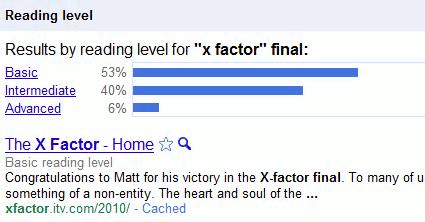
Out of curiosity, I looked at the content of the advanced pages and am now totally bemused. I cannot see how they could ever have been classified as such, but then this is Google we're talking about. Perhaps Google cannot comprehend the scoring system, why so many people watch it or why the programme exists at all?

I have experimented with several other searches. Some came up with results as bizarre as those for the x Factor search but it is interesting how the breakdown can be changed by slightly modifying your search strategy, for example by using phrases when appropriate or a plus sign before a term to force an exact match search. Google's Reading Level could be useful as a training tool to show how small alterations to a search strategy can radically change the results. But as with all things Google, we do not know how it works and the results can sometimes be very strange. Use with caution.
Wednesday, 10 March 2010
Another workshop - another Top 10 Search Tips
The participants at the latest advanced search workshop were all from the public sector and had very strong views on some of the new developments in search. They were definitely not impressed by Google automatically enabling web history with a view to "personalizing" search results. (See Your Google results are about to get weirder
http://www.rba.co.uk/wordpress/2009/12/17/your-google-results-are-about-to-get-weirder/). (The workshop participants are switching off Web History as soon as they get back to the office!) There were several sites and search features, though, that did impress them. This is their list of Top 10 Search Tips.
1. The Google Wonderwheel was the clear winner of the day with this group. When your results page appear on screen, click on "Show options" just above the results and to the left of the screen. Then select Wonderwheel from the list on the left of the page. (For further details see Google new search and display options
http://www.rba.co.uk/wordpress/2009/10/05/google-new-search-and-display-options/)
2. Google's Timeline was a close second in the popularity stakes. This is also under Show options in Google when you do a default web search and is also available in Google News. It shows the distribution of your articles over time and gives you an idea of when something started to become a "hot topic" and how a story has developed over time. It is not 100% accurate but is good enough to give you an overall picture of how interest in a subject has waxed and waned.
3. LGSearch http://lgsearch.net/ They liked this one a lot! This a Google Custom Search Engine (CSE) set up by Dave Briggs (http://davepress.net/) that searches UK public sector web sites in one go. On the results page you can, if you wish, narrow down your search further to Local Government, Central Government, Health, Police & Fire, LG Related or Social Media.
4. Slideshare http://www.slideshare.net/. A site used by many people and organisations to provide access to PowerPoint presentations. Search for presentations on any topic or by a specific person then view online or download the original if the author permits. Once you have selected a relevant presentation Slideshare also shows you a list of other presentations containing similar content. No registration required if you just want to search.
5. Try something else other than Google. As well as giving Yahoo or Bing a go, try and think about the type of information you are looking for: news, video, statistics, what people are talking about. Then use the appropriate search tool for that type of information.
6. Twitter search http://search.twitter.com/ You may not want to indulge in Twitter yourself but it can give you an idea of what people are saying about a topic. It is also an essential part of reputation monitoring and competitive intelligence: what are people saying about you or your products and services? You do not have to have a Twitter account to search Twitter, just go to search.twitter.com.
7. Google Blogsearch (http://blogsearch.google.com/) and Blogpulse (http://www.blogpulse.com/) Blogs are another useful source of views and opinions on every topic imaginable. Blogpulse has a "trend this" option on the results page that displays a graph showing you how many blog posts mention your search terms over time.
8. Zuula.com (http://www.zuula.com/) for quick and easy access to a wide range of search tools covering different types of information. Enter your search once, click on the tab for the type of resource (video, images, reference, news), and then work your way through the list of search engines.
9. Google Custom Search Engines (CSE). We looked at several Google CSEs, LGsearch.net and Directionlessgov (http://directionlessgov.com) being just two of them. You can, though, set up your own CSE at http://www.google.com/cse/. Useful if you search the same web sites day after day. You will need a Google account or Gmail account to set up a CSE but you can host your CSE on your own web site or on Google. CSEs can be made public or kept private.
10. University of Auckland Official Statistics (OFFSTATS) http://www.offstats.auckland.ac.nz/ This set of web pages provides information on Official Statistics on the Web and is an excellent starting point for official statistics by country and subject/industry.
http://www.rba.co.uk/wordpress/2009/12/17/your-google-results-are-about-to-get-weirder/). (The workshop participants are switching off Web History as soon as they get back to the office!) There were several sites and search features, though, that did impress them. This is their list of Top 10 Search Tips.
1. The Google Wonderwheel was the clear winner of the day with this group. When your results page appear on screen, click on "Show options" just above the results and to the left of the screen. Then select Wonderwheel from the list on the left of the page. (For further details see Google new search and display options
http://www.rba.co.uk/wordpress/2009/10/05/google-new-search-and-display-options/)
2. Google's Timeline was a close second in the popularity stakes. This is also under Show options in Google when you do a default web search and is also available in Google News. It shows the distribution of your articles over time and gives you an idea of when something started to become a "hot topic" and how a story has developed over time. It is not 100% accurate but is good enough to give you an overall picture of how interest in a subject has waxed and waned.
3. LGSearch http://lgsearch.net/ They liked this one a lot! This a Google Custom Search Engine (CSE) set up by Dave Briggs (http://davepress.net/) that searches UK public sector web sites in one go. On the results page you can, if you wish, narrow down your search further to Local Government, Central Government, Health, Police & Fire, LG Related or Social Media.
4. Slideshare http://www.slideshare.net/. A site used by many people and organisations to provide access to PowerPoint presentations. Search for presentations on any topic or by a specific person then view online or download the original if the author permits. Once you have selected a relevant presentation Slideshare also shows you a list of other presentations containing similar content. No registration required if you just want to search.
5. Try something else other than Google. As well as giving Yahoo or Bing a go, try and think about the type of information you are looking for: news, video, statistics, what people are talking about. Then use the appropriate search tool for that type of information.
6. Twitter search http://search.twitter.com/ You may not want to indulge in Twitter yourself but it can give you an idea of what people are saying about a topic. It is also an essential part of reputation monitoring and competitive intelligence: what are people saying about you or your products and services? You do not have to have a Twitter account to search Twitter, just go to search.twitter.com.
7. Google Blogsearch (http://blogsearch.google.com/) and Blogpulse (http://www.blogpulse.com/) Blogs are another useful source of views and opinions on every topic imaginable. Blogpulse has a "trend this" option on the results page that displays a graph showing you how many blog posts mention your search terms over time.
8. Zuula.com (http://www.zuula.com/) for quick and easy access to a wide range of search tools covering different types of information. Enter your search once, click on the tab for the type of resource (video, images, reference, news), and then work your way through the list of search engines.
9. Google Custom Search Engines (CSE). We looked at several Google CSEs, LGsearch.net and Directionlessgov (http://directionlessgov.com) being just two of them. You can, though, set up your own CSE at http://www.google.com/cse/. Useful if you search the same web sites day after day. You will need a Google account or Gmail account to set up a CSE but you can host your CSE on your own web site or on Google. CSEs can be made public or kept private.
10. University of Auckland Official Statistics (OFFSTATS) http://www.offstats.auckland.ac.nz/ This set of web pages provides information on Official Statistics on the Web and is an excellent starting point for official statistics by country and subject/industry.
Monday, 26 October 2009
Workshop: Advanced Internet Search Strategies 29th October
If you have booked a place on my advanced search workshop taking place this week in London on the 29th, you should by now have received confirmation, joining instructions etc. via post, fax, or email (or all three!). If you have not yet received anything from me contact me straight away via email, phone or fax. Details are at http://www.rba.co.uk/about/contactkb.htm
Friday, 2 January 2009
Workshop on Advanced Search Strategies, London
Several people have asked me when I am next running my workshop on advanced search strategies (sometimes known as Google and Beyond) in London. The next date for London is Wednesday, 18th February and there are still some places left. The venue is InTuition House, Borough High Street, London SE1 1JX, which is close to Borough tube station and London Bridge. The cost is £150 + VAT (total: £172.50) and includes refreshments and a buffet lunch.
Full details of the workshop together with a booking from are on my web site at http://www.rba.co.uk/training/searching.htm . You can pay by credit card, PayPal or request to be invoiced for the event.
For those of you who live in the Manchester area, I am running a similar event for UKeiG on April 1st. Details are at http://www.ukeig.org.uk/training/2009/April/GoogleandBeyondManchester200904.html
Full details of the workshop together with a booking from are on my web site at http://www.rba.co.uk/training/searching.htm . You can pay by credit card, PayPal or request to be invoiced for the event.
For those of you who live in the Manchester area, I am running a similar event for UKeiG on April 1st. Details are at http://www.ukeig.org.uk/training/2009/April/GoogleandBeyondManchester200904.html
Subscribe to:
Posts (Atom)