Showing posts with label Google. Show all posts

Tuesday, 28 August 2018

Google offers to include missing search terms - sometimes

Google has been omitting terms from searches for several years.  For me, the matter came to a head wayback  in November 2011 (see Dear Google, stop messing with my search).  Many of has had noticed it happening for a while but what suddenly made it more frustrating was that one could no longer prefix a term with a plus sign to force its inclusion in a search. Furthermore, surrounding terms and phrases with double quote marks did not always work either.

Google's Dan Russell explained why in a comment to my blog posting:
"When you do a multi-term query on Google (even with quoted terms), the algorithm sometimes backs-off from hard ANDing all of the terms together. It’s a kind of “soft” backoff. Why? Because it’s clear that people will often write long queries (with anywhere from 5 to 10 terms) for which there are no results. Google will then selectively remove the terms that are the lowest frequency to give you some results (rather than none). Bear in mind that 99% of searchers have no idea why they’d want to hard AND, and just get frustrated when they get no results. The soft AND is a way to reduce the overall frustration and give the searcher something to examine (and with luck, a chance to reformulate their query)."

He added:
"But I see what you mean about wanting to know if there are NO hits to a given query. I’ll pass this information along to the Google design team and see if we can’t do something with this."

Well,  Google did do something about it and some weeks later Verbatim, which could be applied to your entire search and make Google run it without omissions or variations,  was added as a tool. The other option that existed then, and still does, is to prefix individual terms or phrases with 'intext:'.

If you did not use Verbatim you were still left guessing as to whether or not all of your terms or their synonyms were present in a particular document until you actually clicked on it and viewed it in its entirety.  About a couple of years ago, Google started to include information on omitted terms in the results snippets  by adding a "Missing: " statement underneath the entry.  At least we now had something to work with.  Google has now added a search option to it.  It started to appear 2-3 months ago, disappeared for a while, but now seems to be a permanent feature.  It enables you to tell Google that it must include the missing term. Let's works through the example that first alerted me to it: a search for broad beans called Eleonora and supplied by Tamar Organics.

Before you ask, the reason I did not go directly to the Tamar Organics website was because it was quicker to go via Google than to work through the seed supplier's site search and navigation system. Also, please note that if you try this search out yourselves you will probably get very different results. When we tried this in a workshop of 20 people we ended up with 11 variations on the theme!

First, the quick and simple approach of just throwing in a few terms:

broad beans eleonora tamar organics
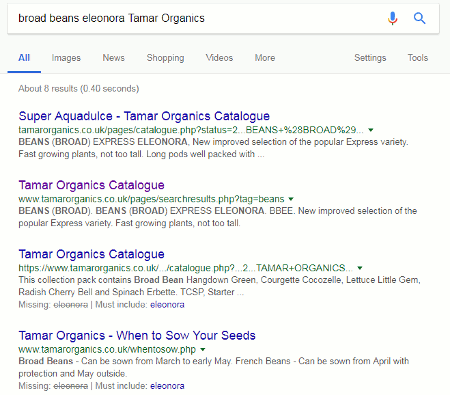


The first two results were relevant and exactly what I was looking for,  but 8 results seemed a bit low especially as Google had indicated on the next two in the list that the term "eleonora"  was missing.  (We'll come back to the "Must include: " in a moment.) Going to the bottom of the results page there was the usual message that similar entries had not been displayed.



Erm... but, Google, you displayed 8 not 15 as you claim.  Let's play along, anyway, and repeat the search by clicking on the link Google gives us. This time I was given 11 results.  We know that Google often gets the count wrong when using the repeat search option but I still thought that the number of results was rather low if it was omitting terms.  What would happen if I decided to take Google up on its offer of "Must include: eleonora"? Two, three or perhaps just four results?  I clicked on the eleonora link and .... 20,700 results!
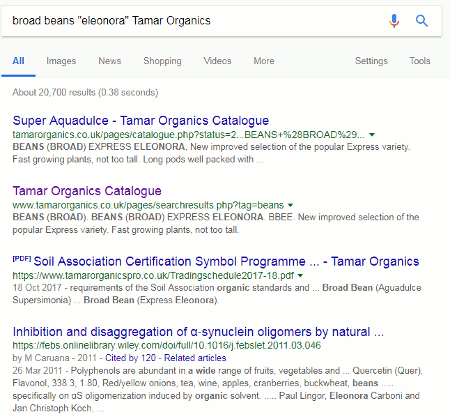


In the search bar above the results we can see that Google has put eleonora in double quote marks to force its inclusion.

The first three results were fine but when I looked in detail at the fourth document it was missing both tamar and organics, and there was no indication in the snippets provided by Google that these, or any other terms, had been omitted.

Going back to my first set of results and looking further down the list I saw that, as well as one from which eleonara was omitted, there was another that had left out both eleonora and tamar, and a third with just tamar missing.
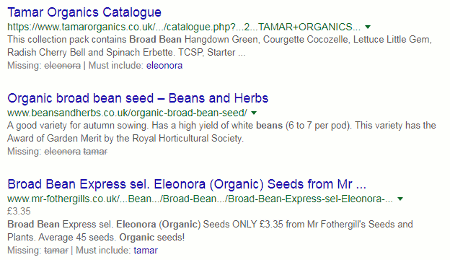


If the "Must include:" option has more than one term, you can only choose one of them. You cannot have all of them.  Choosing tamar gave me  43,500  results but this time Google did tell me when eleonora was missing from the documents. Most of the results were totally irrelevant.

How would I normally deal with missing terms?  I generally start off with a quick and dirty search and, unless I am looking for a particular type of document such as a presentation or industry report, I don't always use advanced commands.  I just type in the separate words and in this case I did get what I wanted at the top of the page. But what if I hadn't?

I was interested in the variety of broad beans called Eleonora but Google was omitting it from some of the results.  I could have done what Google did and use quote marks around eleonora but my experience is that Google sometimes ignores those if the number of results is low. My usual strategy is to use 'intext:' before the missing word, for example:

broad beans intext:eleonora tamar organics

This gave me 18,400 results with, again, most of them missing one or more terms.

Deciding to trust Google not to ignore double quote marks I changed my search to:

"broad beans" "eleonora" "tamar organics"
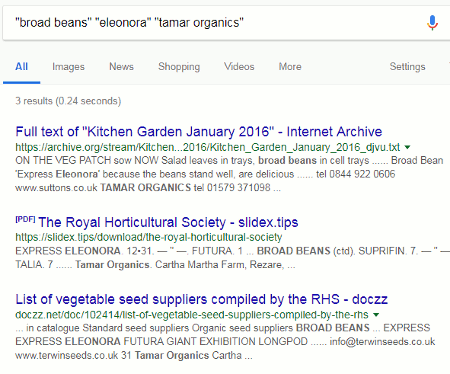


This time it was just 3 results, and when I repeated the search to include the omitted results I saw 5 but nothing from the Tamar Organics website itself. The reason for this was the presence of the phrase "broad beans" in the search string.  Looking at the results in my very first  search, I saw that Google was picking up the phrases "broad bean" and "beans (broad)" so I was now missing out on the top and most relevant results. A reminder that one needs to think very carefully about how and in what order search terms may appear in documents before applying phrase searching.

For comparison I applied Verbatim to the original quick and dirty search and got 411 results.  The main problem with that set was that Tamar and Organics were appearing in the documents separated by several words or even sentences.  When I applied Verbatim to the search string:

broad beans eleonora "Tamar Organics"

I was presented with a respectable list of 18 relevant results.

So, is the "Must include:" option worth using? It is quick and easy to apply, especially on a mobile device and I suspect that is why it has been introduced. However, it all starts to get very messy and complicated  if you try to use it on subsequent sets of results.  When I'm searching on my laptop, or on a desktop, I sometimes try the link but if that set of results is disappointing  and Google drops a different selection of terms I go back to my practice of using intext and/or Verbatim.  I also try double quotes around terms and phrases but my experience is that that Google still occasionally ignores them. It is entirely up to you which approach you use. How well each works does vary from one search to another, and on whether or not you are allowing Google to adjust results according to your search history and behaviour.  The important thing is to be aware of the options available to you and to be willing to experiment.

Saturday, 26 May 2018

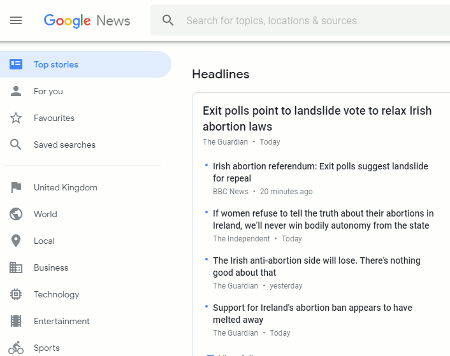
Somebody, please put Google News out of its misery

I didn't think Google News (http://news.google.co.uk/) could get any worse but I was wrong. The previous revamp was bad enough: no more advanced search, useless and irrelevant personalisation options, and don’t even think about trying to set up sensible alerts. Alerts were never that good at the best of times but were not improved one iota by the changes. And then they altered the structure of the RSS feed URLs so that, supposedly, your existing feeds no longer worked. I don't know why, but my old feeds are still delivering news and contain better quality information than the new ones I set up. Google News

In the latest incarnation, Google News has lost most of my topics,  the "For You" is total rubbish as is "Local", you can no longer manage and personalise the topics  (although that didn't really work anyway), and the RSS feed buttons have gone. I can only assume that this is  all down to the real time AI/ML that Google recently announced was going to be used to organize the news. (The new Google News: AI meets human intelligence ).

Existing RSS feeds still work, though and you can create email alerts for a news search if you run it from within the general Google results page. Run your search in "All" and then click on the News link. There is a Create Alert button at the bottom of your results, but one wonders how long that will last.

Someone should put Google News out of its misery, close it down and leave news searchable via the link on the main page.

And they may as well ditch Google Finance as well. That is a  shadow of its former self : no more portfolios for monitoring stocks, no more historical data for viewing and download, no more news annotations on the price charts, and the comparison option only works for two stocks at a time. If you are interested in monitoring the stock markets or researching individual companies for free get thee hence to Yahoo! Finance (https://uk.finance.yahoo.com/).   There was some doubt over the future of Yahoo! Finance when Yahoo! was acquired by Verizon and became part of Oath but, charting oddities aside, there does seem to be some development going on. The new “Sustainability” tab for example shows environment, social and governance (ESG) ratings from Sustainalytics (https://www.sustainalytics.com/).  There was positive feedback on it from some business librarians who attended one of my recent workshops.

So many of Google's services are going from bad to worse to totally pointless and unusable. No wonder, then, that people are starting to look seriously at alternative resources.

Sunday, 29 October 2017

Google makes it harder to change location for country specific research

Google has made a major change to search and it does not bode well. Results are now based on your current location. So what's new?  Google has always looked at your location, even down to city/town level, and changed the results accordingly. That is fine if you are travelling and want to find the nearest Thai restaurant via your mobile, for example. Presenting a list of eateries in my home town of Reading is no good to me if I'm away in Manchester and getting very hungry!

The problems start if you are researching a person, company or industry based in a country other than your own - let's use Norway as an example - or just want the latest news from that country.  The trick used to be to go to the relevant country version of Google, in this case www.google.no, run your search and Google would give preference to Norwegian content. It is a great way to get alternative viewpoints on a topic and more relevant "local" information on a subject. Now, regardless of which version of Google you go to, you will see the same results tailored for your home location.

In a blog posting Making search results more local and relevant Google says:
Today, we’ve updated the way we label country services on the mobile web, the Google app for iOS, and desktop Search and Maps. Now the choice of country service will no longer be indicated by domain. Instead, by default, you’ll be served the country service that corresponds to your location. So if you live in Australia, you’ll automatically receive the country service for Australia, but when you travel to New Zealand, your results will switch automatically to the country service for New Zealand. Upon return to Australia, you will seamlessly revert back to the Australian country service.

This confirms that mobile search is what Google is concentrating on. After all it is, one assumes, where Google makes most of its money but it does not help professional researchers.

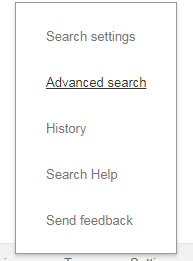
There is a way around it but it is rather long-winded. You need to go to Settings - use either the link in the bottom right hand corner of your Google home page or the one near the top of a search results page - and click on Advanced Search .

Google Settings Menu

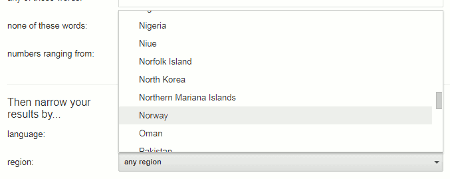
On the Advanced Search screen scroll down to “Then narrow your results by…” and use the pull down menu in the region box to select the country.

Google Advanced Search Region

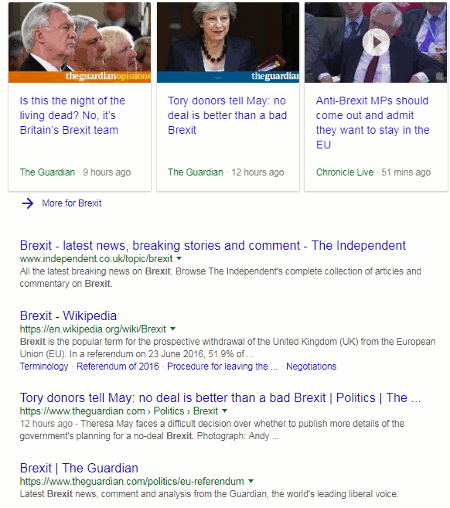
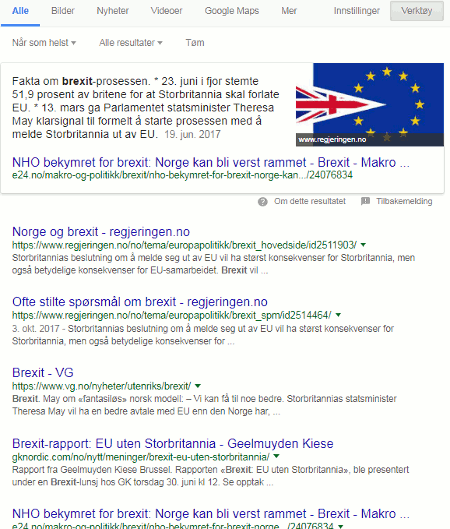
I ran a search on Brexit in google.co.uk, google.no and a few other country versions of Google. All gave me essentially the same results.Google UK results for Brexit

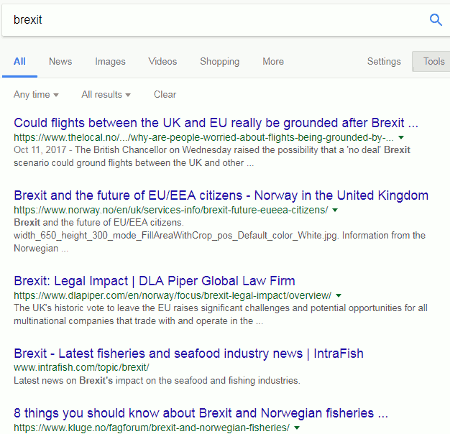
Using the region filter and selecting Norway as the country I am given the following by Google:

Google Norway Region Filter

Notice, though, that Google is giving me English articles or English versions of them. Google has decided that I would prefer English articles and I have to scroll down to number 10 and beyond to see pages in Norwegian. To get a  broader view of what is being said in Norway about Brexit I have to go back into settings, click on Languages and choose Norwegian/Norsk.

Brexit search with region and language filter on

Oh - and you get slight different results if you go through a VPN and set Norway as the country.

What worries me even more is that Google could do away with the advanced search screen and the region filter with it.

Google says:
We’re confident this change will improve your Search experience, automatically providing you with the most useful information based on your search query and other context, including location.

No, Google. You have just made things more difficult for those of us who conduct serious, in-depth research. The way I feel about this change at the moment is that if you were a person I would take a baseball bat to your head!

UPDATE: In response to David Pearson's comment and reminder below.
Including a site command e.g. site:no in the search works relatively well for this particular example (Norway) and gives good but slightly different results. It will, of course, miss Norwegian sites that are registered as .com or other international domains. The amount of overlap (or lack of it) will vary depending on the country. It's another one to add to the list of strategies, which I am sure will become longer,  for dealing with this problem.

Saturday, 10 June 2017

Another example of Google's Knowledge Graph getting it wrong

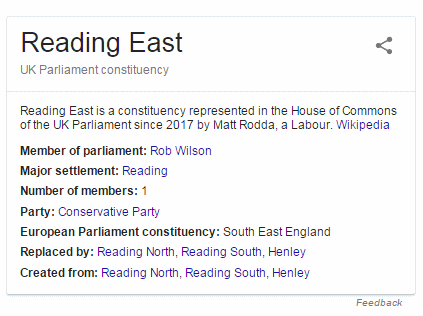
Voting in the UK election has finished and the results are in, but the dust has most definitely not settled. It looks as we in the UK are in for interesting times ahead. It would help those of us researching the various political parties and policies if Google could at least get the basics right, such as who is now the Member of Parliament for a particular constituency.  I am in Reading East and we have switched from a Conservative MP to Labour (Matt Rodda). Out of curiosity, I tried a search in Google on Reading East constituency.  This is what Google's Knowledge Graph came up with:

Reading East Google Knowledge Graph

I took this screenshot yesterday (Friday, 9th June)  at around 8 a.m. and expected to see Rob Wilson given as the MP throughout . I was impressed, though, to see that the snippet from Wikipedia correctly gives Matt Rodda as our MP. Whoever had updated that entry was pretty quick off the mark. Possibly a Labour Party worker? The rest of the information, which is taken from Google's database of "facts", is either wrong, confusing or nonsensical.

"Member of Parliament: Rob Wilson" - wrong.  But he was MP until around 4 a.m. on the 9th June when the result of the election in Reading East was announced, so perhaps I am expecting a little too much from Google to be that quick about updating its facts.

"Major settlement: Reading" - yes we are part of Reading but I find it strange that it is referred to as a major settlement rather than a town.

"Number of members: 1" - not sure why that is there as each constituency can only have one MP.

"Party: Conservative" - correct for Rob Wilson but the new MP is Labour. 

"European Parliament constituency: South East England" - correct!

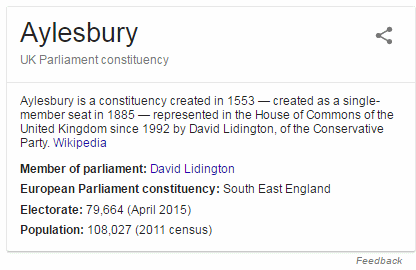
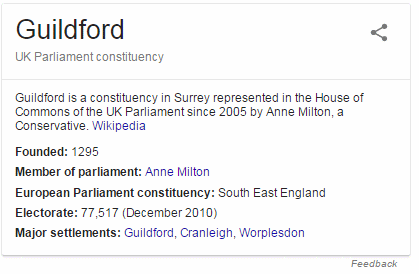
The final two lines "Replaced by:" and "Created from:" had me totally flummoxed. The entries are the same  - Reading North, Reading South, Henley.  Reading North and Reading South were constituencies formed by splitting the Reading constituency in 1950. They were then merged back into Reading in 1955, re-created in 1974, and in 1983  Reading East and West were formed (Yes, it's complicated!). As for Henley, it is not even in the same county.  I can only think that this comes from Caversham (now part of Reading East) being part of Oxfordshire until 1911, when it probably did fall within the Henley constituency.   The "Replaced by" is wrong because Reading East has not been replaced by anything. Google can't even blame a template that has to be filled in with information at all costs because different information appears in the Knowledge Graph depending on the constituency.

Here is the information for Aylesbury:


And the one for Guildford:


Going  back to the how up to date the information is,  how quickly does Google update their "facts". Rob Wilson was still our MP mid Friday afternoon. I submitted feedback using the link that Google provides at the bottom of each Knowledge Graph but this morning (10th June) nothing had changed. I'll update this posting when it does change.

I would hope that most people would look at the other links in the search results, in this case the latest news, but preferably a reliable  authoritative source.  The list of MPs on the UK Parliament website would be an obvious choice but might take a day to be updated after an election. Just don't rely on Google to get it right.

Tuesday, 14 February 2017

More Google weird results

Ok, we know that Google often does strange things with our searches but much of the time it is not obvious that something odd has happened. There are usually some "good enough" answers scattered through the first 20-30 results so that we shrug off the rest as "well, that's Google for you". Occasionally, though, one comes across a search that seems to break Google. One such example was reported on Twitter this morning  by Rand Fishkin (@randfish). The search was

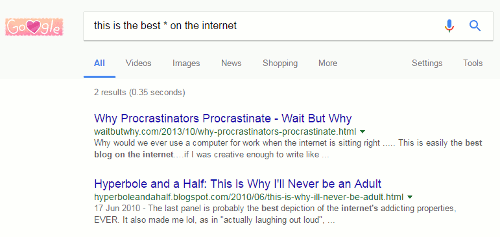
this is the best * on the internet

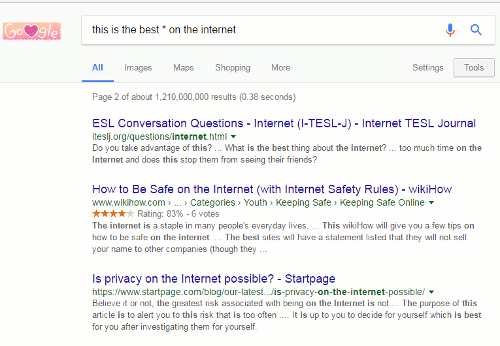
At the top of the first results page Google reported that it had found over a billion results but when @randfish moved to the next page Google showed just "2 of 12 results"! Whatever happened to the other billion or so?

I tried the search myself on my laptop and straightaway got three results but on repeating it that was reduced to two.


I repeated the search having logged out of my Google account, cleared cookies, used Incognito and different browsers. Same results.

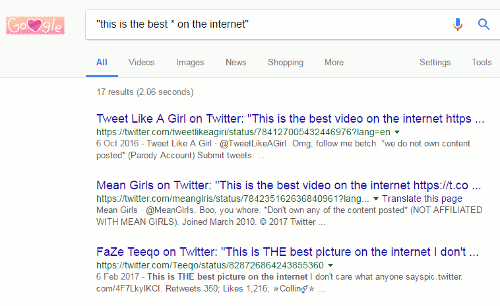
I tried a phrase search and the number of hits increased to 17.


Then I removed the quotation marks, got back to my original set of two and ran Verbatim on it. Over a billion hits but, bizarrely, Google claimed to have gone straight page 2!


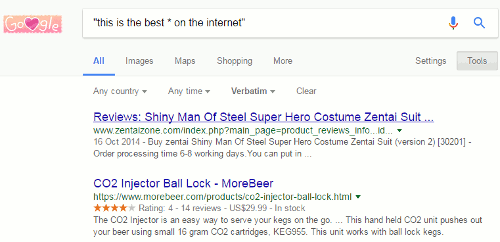
Note: you normally can't see the number of results after you have run Verbatim because it is obscured by a second menu line. You can toggle between that menu and the number of hits by clicking on the Tools button.

Then I tried a phrase search followed by Verbatim: two results but different from my first set.


I could have gone on trying various advanced search commands but it is very clear that Google is having problems with this particular search. And, no, I have no idea what is going on here.

If Google messes with your search to this extent or comes back with far fewer results than you would expect don't struggle with it;  just go to another search engine. As an asterisk is used in this search to stand in for a missing word Yandex.com would be the best option.  (See https://yandex.com/support/search/how-to-search/search-operators.html for a list of the main operators).


Wednesday, 11 January 2017

Google link command gone - never much good anyway!

Search Engine Roundtable reports today that Google is advising against using the link operator in search. It seems that there have been complaints on Twitter and elsewhere that it is returning some odd results.

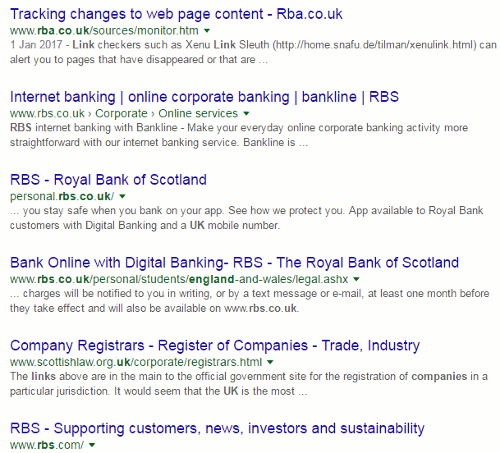
I have never been a fan of the command; it only ever returned a small sample of pages that link to a known page, so I don't mention it in my workshops unless asked about it by one of the participants. When I saw the advice from Google I gave it a final go on my own domain rba.co.uk and got nearly 300,000 hits. "Wow," I thought, "amazing!" Glancing through the first few results it became obvious that Google had ignored all the punctuation and was running a text search and looking for variations on rba including RBS (Royal Bank of Scotland).


No great loss, but a sign that other more useful operators and commands may be for the chop.

Thursday, 29 December 2016

Seasonal opening times - never trust Google's answers (or Bing's)

This is my usual Christmas/New Year reminder to never trust Google's answers (or Bing's) on opening times of shops over the holiday season, especially if you are thinking of visiting small, local, independent shops.

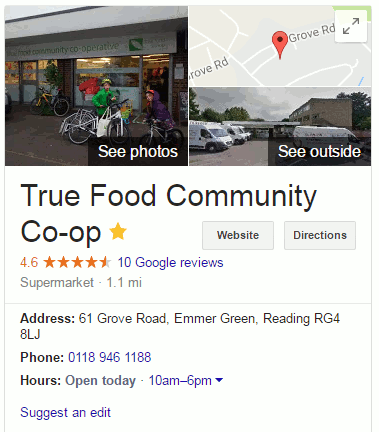
I was contemplating going to our True Food Co-operative but suspected that it might still be shut. A search on my laptop for True Food Emmer Green opening times gave me a link to their website at the top of the results list. On the right hand side was a knowledge graph with information on the shop, it's opening times and reviews that had been compiled from a variety of sources . For most of it the source of the information is not given.  On my mobile and tablet it is the knowledge graph that appears at the top of the results list and  takes up the first couple of screens.


It claims that the shop is "Open today 10am-6pm" [today is Thursday, 29th December].

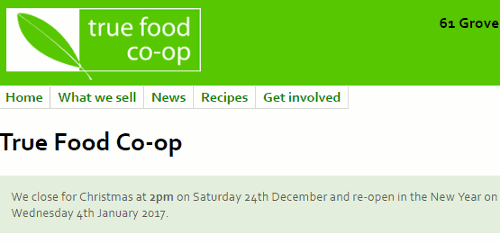
When I go to True Food's website it clearly states near the top of the home page that they are currently closed and re-opening on 4th January 2017.


Google gets it wrong again in the knowledge graph but so does Bing. So, always check the shop's own website, and if you are searching on your mobile or tablet please make the effort to scroll down a couple of screens to get to links to more reliable information.

Saturday, 22 October 2016

Google results: review stars may not refer to what you think they do

The contract for our domestic electricity supply is ending next month so I am trawling through cost comparison and energy supplier websites to check tariffs for our next contract. (UK readers can skip the rest of this explanatory paragraph). I don't know what the situation is in other countries but in the UK the gas and electricity suppliers are forever inventing a variety of tariffs priced significantly less than their "standard" rates to entice you to sign up. The lower priced tariffs are generally only available for a year, or two years at most. At the end of the contract the customer is usually transferred to the more expensive standard rate unless they actively seek out an alternative. The existing supplier is obliged to inform the customer of the new tariffs that will be on offer but the onus is on the customer to inform the company which tariff, if any, they wish to switch to.  For other suppliers' tariffs the customer has to do their own research.

Price comparison sites are a good starting point to identify potential alternatives but the only way to check that the a tariff meets all of your criteria, of which price may be just one of many, is to go direct to the supplier's website. Today I spent most of the morning drawing up the shortlist.

The next step in my strategy was to look at customer reviews on the comparison websites, social media, discussion boards and to run a Google search on each supplier. The reviews and comments generally spanned several years and while the history of a company's customer service performance can be useful it is the last 12-18 months that are most relevant. This is where limiting the search to more recent information by  using Google's date option comes into play. Having spent an hour or so to get this far, and with my brain beginning to wilt, it was tempting to read just the Google snippets for the reviews; but they can convey the wrong overall impression. Google sometimes creates snippets by pulling together text from two or more sections of a page that may be separated by several paragraphs and which may be about completely different products or topics. Never take the snippet at face value and always click through to the original, full article.

One of the energy providers on my short list is Robin Hood Energy, which is a not-for profit company run by Nottingham City Council and has only recently been made available to customers outside of Nottingham.  Customer reviews are therefore less plentiful than for many of the other utilities. The results from a search on

Robin Hood Energy customer reviews

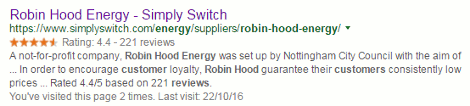
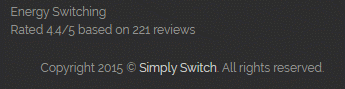
included one from Simply Switch. Underneath the title and URL is a star rating of 4.4 from 221 reviews and one could be forgiven for assuming that this refers to Robin Hood Energy. This is reinforced by the text in the second half of the snippet: "Robin Hood guarantee their customers consistently low prices ... rated 4.4/5 based on 221 reviews".  robin_hood_customer_reviews

The dots are important in that they represent a missing chunk of text between the two pieces of information. When I looked at the web page itself the rating was nowhere to be found in the main body of the text. It was in the footer of the page and referred to the Simply Switch site.

simply_switch_reviews

A reminder, then, to never rely on the snippets for an answer, and always click through and read the whole web page.

Thursday, 6 October 2016

Google Blogger loses links and blog lists: what to do next

Google Blogger has done it again. A major update to the service was rolled out at the end of September and many users woke up to find that the links and blog lists they had so carefully created had gone.   See the Blogger Help Forum for some of the postings and comments on the incident.  Blogger engineers are supposedly working to restore the lost information  but it "may take up to several days." Or never! This is not the first time that blog content has gone missing after an update. A few years ago an update somehow removed the most recent posts from people's blogs. Most of them were eventually recovered but a few disappeared without trace.

The lesson learned from that experience was back up your blog. In Blogger the import and backup tool is under Settings, Other and at the top of the page. Note, though that this will only backup the text of pages, posts and comments. It does not backup any changes you have made to the template, or the content of the gadgets in your sidebars such as links lists and blogrolls. For the  template click on Template in the lefthand sidebar and then on Backup/Restore. This will save the general layout of the gadgets but not the content. For that you will need to copy and save the content for each gadget or save a copy of the content and HTML of your blog.  Back up your Blogger blog: photos, posts, template, and gadgets has details of what you need to do.

And don't forget your photos. For those use Google's Takeout service at https://www.google.com/settings/takeout.

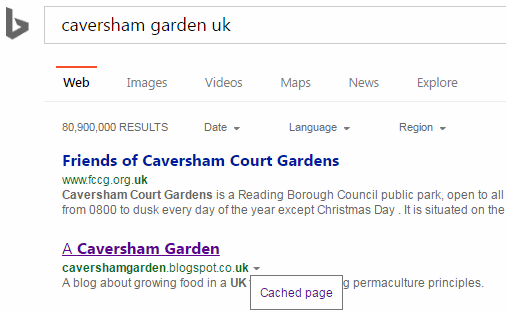
If you don't have a copy of your lists of links then see if you can access an older cached version of your blog  via Google or Bing and save the whole page, or take screen shots. If you try this several days after the event you may be out of luck. Mine were still in the cached page for up to 2 days but have now gone. In Google, use the 'cache:' command, for example:

cache:yourblogname.blogspot.com

An alternative is to search for your blog and next to your entry in the results lists there should be a small downward pointing green arrow. Click on it and then on the 'Cached' text to view the page.  This works in both Google and Bing  and, again, the sooner you do this the better.

bing_cached_option

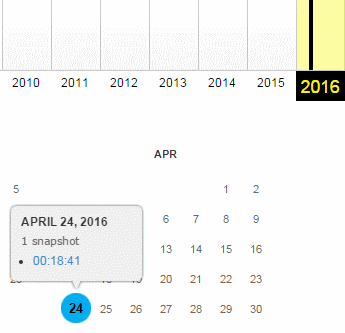
If none of that works then try the Wayback Machine. Type in the URL of your blog and see if they have any snapshots.

wayback_blog

Still no joy? Then either hang around a while longer to see if the Blogger engineers manage to revive your lists or start rebuilding them from scratch. If you haven't looked at them in a while, maybe now is the time to review the content anyway.

Thursday, 1 September 2016

Don't expect advanced search features to exist forever

A couple of weeks ago I wrote about the problems I was having with Google Verbatim (Google Verbatim on the way out?). This morning I ran through a checklist of commands that I am demonstrating in a webinar and it seems that Verbatim is back working as it should. Don't hold your breath, though. Three times this year I have seen Google Verbatim disappear or do strange things and a couple weeks later return to normal. Verbatim may be here to stay or it may not, but you cannot depend on many advanced search commands to always work as you expect. So either learn different ways of making Google treat your search in the way you require or use a different search engine.

Unfortunately, disappearing or unreliable functionality is not confined to just Google. Bing used to have a very useful proximity command that allowed you to specify how close you wanted your words to be to one another. The "near:n"  operator is still listed in Bing's list of advanced search commands and, although it seems to do something and reduce the number of results, it does not behave as described.

There is also the endangered list such as DuckDuckGo's sort by date option. In fact all of DuckDuckGo's web search options will probably soon change or disappear as it is currently powered by Yahoo! which has been bought by Verizon. Who will DuckDuckGo turn to if Verizon does combine Yahoo with AOL as has been stated in the press?

Get to know several different search tools really well and, for the ones that you use regularly, find out how they work and who provides the search results.


Thursday, 11 August 2016

Google Verbatim on the way out?

Update: 1st September 2016 - Verbatim seems now to be working as it should. I hope it stays that way but on three occasions this year I have seen it work one day, then not the next and then back to working again.

We have become accustomed to Google rewriting and messing about with our searches, and dropping search features that are infrequently used. The one option that could control most of Google's creative interpretation of our queries was Verbatim but that now looks as though it could be destined for the axe as well.

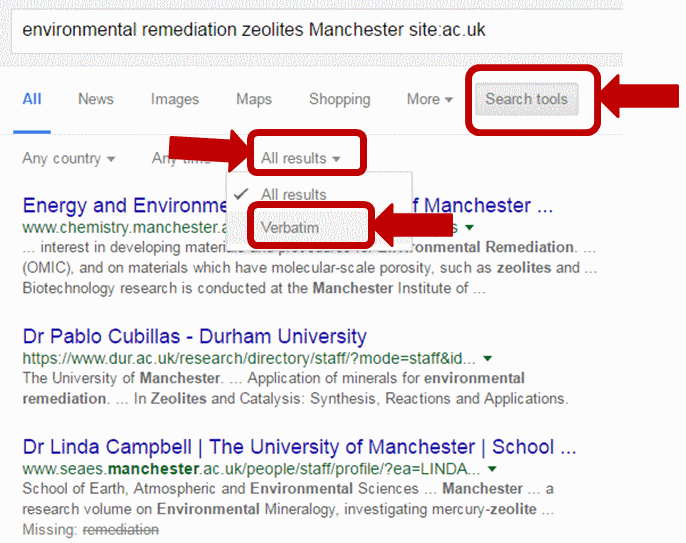
A reminder of what Verbatim does. If you want to stop Google looking for variations on your terms, ignoring double quote marks around phrases,  or dropping words from the search Verbatim is, or rather was, the quickest way to do it. If you are using a  desktop or a laptop computer,  run your search as normal. On the results page click on 'Search Tools' at the end of the line of options that appears at the top. Then, from the second line of options that should appear,  choose 'All results' followed by Verbatim. The location of Verbatim on other  devices varies.

Verbatim has been invaluable when searching on titles of research papers, legislation or researching topics for which you expect or want to retrieve very few or zero results. You might be researching rare adverse events associated with a pharmaceutical drug or wanting to confirm that what you are about to patent has not  already been published and is out there for all to see. Or the topic is so specific that you only expect to see a  handful of documents, if that. So, sometimes, no or a low number of results is a good thing. But Google does not like zero or small numbers of results and that is when Google's search rewrite goes into overdrive.

I had noticed for a few months that Verbatim was not always working as expected but had hoped it was one of Google's experiments. The problem has not gone away and the really confusing part is that Verbatim is still doing something but not what I would expect.

I was working in Penryn in July and took the opportunity to wander around the place. Inevitably, I googled some of the sites I had seen for further information but one threw up the Verbatim problem.  I was particularly interested in what looked like a memorial but didn't have time to seek out information on site. Looking at the photo afterwards I can where the plaque was (to the right and next to the flagpole) but I missed it on the day.

[caption id="attachment_3714" align="aligncenter" width="300"]Memorial Garden Penryn The memorial and garden commemorates 18 residents of Penryn who were killed during an air raid in May 1941.[/caption]

I did see a sign on the wall surrounding the area, though, telling me that it was "two" on the Penryn Heritage Trail.

Penryn Heritage Trail

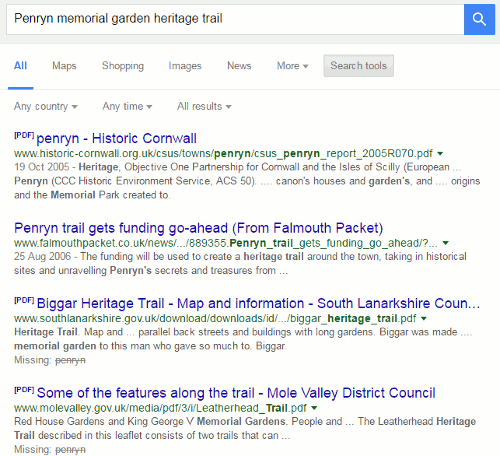
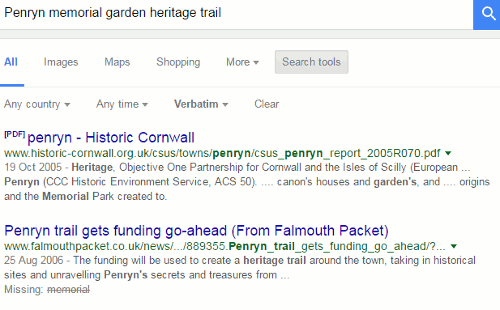
A quick, basic search told me that it is called the Memorial Garden but I wanted to find out more. I searched  on Penryn memorial garden heritage trail.

Google test search omitting terms 1

This gave me 15,900 results but Google had decided to leave out Penryn so I was seeing plenty of information about heritage trails but they were not all in Penryn. I prefixed Penryn with intext: to force Google to include it in the search but then the word heritage was dropped. I applied Verbatim to the search without the intext: command.

Verbatim-failure-2

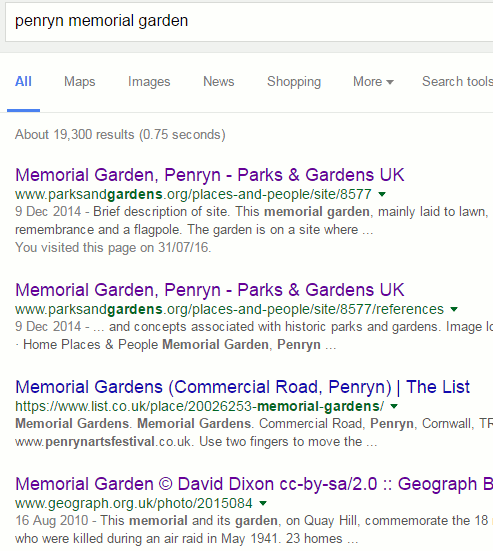
This gave me 732 results but even though I had applied Verbatim Google had dropped 'memorial' from the search. I prefixed memorial with intext: and got 1230 results with little change to the top entries. And no, I have no idea why there are more hits for this more specific search. I can only assume that other terms were omitted but I was not seeing that in my top 50. I then did what I should have done right from the start and searched on Penryn, and "memorial garden" and "heritage trail" as phrases. When Verbatim was applied this came back with  22 results but no detailed information about the garden. I started to tweak the search terms a little more. Verbatim would drop one, I would 'intext:' them and they were then included but I began to suspect that I was being too specific. So I dropped "heritage trail" from the search and cleared Verbatim: 19,300 results with all of the top entries being relevant and informative.

Search on Penryn memorial garden

This emphasises that it often pays to keep your search simple, and I mean really simple. Including too many terms, however relevant you may think they are, can be counter-productive. I would have realised earlier that my strategy was too complex had Verbatim behaved as I assumed it would and it had included all of my terms with no variations or omissions.

I ran a few of my test searches to see if this is now a regular feature. One was:

prevalence occupational asthma diagnosis agriculture UK


The results came back as follows:

Ordinary search - prevalence missing from some of the documents, 1,750,000 results
Verbatim search - diagnosis and agriculture missing from some of the documents, 15,300 results
Verbatim with quote marks around missing terms - same results as plain Verbatim with diagnosis and agriculture still missing
Verbatim search but prefixing missing terms with intext:, 14,200 results


I changed the search slightly to:

incidence occupational asthma diagnosis agriculture UK


Some of the results were:

Ordinary search - incidence and agriculture missing from some of the documents, 2,210,000 results
Verbatim search - incidence and agriculture missing, 15,500 results
Ordinary search on intext: incidence occupational asthma diagnosis intext:agriculture UK, 848,000 results
Verbatim intext:incidence occupational asthma diagnosis intext:agriculture UK, 15,000 results


I saw the same pattern with a few other searches. I also tested the searches in incognito mode, and both signed in and signed out of my Google account. There was very little difference in the results and Verbatim behaved in the same way.

It looks as though Verbatim still runs your search without any variations on your terms or synonyms but that it now sometimes chooses to omit terms from some of the documents.  To keep those terms in the search you have to prefix them with intext:. Double quote marks around the words are sometimes ignored. This is an unnecessary change and defeats the object of having an option such as Verbatim.

More worrying, though, is that Google obviously thinks Verbatim needs "fixing". But what it has done is to make the option more difficult to use, which in turn will result in people using it less often than they do already. And if Google sees that use is decreasing it will simply get rid of it altogether. Time to swot up on the few remaining Google commands, or use a different search tool.

If you are interested in learning more I am running workshops about Google and alternative search tools in September in London.

Friday, 22 July 2016

Google's 'daterange:' command gone for good

It looks as though Google's daterange: command really has gone for good. Over the last 6 months it has been a case of "now it works, now it doesn't" but I've been testing it regularly over the past couple of months and it seems to have permanently stopped working . People have been reporting the problem in various forums since the start of this year.

So why bother using "daterange:" instead of the date/time option under Search tools? Because the latter does not work with Verbatim. It doesn't happen often but there are occasions when I need Google to search using my terms exactly as I have typed them without any omissions or variations AND limit the search to a specified time period. The only way to do that was to first run the search with the daterange included in the string and then apply Verbatim to the results.

It is getting to the point where  Google is totally useless for advanced, focussed research. What will be next for the chop? filetype? site? If you haven't done so already, it is time to learn how to use the alternative search tools. Cue blatant plug for my September workshop with UKeiG : Essential non-Google search tools !

Thursday, 2 June 2016

Searching for the height of Ben Nevis - how hard can it be?

If you have attended one of my recent search workshops, or glanced through the slides, you will have noticed that I have a new test query: the height of Ben Nevis. It didn't start out as a test search but as a genuine query from me.  A straightforward search, I thought, even for Google.

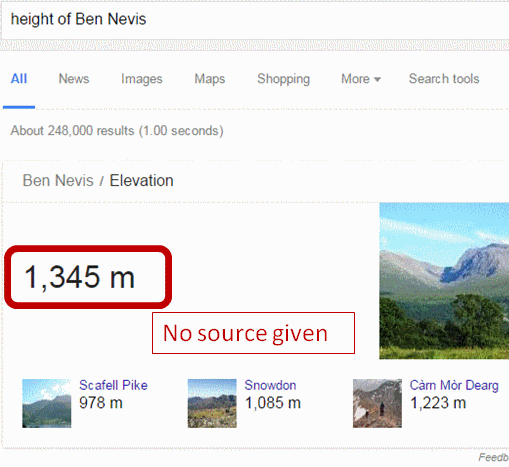
I typed in the query 'height of ben nevis' and across the top of the screen Google emblazoned the answer: 1345 metres.  That sort of rang a bell and sounded about right, but as with many of Google's Quick Answers there was no source and I do like to double or even triple check anything that Google comes up with.

Ben_Nevis_1

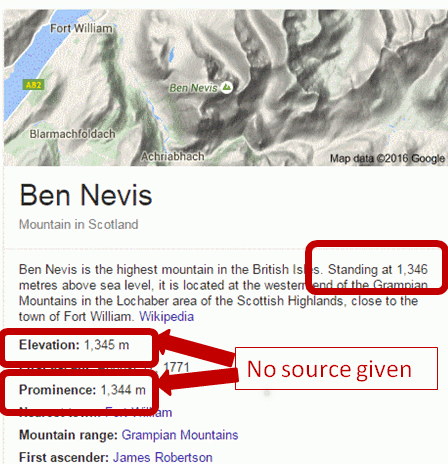
To the right of the screen was a Google Knowledge Graph with an extract from Wikipedia telling me that Ben Nevis stands at not 1345 but 1346 metres above sea level. Additional information below that says the mountain has an elevation of 1345 metres and a prominence of 1344 metres (no sources given). I know have three different heights - and what is 'prominence'?

Ben-Nevis-3

After a little more research I discovered that prominence is not the same as elevation, but I shall leave  you to investigate that for yourselves if you are interested. The main issue for me was that Google was giving me at least three slightly different answers for the height of Ben Nevis, so it was time to read some of the results in full.

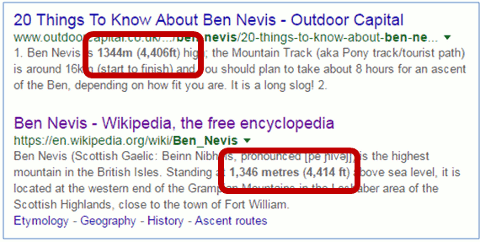
Before I got around to clicking on the first of the two articles at the top of the results, alarm bells started ringing.  One of the metres to feet conversions in the snippets did not look right.

Height of Ben Nevis search results 3

So I ran my own conversions for both sets of metres to feet and in the other direction (feet to metres):

1344m = 4409.499ft, rounded down to 4409ft

4406ft = 1342.949m, rounded up to 1343m

1346m = 4416.01ft, rounded down to 4416ft

4414ft = 1345.387m, rounded down to 1345m

As if finding three different heights was not bad enough, it seems that the contributors to the top two articles are incapable of carry out simple ft/m conversions, but I suspect that  a rounding up and rounding down of the figures before the calculations were carried out is the cause of the discrepancies.

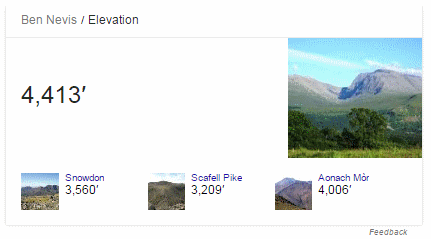
The above results came from a search on Google.co.uk. Google.com gave me similar results but with a Quick Answer in feet, not metres.

Ben-Nevis-4

We still do not have a reliable answer regarding the height of Ben Nevis.

Three articles below the top two results were from BBC News, The Guardian and Ordnance Survey - the most relevant and authoritative for this query -  and were about the height of Ben Nevis having been remeasured earlier this year using GPS. The height on the existing Ordnance Survey maps had been given as 1344m but the more accurate GPS measurements came out at 1344.527m or 4411ft 2in. The original Ordnance Survey article explains that this is only a few centimetres different from the earlier 1949 assessment but it means that the final number has had to be rounded up rather than down. The official height on OS maps has therefore been increased from 1344m to 1345m.  So Google's Quick Answer at the top of the results page was indeed correct.

Why make a fuss about what are, after all, relatively small variations in the figures? Because there is one official height for the mountain and one of the three figures that Google was giving me (1346m) was neither the current nor the previous height. Looking at the commentary behind the Wikipedia article, which gave 1346m, it seems that the contributors were trying to reconcile the height in metres with the height in feet but carrying out the conversion using rounded up or rounded down figures. As one of my science teachers taught me long ago, you should always carry forward to the next stage of your calculations as many figures after the decimal point as possible. Only when you get to the end do you round up or down, if it is appropriate to do so. And imagine if your Pub Quiz team lost the local championship because you had correctly answered 1345m  to this question but the MC  had 1346m down as the correct figure? There'd be a riot if not all out war!

That's what Google gave us. How did Bing fare?

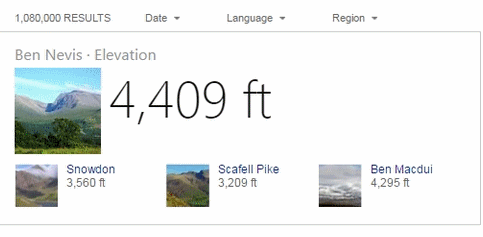
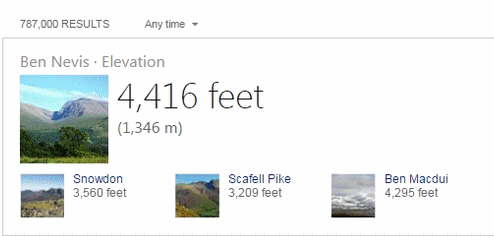
The US and UK versions of Bing gave results that looked very similar to Google's but  with two different quick answers in feet, and neither gave sources:

Bing UK

Ben-Nevis-Bing-UK

Bing US

Bing-Ben-Nevis-US

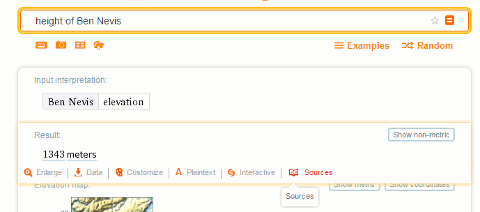
I won't bore you with all of the other search tools that I tried except for Wolfram Alpha. This gave me 1343 meters or 4406 ft. At least the conversion is correct but there is no direct information on where the data has been taken from.

Ben-Nevis-WA

The sources link was of no help whatsoever and referred me to the home pages of the sites and not the Ben Nevis specific data. On some of the sites, when I did find the Ben Nevis pages, the figures were different from those shown by Wolfram Alpha so I have no idea how Wolfram arrived at 1343 meters.

So, the answer to my question "How high is Ben Nevis?" is 1344.527m rounded up on OS maps to 1345m.

And the main lessons from this exercise are:

  1. Never trust the quick answers or knowledge graphs from any of the search engines, especially if no source is given. But you knew that anyway, didn't you?

  2. If you are seeing even small variations in the figures, and there are calculations or conversions involved, double check them yourself.

  3. Don't skim read the results and use information highlighted in the snippets - read the full articles and from more than one source.

  4. Make sure that the articles you use are not just copying what others have said.

  5. Try and find the most relevant and authoritative source for your query, and ideally a primary source. In this case it was Ordnance Survey. GB officially taller - Ben Nevis  https://www.ordnancesurvey.co.uk/about/news/2016/gb-officially-taller-ben-nevis.html

Thursday, 28 April 2016

Advanced Google workshop - Top Tips

This collection of Top Tips is a combined list nominated by those who attended the UKeiG workshop on “New Google, New Challenges”. The next UKeiG Google workshop will be run on 8th September 2016.

1. Do not trust Google’s facts and answers
Google tries to provide facts and quick answers to your queries at the top and to the right of your results. These are computer generated extracts from pages and several different sources may be used to produce an “answer”. They are sometimes misleading or completely wrong. At the time of writing, the answer provided for a search on frugivore is an excellent example. (It explains why your cat is so fussy over its food – it is obviously craving its 5 a Day!) Always go to the original source to double check the information, but this is not always provided by Google.

2. Country versions of Google and /ncr
Country versions of Google give priority to the local content. This is a useful strategy when searching for research groups, companies and people that are active or working in a particular country. Use the standard ISO two letter country code, for example http://www.google.fr/ for Google France, http://www.google.it/ for Google Italy.

It is also worth trying your search in Google.com. Your results will probably be more international or US focused but you may see new search features or layouts in Google.com that are not yet available elsewhere. If Google insists on redirecting you to your own country version, go to the bottom right hand corner of the Google home page and you should see a link to Google.com. If there is no link then add ‘/ncr’ to the Google URL, for example http://www.google.com/ncr .

The downside of using country versions of any search tool is that the prioritised information is likely to be in the local language.

3. Search history
Your search history, which is recorded and available for you to view if you are signed in to your Google account, is used by Google to help personalise your results but it can also be useful as a record of past searches. If a user comes back to you having forgotten or lost the search and documents you gave them your search history should be able to help you find both. On any search results page click on the cog wheel in the upper right hand area of the screen and select History. You can then browse your history or select a date from the calendar (upper right and area of the History screen).

4. Verbatim
This is an essential tool for making Google carry out your search the way you want it run. Google automatically looks for variations on your terms and sometimes drops terms from your search, which is not always helpful. To use Verbatim, first run your search. Then click on ‘Search tools’ in the menu that runs across the top of your results page. A second row of options should appear. Click on ‘All results’ and from the drop down menu select Verbatim. Google will then search for your terms without any variations or omissions. Note that Google will search for documents and pages in which the words appear in any order. If you are searching on the title of a paper place the title within double quote marks to force an exact phrase match. If Google still alters your search then run Verbatim. 

Verbatim-Factsheet
If you are carrying out in-depth research it is worth trying out Verbatim even if the “normal” Google results seem OK. You may see very different and possibly more relevant content.

5. filetype: command.
An important advanced search command that is available not only in Google but in many alternative search tools. Use the filetype: command to limit your research to PowerPoint for presentations, spreadsheets for data and statistics, or PDF for research papers and industry/government reports.

For example:

plasmonic nanoparticles filetype:ppt

The command must be all lower case and there must be no spaces between the colon and the command or the file extension, otherwise Google will treat the command as a searchable word. Also you must search for pre and post Office 2007 file extensions separately as Google does not automatically pick up both.

For example

plasmonic nanoparticles filetype:ppt OR filetype:pptx

Note that Google’s Advanced Search screen pull down menu for filetype: only searches for pre Office 2007 extensions.

6. Minus sign to exclude information
Use the minus sign immediately before a term to exclude documents containing that term, but use with care as you may lose valuable information. It can also be used with commands to exclude file formats or websites from your search.

For example:

occupational asthma UK site:gov.uk -site:hse.gov.uk
-site:nationalarchives.gov.uk


7. Combine search commands
Combine multiple commands such as filetype: and site: to focus your search. Use the OR command to search for alternatives, for example:

occupational asthma UK site:ac.uk filetype:ppt OR filetype:pptx

8.Personalise Google News
Personalise Google News (http://news.google.co.uk) page when signed in to your account  and change what content is automatically displayed or add your own searches. Click on the Personalise button at the top of the right hand column. 

9. Google Scholar Cite feature
Click on the Cite link under a reference in Google Scholar and Google will give you options to import a citation in MLA, APA, Chicago, Harvard or Vancouver style into BibTex, EndNote, RefMan or RefWorks. Note that if the article is only available online you may need to add a doi or a URL, and the date of access.

10. Use Google site: search on Google scholar
This is one I had not thought of but was recommended by one of the delegates as a way of using Google’s advanced search commands on Google Scholar instead of Scholar's own. (I have not had time to test this one out myself).

Tuesday, 9 February 2016

Google advanced search - get it right!

When running advanced search workshops, and especially Google sessions, I prefer not to dwell on commands and search options that are no longer supported. They are gone and that is that, and it is far better to concentrate on how to get the best out of what is left. Of course it is unavoidable when your slides have been prepared several days before the event and  Google decides to pull the plug on one of your favourite search features just before you start! Similarly I tend not to show "this is how NOT to use...." a command  or incorrect syntax. It is often the incorrect format that one remembers.  Recently, though, I have added slides  to my presentations that cover both defunct commands and errors in syntax and format.

The problem is that not only are many people unaware that some search options are no longer available but also some fact sheets and articles covering advanced search are getting it wrong. The recent Guardian article on top search tips for Google almost got it right  but referred to the tilde, which was dropped in 2013, and did not really understand how Google automatically looks for synonyms and variations on a term (see my earlier blog posting Guardian’s top search tips for Google not quite tiptop). I have also seen a couple of recently produced Google  fact sheets riddled with mistakes.

The wonderful thing about Google is that it can take the most tortuous and error ridden search string and still come back with something that is sensible - most of the time.  The downside of this is that one assumes the search query has worked as intended when in fact Google has totally rewritten the search for you.  At some point, though, Google will rewrite the search in such a way that it brings back rubbish. So, it is important to know what commands are available and how they should be used.

Let's get started.

Plus (+) sign before a word to force an exact match.

This was discontinued in October 2011 because Google intended to use it as a way to search for Google+ pages. That has been abandoned and it is now a searchable character.  If you want to force an exact match search on a term precede the term with intext: for example intext:agriculture.

I have also seen examples claiming that a plus sign between words acts as a Boolean AND. No, it doesn't.  If you do get different results when using + it is because Google is searching for that as well as your terms.

Tilde  (~) for synonyms

This was withdrawn in  June 2013  because not many people used it and it was no longer needed. Google now looks for synonyms by default.

thesaurus: for alternative terms

'thesaurus:' sort of works because Google treats 'thesaurus', having ignored the colon,  as a search term. So 'thesaurus:eclectic' will give you links to pages and websites of dictionaries and definitions that give synonyms for eclectic. It does not give you a straightforward list of alternatives in the same way that 'define' does. If you use thesaurus  you have to go the websites in turn to view the synonyms.

The asterisk *

The asterisk (*) is a placeholder for terms between two words e.g. solar * panels finds solar photovoltaic panels, solar PV panels, solar thermal panels. It is NOT a truncation symbol. Again, you might think it is because Google ignores the asterisk and automatically looks for  words that begin with the letters you have typed in.

The example I gave in my earlier blog posting was a search on phenobarb*. I expected Google to pick up references to phenobarbitone. It picked up 76,000 results including phenobarbital but there was no mention of phenobarbitone in the first 100.  Phenobarb without the asterisk picked up the exact same results.  A search on phenobarbitone, with and without the asterisk came up with 241,000 results. I have no idea how or when Google decides to stop looking for variations on your string but it is obvious from the above example that the asterisk is not a truncation symbol.

Do NOT capitalise the first letter of commands, and NO spaces

Commands such as intitle:, intext:, filetype: and site: must be all lower case and NO spaces between the colon and the search term. Capitalise the first letter or add a space after the colon or both and Google treats the command as an ordinary searchable word.

The correct format for an intitle: search is, for example, intitle:caversham and finds the following:


Capitalise the first letter of the command or insert a space or both and you find:


I do understand why so many fact sheets, and presentations, show commands with an initial capital letter. You spend ages preparing your information and when you have sent off your slides for printing or converted your document to a PDF you discover that Microsoft Office has changed the format of the command. Because your search example is on a separate line with the command at the start Office, bless it, decides to auto-correct and capitalise the first letter. I know, it has happened to me! So, please, check and double check your support materials.

Google searches for all of your terms by default

Not always. If your search, as it stands, finds zero or a low number of results then Google will drop one or more terms that are usually shown as strikethroughs.  In the above screenshot you can see that the third entry in the results has a "Missing:
caversham" at the end of the snippet.

If Google is dropping a term that is essential to your search then prefix it with intext:, for example intext:caversham. If you want all of your terms to be included, and without any variations, then use the Verbatim search option.  If you are using a desktop or laptop run your search and then click on the Search tools option at top of your results. A second line of options will appear. Click on All results and select Verbatim.  The layout and location of Verbatim on mobile devices will usually be different.

Double quotation marks around phrases

Double quotation marks around phrases, titles of papers, song titles, famous sayings etc. works most of the time. But, again, if Google finds zero or only a handful of results it will ignore the marks. Google may also alter the spelling of one or more words within the double quotation marks. Use Verbatim if you are sure that the phrase is correct and you want to bring Google to heel.

Full nested Boolean search

Google has NEVER supported full nested Boolean search. I still meet people who are adamant that Google does, but when pushed they admit that they often get unexpected results.  You can , though, use OR for alternative terms and the minus sign before a term to exclude documents containing that term.

This is how Google interprets the search (confectionery OR chocolate) AND (production OR manufacture) AND (france OR Germany OR UK OR switzerland) NOT belgium


Note that pages containing Belgium are included rather than excluded.

Remove the 'NOT Belgium' and this is what we see:


Add '-belgium' to the end of the search instead of 'NOT belgium' and we get:


Running Verbatim on our original Boolean search shows that Google is treating AND and NOT as lower case, searchable words:


If you want to learn more about Google search Dan Russell, who works at Google,  is currently running an online course on Power Searching with Google.  Alternatively, if you want a more business or academic research and UK/European oriented workshop on what Google can do I am running an advanced Google workshop with UKeiG on April 13th, 2016.

Sunday, 31 January 2016

Google's Knowledge Graph a total fruitcake

Many thanks to Emily Scott who alerted me on Twitter to a priceless example of Google Knowledge Graph getting it totally wrong.

For those of you who don't know what the Knowledge Graph is, it is the box that sometimes appears on the right hand side of your results, which pulls together information on your topic from a variety of sources.  To quote Search Engine Land it is "a system that Google launched in May 2012 that understands facts about people, places and things and how these entities are all connected". The problem is that Google quite often gets it wrong, although usually it is just one fact that is incorrect. One of the more well know examples is when Google decided that the American author Robert Greene was born in 1959 but died in 1592. It had confused him with the the 16th century English writer of the same name. As I always say in my Google workshops, never trust the information that appears in the Knowledge Graph.  The data comes from different sources that may be referring to entities that are not related at all.

The example that Emily encountered, though, is in a league of its own. She was searching for frugivores (fruit eaters) and this is what Google's Knowledge Graph suggested:


As far as I am aware fruit is not the preferred food of wolves, cats or lions.  Clicking on the "View 45+more" option for representative species we see that Google is under the impression that cheetahs, killer whales, polar bears and leopards are also frugivores.


I'll allow raccoons although I wouldn't say that fruit is their preferred food. But, hey, what do I know about raccoons other than that my US friends tell me the little s***s raid trash cans and will eat anything they can get their paws on.

No doubt someone has already reported the error via the feedback link and someone at Google is busy correcting it. Enjoy and take screenshots while it is still there.

Friday, 15 January 2016

Guardian's top search tips for Google not quite tiptop

I have just been alerted by fellow search expert Alison McNab to an article by Samuel Gibbs (@SamuelGibbs) in the Guardian on top search tips for Google.  I had to double check the date of the article because although it is OK for the most part it has got a few things wrong, one of the commands was withdrawn some time ago,  and it has missed what I consider to be one of the most important Google search options.

So let's have a look at the tips one by one.

1. Exact phrase.

Yes, placing double quote marks around words usually makes Google search for the exact phrase. However, Google does sometimes ignore the quote marks.

2.  Exclude terms

Yes, preceding a term with a minus sign will exclude documents containing that term

3. Either OR

Yes, the OR command does work when searching on alternative terms - most of the time. Make sure the OR is in capital letters.

4. Synonym search

Tilde symbol (~) for a synonym search? No! Google withdrew it over two years ago  because not many people used it. Google now looks for synonyms by default. If you precede a term with a tilde Google ignores it and carries on as normal. I've just tried several searches with and without the tilde and get exactly the same results.

5. Search within a site

Yes. The site: command is one of the most powerful advanced search commands and enables you to search within a single site, for example site:www,gov.uk, or a type of site, for example site:ac.uk for UK academic sites.

6. The power of the asterisk

Yes, the asterisk can stand in for one or more terms between two words, for example solar * panels. No, it is not a truncation symbol.

The example given by The Guardian  is a search on architect*, which finds "architect, but also architectural, architecture, architected, architecting and any other word which starts with architect." As with synonyms, Google searches for variations on a word by default.

I ran a search on phenobarb* expecting Google to pick up references to phenobarbitone. It picked up 76,000 results including phenobarbital but there was no mention of phenobarbitone in the first 100 documents.  Phenobarb without the asterisk picked up the exact same results. Excluding phenobarbitone by using the minus sign gave me 70,000 results.  A search on phenobarbitone, with and without the asterisk came up with 241,000 results.

7. Searching between two values

Yes. The number range search does work and is great for searching within a range of values or years.  For example:

chocolate consumption forecasts 2016..2020

top 10..100 UK car insurance companies

toblerone 1..5 kg

8. Search for word in the body, title or URL of a page

This covers the commands intext:, intitle: and inurl:.  All correct but intext: is especially useful in that it forces Google to include that term in the search. It is invaluable if you find Google dropping key terms from your strategy, which it does if you are likely to retrieve zero results or it thinks the number of results is too low.

9. Search for related sites

The related: command looks for similar sites, for example related:theguardian.com finds other news organisations. It works but only shows you 20-30 sites. Worthwhile using, though, if you want to broaden your search to other but similar organisations and only have one or two to start with.

10. Combine them

I wholeheartedly agree with this one. Once you have a few advanced commands under your belt you can really start to focus your search and retrieve more relevant results.

What's missing?

I'm surprised that filetype: was not included. It is nearly always on the list of top tips that my advanced search workshop participants suggest at the end of the day.  It's a quick and easy way of finding presentations (filetype:ppt, filetype pptx), government documents and research papers (filetype:pdf) and datasets (filetype:xls, filetype: xlsx, filetype:csv).

The major omission for me, though, is Verbatim. It is different from the rest in that it is not a command that you can type in. You have to run your search first. From the menu at the top of the results select 'Search tools', followed by 'All results'  and  then 'Verbatim'. Use this when Google is wreaking havoc on your search by leaving out terms and using weird and wonderful terms that have nothing to do with your subject. Verbatim will search on all of your terms without dropping any or looking for variations and synonyms.

If you are interested in learning more about advanced search in Google and other search tools, some of my past presentations and fact sheets are available at http://rba.co.uk/as/.  

Wednesday, 28 October 2015

Google introduces RankBrain

We've known for some time that Google has been buying heavily into artificial intelligence and looking at applying it not only to its robotics and driverless cars projects but also to search. Now it is official: artificial intelligence and machine learning plays a major role in processing Google queries and is, Google says,  the third most important signal in ranking results. It has been named RankBrain.

Danny Sullivan covers the story in Search Engine Land and looks at the implications for search. There is a follow up story  by Danny that goes into more detail, FAQ: All About The New Google RankBrain Algorithm, and he makes a guess at what the number 1 and 2 ranking signals are (Google won't say!).

Both are very interesting articles on how Google is using RankBrain in search especially the FAQ,  which is a "must read" if you want to begin to understand how Google is now handling your search.

Sunday, 26 July 2015

Google rolls out "People also ask"

There have been reports (http://searchengineland.com/google-tests-new-mobile-search-design-people-also-ask-box-219078) for several months that Google has been testing a new query refinement box called "People also ask".  It now looks as though it has gone live. The feature suggests queries related to your search after the first few entries in your results list. It doesn't appear for all queries and it is dependent on how you ask the question. My search on 'what are statins' gave me the usual, standard results list.  When I searched on 'types of statins' the 'People also ask' box popped up with "How do statins work to lower cholesterol?", "How do statins lower cholesterol?" and "What is a statin drug?


To see further information you have to click on the downward pointing arrow next to the query but instead of a list of sites you see just an extract from a page supposedly answering the question, a bit like the Quick Answers that sometimes appear at the top of your search results. There is an option, though, to run a full search on the query you have chosen.  As with the Quick Answers, there are no clues as to how or why Google has selected a particular page to answer the query.

The queries for 'People also ask' are also different from the suggested queries that are listed as you type in your question into the standard Google search box.


Those of you who have attended my talks and workshops will no doubt be waiting for me to come up with an example of a Google howler. Here it is: a search on 'tomato blight prevention uk' comes up with "What is potato blight?" (close, and the organism that causes late potato and tomato blight is the same) and "What is an ANEMBRYONIC pregnancy?".


No, I don't know what an ANEMBRYONIC  pregnancy is (why the capital letters?) but it has nothing to do with potato or tomato blight!

At present, this is not a feature that I am finding useful. For me it is a hindrance rather than a help and just clutters up the results page with superficial or irrelevant suggestions. But as my queries tend to be quite complex and often incorporate advanced search commands, which seem to disable it, I don't expect to be seeing much of this feature.

Friday, 8 May 2015

Google dumps Reading Level search filter

It seems that Google has dumped the Reading Level search filter. This was not one that I used regularly but it was very useful when I wanted more serious, in-depth, research or technically biased articles rather than consumer or retail focused pages. It often featured in the Top Tips suggested by participants of my advanced Google workshops.

It was not easy to find. To use it you had to first run your search and then from the menu above the results select ‘Search tools’, then ‘All results’, and from the drop menu ‘Reading level’. Options for switching between basic, intermediate and advanced reading levels then appeared just above the results.


So another tool that helped serious researchers find relevant material bites the dust. I daren't say what I suspect might be next but, if I'm right, its disappearance could make Google unusable for research.