Showing posts with label Top 10 Search Tips. Show all posts

Monday, 19 September 2016

Essential Non-Google Search Tools for Researchers - Top Tips

This is the list of Top Tips that delegates attending the UKeiG workshop on 7th September 2016 in London came up with at the end of the training day.  Some of the usual suspects such as the 'site:' command, Carrot Search and Offstats are present but it is good to see Yandex included in the list for the first time.

  1. Carrotsearch http://search.carrotsearch.com/carrot2-webapp/search or http://carrotsearch.com/ and click on the “Live Demo” link on the left hand side of the page.
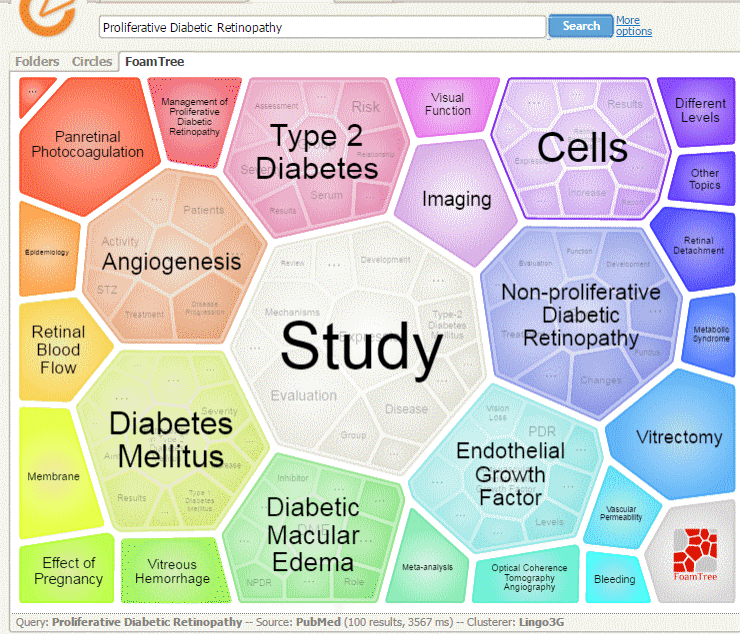
    This was recommended for its clustering of results and also the visualisations of terms and concepts via the circles and “foam tree”. The Web Search uses eTools.ch for the general searches and there is also a PubMed option.

    [caption id="attachment_3731" align="aligncenter" width="400"]Carrot Search Foam PubMed Foam Tree Carrot Search Foam PubMed Foam Tree[/caption]


  1. Advanced Twitter Search http://twitter.com/search-advanced
    The best way to search Twitter! Use the Advanced Search http://twitter.com/search-advanced or the click on the “More Options” on the results page. There is a detailed description of the commands and how they can be used at https://blog.bufferapp.com/twitter-advanced-search 


  1. Yandex http://www.yandex.com/
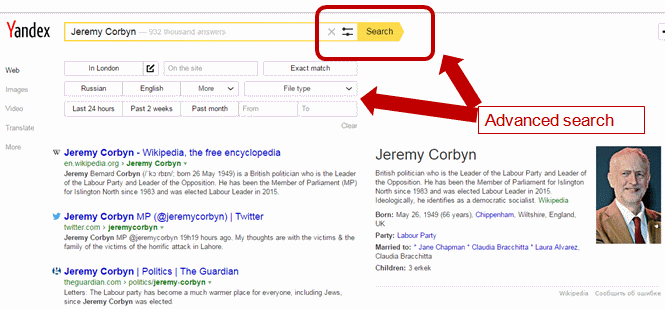
    The international version of the Russian search engine with a collection of advanced commands - including a proximity operator - that makes it a worthy competitor to Google. Run your search and on the results page click on the two line next to search box.

    [caption id="attachment_3734" align="aligncenter" width="400"]Yandex Advanced Search Yandex Advanced Search[/caption]

    Alternatively, use the search operators. Most of them are listed at https://yandex.com/support/search/how-to-search/search-operators.xml. There is also a /n operator that enables you to specify that words/phrases must appear within a certain distance of each other, for example:

    "University of Birmingham" nanotechnology /2 2020

    There are country versions of Yandex for Russia, Ukraine, Belarus, Kazakhstan and Turkey. You will, though, need to know the languages to get the best out of them and apart from Turkey they use a different alphabet.


  1. Millionshort http://millionshort.com/
    If you are fed up with seeing the same results from Google again and again give MillionShort a try. MillionShort enables you to remove the most popular web sites from the results. The page that best answers your question might not be well optimised for search engines or might cover a topic that is so specialised that it never makes it into the top results in Google or Bing.Originally, as its name suggests, it removed the top 1 million but you can change the number that you want omitted. There are filters to the left of the results enabling you to remove or restrict your results to ecommerce sites, sites with or without advertising, live chat sites and location. The sites that have been excluded are listed to the right of the results.


  1. site: command
    Use the site: command to focus your search on particular types of site, for example include site:ac.uk in your search for UK academic websites. Or use it to search inside large rambling sites with useless navigation, for example site:www.gov.uk. You can also use -site: to exclude individual sites or a type of site from your search. All of the major web search engines support the command.


  1. Microsoft Academic Search http://academic.research.microsoft.com/
    An alternative to Google Scholar.“Semantic search provides you with highly relevant search results from continually refreshed and extensive academic content from over 80 million publications.”This was recently revamped and although it now loads and searches faster than it used to the new version has lost the citation and co-author maps that were so useful. It can be a useful way of identifying researchers, publications and citations but do not rely on the information too much. It can get things very wrong indeed. For example, I’ve found that for some reason the affiliation of several authors from the Slovak Technical University in Bratislava is given as the Technical University of Kenya!


  1. Wolfram Alpha https://www.wolframalpha.com/
    This is very different from the typical search engine in that it uses its own curated data. Whether or not you get an answer from it depends on the type of question and how you ask the question. The information is pulled from its own databases and for many results it is almost impossible to identify the original source, although it does provide a possible list of resources. If you want to see what WolframAlpha can do try out the examples and categories that are listed on its home page.


  1. OFFSTATS - The University of Auckland Library http://www.offstats.auckland.ac.nz/
    This is a great starting point for locating official statistical sources by country, region or subject. All of the content in the database is assessed by humans for quality and authority, and is freely available.


  1. Meltwater IceRocket http://www.icerocket.com/
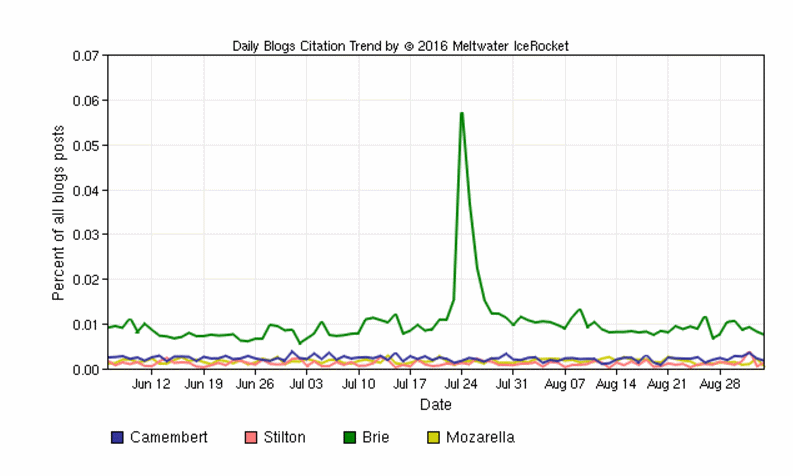
    IceRocket specialises in real-time search and was recommended for inclusion in the Top Tips for its blog search and advanced search options. There is also a Trends tool that shows you the frequency with which terms are mentioned in blogs over time and which enables you to compare several terms on the same graph.

    [caption id="attachment_3739" align="aligncenter" width="400"]IceRocket Trends IceRocket Trends[/caption]

    Very useful for comparing, for example, mentions of products, companies, people in blogs.


  1. Behind the Headlines NHS Choices http://www.nhs.uk/news/Pages/NewsIndex.aspx
    Behind the headlines provides an unbiased and evidence-based analysis of health stories that make the news. It is a good source of information for confirming or debunking the health/medical claims made by general news reporting services, including the BBC. For each “headline” it summarises in plain English the story, where it came from and who did the research, what kind of research it was, results, researcher’s interpretation, conclusions and whether the headline’s claims are justified.

Thursday, 28 April 2016

Advanced Google workshop - Top Tips

This collection of Top Tips is a combined list nominated by those who attended the UKeiG workshop on “New Google, New Challenges”. The next UKeiG Google workshop will be run on 8th September 2016.

1. Do not trust Google’s facts and answers
Google tries to provide facts and quick answers to your queries at the top and to the right of your results. These are computer generated extracts from pages and several different sources may be used to produce an “answer”. They are sometimes misleading or completely wrong. At the time of writing, the answer provided for a search on frugivore is an excellent example. (It explains why your cat is so fussy over its food – it is obviously craving its 5 a Day!) Always go to the original source to double check the information, but this is not always provided by Google.

2. Country versions of Google and /ncr
Country versions of Google give priority to the local content. This is a useful strategy when searching for research groups, companies and people that are active or working in a particular country. Use the standard ISO two letter country code, for example http://www.google.fr/ for Google France, http://www.google.it/ for Google Italy.

It is also worth trying your search in Google.com. Your results will probably be more international or US focused but you may see new search features or layouts in Google.com that are not yet available elsewhere. If Google insists on redirecting you to your own country version, go to the bottom right hand corner of the Google home page and you should see a link to Google.com. If there is no link then add ‘/ncr’ to the Google URL, for example http://www.google.com/ncr .

The downside of using country versions of any search tool is that the prioritised information is likely to be in the local language.

3. Search history
Your search history, which is recorded and available for you to view if you are signed in to your Google account, is used by Google to help personalise your results but it can also be useful as a record of past searches. If a user comes back to you having forgotten or lost the search and documents you gave them your search history should be able to help you find both. On any search results page click on the cog wheel in the upper right hand area of the screen and select History. You can then browse your history or select a date from the calendar (upper right and area of the History screen).

4. Verbatim
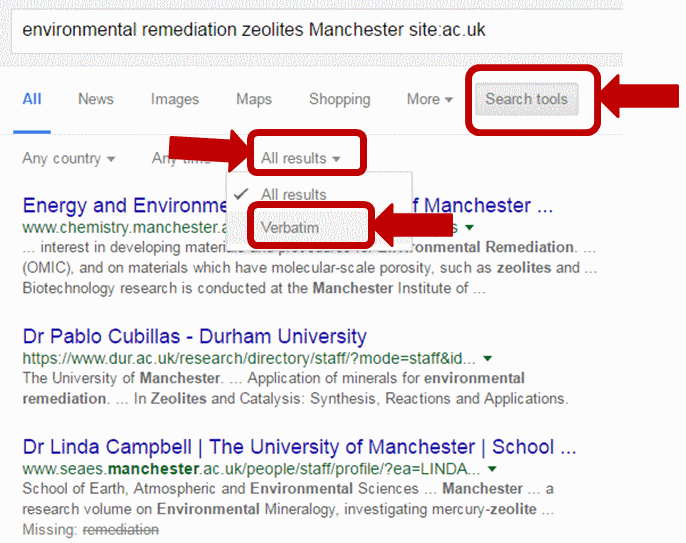
This is an essential tool for making Google carry out your search the way you want it run. Google automatically looks for variations on your terms and sometimes drops terms from your search, which is not always helpful. To use Verbatim, first run your search. Then click on ‘Search tools’ in the menu that runs across the top of your results page. A second row of options should appear. Click on ‘All results’ and from the drop down menu select Verbatim. Google will then search for your terms without any variations or omissions. Note that Google will search for documents and pages in which the words appear in any order. If you are searching on the title of a paper place the title within double quote marks to force an exact phrase match. If Google still alters your search then run Verbatim. 

Verbatim-Factsheet
If you are carrying out in-depth research it is worth trying out Verbatim even if the “normal” Google results seem OK. You may see very different and possibly more relevant content.

5. filetype: command.
An important advanced search command that is available not only in Google but in many alternative search tools. Use the filetype: command to limit your research to PowerPoint for presentations, spreadsheets for data and statistics, or PDF for research papers and industry/government reports.

For example:

plasmonic nanoparticles filetype:ppt

The command must be all lower case and there must be no spaces between the colon and the command or the file extension, otherwise Google will treat the command as a searchable word. Also you must search for pre and post Office 2007 file extensions separately as Google does not automatically pick up both.

For example

plasmonic nanoparticles filetype:ppt OR filetype:pptx

Note that Google’s Advanced Search screen pull down menu for filetype: only searches for pre Office 2007 extensions.

6. Minus sign to exclude information
Use the minus sign immediately before a term to exclude documents containing that term, but use with care as you may lose valuable information. It can also be used with commands to exclude file formats or websites from your search.

For example:

occupational asthma UK site:gov.uk -site:hse.gov.uk
-site:nationalarchives.gov.uk


7. Combine search commands
Combine multiple commands such as filetype: and site: to focus your search. Use the OR command to search for alternatives, for example:

occupational asthma UK site:ac.uk filetype:ppt OR filetype:pptx

8.Personalise Google News
Personalise Google News (http://news.google.co.uk) page when signed in to your account  and change what content is automatically displayed or add your own searches. Click on the Personalise button at the top of the right hand column. 

9. Google Scholar Cite feature
Click on the Cite link under a reference in Google Scholar and Google will give you options to import a citation in MLA, APA, Chicago, Harvard or Vancouver style into BibTex, EndNote, RefMan or RefWorks. Note that if the article is only available online you may need to add a doi or a URL, and the date of access.

10. Use Google site: search on Google scholar
This is one I had not thought of but was recommended by one of the delegates as a way of using Google’s advanced search commands on Google Scholar instead of Scholar's own. (I have not had time to test this one out myself).

Thursday, 10 March 2016

Business information key resources and search strategies - Top 10

The participants  of the business information workshop I ran on March 8th  had a variety of interests: search strategies and commands for Google et al,  UK government information, statistics, open data, social media, companies, locating scientific research.  So it was quite tough limiting the Top Tips that I asked them to nominate at the end of the day to just 10.

This is what they came up with.
  1. Get to know the key resources and starting points for different types of business information e.g. Companies House, OFFSTATS and go direct to those rather than Google. It will save you time in the long run.

  2.  Verbatim. An invaluable tool for research when Google insists on rewriting your search and dropping terms. To make Google search for all of your terms without variation, but in any order, first run your search. Then click on ‘Search tools’ in the line of options above your results. In the second line of options that appears click on ‘All results’ and from the drop down menu select Verbatim. If you are carrying out in-depth research it is worth using Verbatim even if your “normal” Google results seem to be OK. You may see very different content in the Verbatim list.

  3. Combine advanced search commands such as site: and filteype: to focus your search on types of information (PDF reports, PPT presentations, spreadsheets containing data) and websites (government, academic, individual sites). Also try using the minus sign to exclude documents containing specific terms or sites that are irrelevant.

  4. Phil Bradley’s UK Newspapers Google Custom Search Engine. http://www.philb.com/nationaluknewspapers.html
    A relatively new tool that enables you to search all of the major national UK newspapers and regional newspapers. A real time saver if you are searching for local information on a local business or entrepreneur and don’t want to have to track down all the local papers and search them one by one.

  5. OFFSTATS - The University of Auckland Library http://www.offstats.auckland.ac.nz/ A good starting point for official statistical sources by country, region subject or combination of categories. All of the content in the database has been chosen and quality assessed by staff at The University of Auckland Library.

  6. Zanran http://zanran.com/ A tool for searching information contained in charts, graphs and tables of data. Enter your search terms and optionally limit your search by date and/or format type. Zanran comes up with a list of documents that match your criteria with thumbnails to the left of each entry. Hover over the thumbnail to see a preview of the page containing your data and further information on the document.

  7. Advanced Twitter Search. http://twitter.com/search-advanced Essential tool if you are using Twitter to look for news on product developments, announcements, conferences, discussions on technologies/companies, or how companies interact with customers.

  8. Wayback Machine http://www.archive.org/ Want to see what was on a website a few years ago or trying to track down a document that seems to have vanished from the web? Try the Internet Archive Wayback Machine at http://www.archive.org/. Enter the URL of the website or document and you should then see a calendar of the snapshots that the archive has. Choose a date from the calendar to view the page. The archive does not have everything but it is worth a try. See also the UK National Archives of old government websites and pages at http://www.nationalarchives.gov.uk/webarchive/

  9. OUsefulInfo, http://blog.ouseful.info/ “Trying to find useful things to do with emerging technologies in open education and data journalism”. Maintained by Tony Hirst, this blog has useful information and descriptions of what can be involved when dealing with and manipulating open data.

  10. DuckDuckGo  http://duckduckgo.com/ This was not covered in the workshop but one of the participants recommended it as a useful alternative to Google. Aside from the absence of tracking and personalisation it provides different and a greater variety of results when compared with Google.
Edited highlights of the workshop slides can be found on authorSTREAM and Slideshare.

My next business information related workshop is Discover Open Data on  the 7th April.  The  next advanced Google workshop (New Google, New Challenges) is on the 13th April and the Essential non-Google search tools is on  the 12th April.

Tuesday, 20 May 2014

Top ten Google search tips from Oxford

View from the training room
 These Top Ten search tips comes from an advanced workshop I recently ran for a group in Oxford. If this is the first Top Tips that you have read on this blog, a few words of explanation as to how these are generated. These are not my own personal tips but are nominated by people who have attended my full day workshops and tried out the various commands and techniques during the practical sessions.

The participants on this particular workshop were experienced, heavy duty researchers so I was keen to see what they came up with.

1. Verbatim
This is a regular in the Top Ten lists on this blog. It is an essential tool for making Google behave and forcing it to run your search the way you want it run but is well hidden. Google automatically looks for variations on your terms and sometimes drops terms from the search. To make Google carry out your search exactly as you have typed it in, first run your search, then click on ‘Search tools’ in the menu above your results. In the second line of options that appears click on ‘All results’ and from the drop down menu select Verbatim. This is very useful when searching for an article by title and Google decides to ignore the double quote marks, which it sometimes does if it thinks you don't have enough results. If you are carrying out in-depth research it is worth using Verbatim even if your "normal" Google results seem to be OK. You may see very different content in your results list.

2. site: search and -site:
Use the site: command to focus your search on particular types of site, for example site:ac.uk for UK academic websites, or to search inside a large rambling site. If you prefer you can use the Advanced search screen at http://www.google.co.uk/advanced_search and fill in the site or domain box. You can also use -site: to exclude sites from your search.

3. filetype:
Use the filetype: command to limit your research to PowerPoint for presentations, spreadsheets for data and statistics or PDF for research papers and industry/government reports.

4. Asterisk * betweem terms
Use the asterisk between two words to stand in for 1-5 words. This is useful if you want two of your keywords close to one another but suspect that there may often be one or two words separating them. For example solar * panels will find solar photovoltaic panels, solar water heating panels etc.

5. Numeric range search
This command is unique to Google. Use it for anything to do with numbers – years, temperatures, weights, distances, prices etc. Simply type in your two numbers separated by two full stops as part of your search. For example to limit your search forecasts covering a future time period.

6. Incognito/private browsing
Even if you are not signed in to a Google account, Google personalises your results according to your search and browsing behaviour using the cookies that are stored on your computer. If you want to burst out of the filter bubble, as it is often called, use a private browser window or incognito (Chrome). Google will then ignore tracking and search cookies on your machine. To call up a private browser or incognito window use the following keys:
Chrome –  Ctrl+Shift+N
FireFox – Ctrl+Shift+P
Internet Explorer – Ctrl+Shift+P

7. Public Data explorerThe Public Data Explorer is one of Google’s best kept secrets. It can be found at http://www.google.com/publicdata/ and allows you to search open data sets from organisations such as the IMF, OECD, IM,  Eurostat and the World Bank. You can compare the data in a number of ways and there are several charting options.

8. Repeat search terms
If you are fed up with seeing the same results for a search repeat your main search term or terms. This often changes the emphasis of your search and the order in which the results appear.

9.Change order of terms
Changing the order in which you type in your search terms can change the order of your results. The pages that contain the terms in the order you specified in your search are usually given a higher weighting. This is another useful tip for when you are stuck in a search rut and are seeing the same results over and over again.

10. Different country versions
The country versions of Google give priority to the country’s local content, although it might be in the local language. This is a useful strategy when searching for research groups, companies and people that are active in a specific country. Use the standard ISO two letter country code, for example http://www.google.fr/ for Google France, http://www.google.it/ for Google Italy. It is also worth trying your search in Google.com. Your results may be more international or US focused and Google usually rolls out new search features in Google.com before launching in other country versions. If Google insists on redirecting you to your own local country version, go to the bottom right hand corner of the Google home page and you should see a link to Google.com.

Friday, 11 April 2014

Google Top 10 Search Tips

These are the top 10 tips from the participants of a recent workshop on Google, organised by UKeiG and held on 9th April 2014. The edited slides from the day can be found on authorSTREAM at http://www.authorstream.com/Presentation/karenblakeman-2121264-making-google-behave-techniques-better-results/ and on Slideshare at http://www.slideshare.net/KarenBlakeman/making-google-behave-techniques-for-better-results

1. site: 
Use the site: command to focus your search on particular types of site, for example site:nhs.uk for UK NHS websites, or to search inside a large rambling site. If you prefer you can use the Advanced search screen at http://www.google.co.uk/advanced_search and fill in the site or domain box

2. Verbatim
An essential tool for making Google behave and run your search the way you want it run. Google automatically looks for variations on your terms and sometimes drops terms from the search. To make Google run your search exactly as you have typed it in, first run your search. Then click on ‘Search tools’ in the menu above your results. In the second line of options that appears click on ‘All results’ and from the drop down menu select Verbatim.

3. intext:
Google’s automatic synonym search can be helpful in looking for alternative terms but if you want a term to be included in your search exactly as you have typed it in then prefix the word with intext:. For example heron island intext:parrots caversham UK.

4. Incognito/Private browsing
Even if you are not signed in to a Google account, Google personalises your results according to your search and browsing behaviour. If you want to burst out of the filter bubble, as it is often called, use a private browser window or incognito (Chrome). Google will then ignore tracking and search cookies on your machine. To call up a private browser or incognito window use the following keys:

Chrome –  Ctrl+Shift+N
FireFox – Ctrl+Shift+P
Internet Explorer – Ctrl+Shift+P

5. Reading level
This changes the emphasis of the results that you see. Run your search and from the menu above the results select ‘Search tools’, then ‘All results’, and from the drop menu ‘Reading level’. Options for switching between basic, intermediate and advanced reading levels should then appear just above the results. Click on the Advanced option to see results biased towards research.

6. Date
To limit your search by date, for example the last month or year, first run your search. Then click on ‘Search tools’ in the menu above the results and from the second row of options that appears click on ‘Any time’. Select your time period or a custom range from the drop down menu. Unfortunately, this does not work with Verbatim. You could use the 'daterange:' command instead to specify your dates and then apply Verbatim, but you first have to convert you dates to Julian format. The Julian Date Converter at http://aa.usno.navy.mil/data/docs/JulianDate.php tells you more about the format and provides a tool for converting dates. Alternatively, using something like Gmacker (http://gmacker.com/web/content/gDateRange/gdr.htm). This enables you to enter your search terms and select your dates from a calendar. It then runs your search and on the Google results page you can apply Verbatim in the usual way.

7. CachedThe cached option enables you to view the copy of the page that Google has in its database. This is useful when the current version of a page seems to differ signicantly from the one described in the Google search results. Click on the little green arrow next to the URL of the page on the results list and then select Cached.


8. filetype:
Use the filetype: command to limit your research to PowerPoint for presentations, spreadsheets for data and statistics or PDF for research papers and industry/government reports. One workshop participant found it to be a great way to track down conference poster presentations by combining PDF and PowerPoint filetypes with keywords and the term 'poster'.

9. Country versions of Google
The country versions of Google give priority to the country’s local content, although it might be in the local language. This is a useful strategy when searching  for industries, companies and people that are active in a particular country. Use the standard ISO two letter country code, for example http://www.google.fr/ for Google France, http://www.google.it/ for Google Italy.

10. Books - About this magazine
Several people were interested in Google Books and in the magazine archives in particular. Google does not, though, make it easy to browse a magazine's archives. Once you have identified a series that is of interest it would seem logical to click on "Browse all issues" to view a list of what is available.

However, it seems to list the years of the issues randomly. Selecting "About this magazine" brings up some brief information about the title and links that enable you to browse past issues by year.

Thursday, 28 November 2013

Top search tips from Exeter and Bristol

A couple of weeks ago I was in Exeter and Bristol leading workshops for NHS South West on "Google & Beyond". We covered advanced Google commands, Google Scholar and alternatives to Google. Below are the combined top tips from the two sessions. I may have missed a couple from the list as I could not read my writing, so if you attended one of the workshops let me know if I've omitted your suggested tip.
  1. Verbatim Yet again, this has topped the list of useful Google search options. Google automatically looks for variations on your search terms and sometimes drops terms from your search without telling or asking you. To make Google run your search exactly as you have typed it in, first run your search. Then click on ‘Search tools’ in the menu above your results, in the second line of options that appears click on ‘All results’ and from the drop down menu select Verbatim.

  2. Be aware of personalisation. Even if you are not signed in to a Google account Google personalises your results according to your search and browsing behaviour. Personalisation is not necessarily a bad thing but if your want to burst out of the filter bubble, as it is often called, use a private browser window or incognito (Chrome). Google will then ignore tracking and search cookies on your machine and will not personalise your results. To call up a private browser or incognito window use the following keys:
Chrome -  Ctrl+Shift+N
FireFox - Ctrl+Shift+P
Internet Explorer - Ctrl+Shift+P
  1. site: Use the site: command to focus your search on particular types of site, for example site:nhs.uk, or to search inside a large, rambling site. You can also use -site: to exclude sites from your search.

  2. intext: Google’s automatic synonym search can be helpful when looking for alternative terms, but if you want a term to be included in your search exactly as you have typed it then prefix the word with intext:.

  3. filetype: Use the filetype: command to limit your research to PowerPoint for presentations, spreadsheets for data and statistics or PDF for research papers and industry/government reports. Note that in Google filetype:ppt and filetype:xls will not pick up the newer .pptx and xlsx formats so you will need to include those in your strategy, for example filetype:ppt OR filetype:pptx, or run separate searches for each one. In Bing.com, though, filetype:pptx will pick up both .ppt and .pptx files.

  4. Advanced search commands and search options Learn how to use the search commands (for example intext:, filetype: and site:). Many of these can be used on the advanced search screen that can usually be found under the cog wheel in the  upper right hand area of the screen, but that link sometimes disappears so learning the commands is a better bet. A list of the more useful Google commands is at http://www.rba.co.uk/search/SelectedGoogleCommands.shtml.

  5. Combine advanced search commands. Practise combining the advanced search commands for a more precise, focused set of results.

  6. Google Reading level. This changes the type of results that you see. Run your search and from the menu above the results select ‘Search tools’, ‘All results’ and from the drop menu ‘Reading level’. Options for switching between basic, intermediate and advanced reading levels should then appear just above the results. Click on the Advanced option to see results biased towards research. Google does not give much away as to how it calculates the reading level and it has nothing to do with the reading age that publishers assign to publications. It seems to involve an analysis of sentence structure, the length of sentences, the length of the document and whether scientific or industry specific terminology appears in the page.

  7. Numeric range. This command is unique to Google. Use it for anything to do with numbers – years, temperatures, weights, distances, prices etc. Simply type in your two numbers separated by two full stops as part of your search. This is a good way of limiting your search, for example, to forecasts over the few years.

  8. Limiting your search by date. To limit your search by date, for example the last month or year, first run your search. Then click on 'Search tools' in the menu above the results and from the second row of options that appears click on 'Any time'. Select your time period or a custom range from the drop down menu.

  9. Use the minus sign to exclude documents containing a word. If you do not want documents containing a specific word prefix that word term with a minus sign. The minus sign can also be used with commands such as site: and filetype: to remove an individual site or type of document from your results.

  10. Million Short http://millionshort.com/. If you are fed up with seeing the same results from Google again and again give Million Short a try. Million Short runs your search and you can choose to remove the most popular web sites from the results. Originally, as its name suggests, it automatically removed the top 1 million but now you can choose to remove the most popular 100, 1000, 10k, 100k or million sites. The page that best answers your question might not be well optimised for search engines or might cover a topic that is so “niche” that it never makes it into the top results in Google or Bing.

  11. Creative commons searches for images. Rather than search for images and go through them individually to find one that you can legally use in your document or presentation, use advanced search options or tools that allow you to select the appropriate license from the start. In Google, use the usage rights menu on the image advanced search screen to search for images with the license you need. The US version of Bing images includes a license option in the menu at the top of your results.

    Double check the license of the photo on the website or blog hosting it. The license you need may be associated with a different image and yours could, for example, be 'all rights reserved'.Flickr has a page where you can search for images with a specific Creative Commons license at http://www.flickr.com/creativecommons.
  1. Compare in Google. This is not a Google command but if you type in a search such as compare carrots with cabbage Google will create a table comparing the properties of the two items. Google has been known to get some of the data wrong, though, so it's worth double checking the figures before you use them.

  2. Web archives. Want to see what was on a website a few years ago or trying to track down a document that seems to have vanished from the web? Try the Internet Archive Wayback Machine at http://www.archive.org/. Enter the URL of the website or document and you should then see a calendar of the snapshots that the archive has of the site or document. Choose a date from the calendar to view the page. The archive does not have everything but it is worth a try. See also the UK National Archives of old government websites and pages at http://www.nationalarchives.gov.uk/webarchive/ and the UK Web Archive at http://www.webarchive.org.uk/ukwa/.

  3. Statistics sites. Although you can often find statistics via Google, you may find dedicated official statistics sites quicker and more reliable. Some of the sites we covered during the workshops were:

    NHS Statistics Links http://www.nhs.uk/Pages/LinkListing.aspx?CategoryId=Statistics
    UK National Statistics Publication Hub http://www.statistics.gov.uk/
    Office for National Statistics http://www.ons.gov.uk/
    Welsh Government Statistics http://wales.gov.uk/topics/statistics/
    Welsh Assembly Government StatsWales http://statswales.wales.gov.uk/
    UK Open data http://data.gov.uk/
    Eurostat http://ec.europa.eu/eurostat/
    European Union Open Data Portal http://open-dat.europa.eu/en/
    Zanran http://www.zanran.com/


Monday, 4 November 2013

Google workshop - top tips

Last week's workshop on Google had a wonderful mix of participants from the academic, government, public, NHS and legal sectors. And true to form, Google decided to change a few things on the day. The link to the Google News advanced search completely disappeared (it wasn't that good anyway!) but now seems to have reappeared. The search options that appear at the top of the results pages had changed compared with screen shots that I had taken 2 days previously; they options now seem to change according to the type of query so we suspect that this is an example of Hummingbird (Google's new algorithm). The Google custom search engine interface has changed yet again and presented challenges to even those of us who are regular users. And then there was the new Google log-out/log-in interface which had us all flummoxed until the end of the day. (That merits a separate blog rant).

In the time honoured tradition, at the end of the day the group was asked to come up with their top 10 tips for searching Google. Here is what they came up with.
  1. Verbatim Several people shouted out this one as the number 1 tip for searching Google. Google automatically looks for variations on your search terms and sometimes drops terms from your search without telling or asking you. To make Google run your search exactly as you have typed it in, first run your search. Then click on ‘Search tools’ in the menu above your results, in the second line of options that appears click on ‘All results’ and from the drop down menu select Verbatim.

  2. site: command Use the site: command to focus your search on particular types of site, for example site:ac.uk, or to search inside a large rambling site. You can also use -site: to exclude sites from your search.

  3. Advanced search commands and search options Learn how to use the search commands (for example intext:, filetype: and site:), Many of these can be used on the advanced search screen that can usually be found under the cog wheel in the  upper right hand area of the screen, but that link sometimes disappears so learning the commands is a better bet.  A list of the more useful Google commands is at http://www.rba.co.uk/search/SelectedGoogleCommands.shtml

  4. intext: Google’s automatic synonym search can be helpful in looking for alternative terms but if you want a term to be included in your search exactly as you have typed it in then prefix the word with intext:.

  5. Country versions of  Google. The country versions of Google give priority to the country’s local content, although it might be in the local language. This is a useful strategy when searching  for industries, companies and  people that are active in a particular country. Use Google followed by the standard ISO two letter country code, for example http://www.google.de/ for Google Germany, http://www.google.no/ for Google Norway.

  6. Google.com Apart from presenting your search results in a different order Google.com is where Google launches new features and search options first. As well as seeing pages that may not be highly ranked in Google.co.uk you will get an idea of how Google search may look in the UK version in the future. It also has some unique search options such as recipes!

  7. Google Scholar http://scholar.google.com/ Google Scholar collects all the versions of an article under an 'All versions" link. Click on the link to see the full list, which might include free or open access copies of the paper.

  8. Search by image Click on the camera icon in the image search bar to upload a photo or link to an image on the web. Google will then try and find similar images. There were comments from some of the workshop participants that this does not seem to always work as well as it used to, which reflects my own recent experience of the option. It is still worth a go, though, if you want to find different versions of an image.

  9. Hummingbird Keep an eye out for new layouts and ways of searching that are now appearing since Hummingbird was launched. For example, you can now compare the properties of two similar items: compare cabbage with spinach will show a table comparing the nutritional value of the two vegetables.

  10. Google Custom Search Engines (CSE) Several of the participants had a go at setting up their own CSE. Ideal for bringing together websites that you search individually on a regular basis.

Friday, 12 July 2013

Top Tips from SWAMP

Towards the end of June I headed off to Swansea Central Library to facilitate a workshop on search tools and techniques for finding business information and statistics.

The session was organised for the libraries of the wonderfully named SWAMP - South West and Mid Wales Partnership.

We had fantastic views from the library of the sea and shore line so they did very well to remain focused on the work in hand. The top tips that the group suggested at the end of the day were a mixture of search techniques and business information sites.

1. Persistence.
Don't give up and don't get stuck in a rut. If your first attempts fail to produce anything useful try a different approach to your search. Try some of the tips mentioned below: use advanced search commands, a different search tool or go direct to a website that covers your subject area or type of information.

 2. Verbatim.
Google automatically looks for variations on your search terms and sometimes drops terms from your search without telling or asking you. To beat Google into submission and make it run your search exactly as you have typed it in, click on ‘Search tools’ in the menu above your results, then click on the arrow next to ‘All results’ and from the drop down menu select Verbatim.

3. Private Browsing.
To stop search engines personalising your results according to your previous searches and browsing behaviour, find out where the private browsing option is in your browser (in Chrome it is called Incognito). This ignores all cookies and past search history and is as close as you can get to unfiltered results.

Short cuts to private browsing in the main browsers are:
Chrome - Ctrl+Shift+N

FireFox - Ctrl+Shift+P

Internet Explorer - Ctrl+Shift+P

Opera - Ctrl+Shift+N

Safari – click on Safari next to the Apple symbol in the menu bar, select Private Browsing and then click on OK.

4. The site: command.
Include the site: command in your search to focus your search on particular types of site, for example site:ac.uk, or to search inside a large rambling site. You can also use -site: to exclude sites from your search. For example, if you are searching for information on Wales and Australian websites mentioning New South Wales keep coming up include -site:au in your search.

5. The filetype: command.
Use the filetype: command to limit your research to PowerPoint for presentations, spreadsheets for data and statistics or PDF for research papers and industry/government reports. Note that in Google filetype:ppt and filetype:xls will not pick up the newer .pptx and xlsx formats so you will need to incorporate both into your strategy, for example filetype:ppt OR filetype:pptx, or run separate searches for each one. In Bing.com, though, filetype:pptx will pick up both .ppt and .pptx files.

6. Guardian Data Store (http://www.guardian.co.uk/data/)
For datasets and visualisations relating to stories in the news. This is proving to be a very popular site on both the public and in-house workshops. As well as the graphs and interactive maps the source of the data is always given and there are links to the original datasets that are used in the articles.

7. Company Check (http://www.companycheck.co.uk/)
Company Check repackages Companies House data and provides 5 years of figures and graphs for Cash at Bank, Net Worth, Total Liabilities and Total Current Liabilities free of charge. It also  lists the directors of a company. Click on a director’s name and you can view other current and past directorships for that person.

8. BL BIPC industry GuidesThe British Library Business Information and IP Centre’s industry guides at  http://www.bl.uk/bipc/dbandpubs/Industry%20guides/industry.html highlight relevant industry directories, databases, publications and web sites. Excellent starting points if you are new to the sector.

9. Web archives for documents, pages and sites that are no longer "live".
Most people know about the Internet Archive's Wayback Machine at http://www.archive.org/and its collection of snapshots of websites taken over the years. There is also a collection of old UK government webpages at http://www.nationalarchives.gov.uk/webarchive/, and the British Library has a UK web archive at http://www.webarchive.org.uk/ukwa/.

10. Keep up to dateKeep up to date with what the search engines are up to, changes to key resources and new sites. Identify blogs and commentators that are relevant to your research interests and subject areas and follow them using RSS or email alerts.

Saturday, 20 April 2013

Business information slides and top tips

My latest business information workshop, organised by TFPL, was held yesterday in London. A large chunk of the session was taken up with exploring and discussing web sites but we also looked at how advanced search options and commands can be used to focus on higher quality business information. An edited version of the slides is available on authorSTREAM at http://www.authorstream.com/Presentation/karenblakeman-1775787-business-information-key-web-resources/ and Slideshare at http://www.slideshare.net/KarenBlakeman/business-information-key-web-resources-19252576.

Towards the end of the afternoon the participants were asked to come up with a list of top 10 tips and tricks. Two more were submitted to me by email soon after, so we have a dozen in total.

1. Verbatim
Google automatically looks for variations on your search terms and sometimes drops terms from your search without telling or asking you. Neither of these are very helpful if you are looking for a company or a person. Quote marks around phrases or individual words do not always force an exact match or inclusion in the search. If you want Google to run your search exactly as you have typed it in, click on ‘Search tools' in the menu above your results, then click on the arrow next to ‘All results' and from the drop down menu select Verbatim.

2. Reading Level
Try 'Reading level' if Google is failing to return any research or business related documents for a query. Run your search and from the menu above the results select 'Search tools', 'All results' and from the drop menu 'Reading level'. Options for switching between basic, intermediate and advanced reading levels should then appear just above the results. Google does not give much away as to how it calculates the reading level and it has nothing to do with the reading age that publishers assign to publications. It seems to involve an analysis of sentence structure, the length of sentences, the length of the document and whether scientific or industry specific terminology appears in the page.

3. Guardian Data Store http://www.guardian.co.uk/data
This section of the Guardian posts articles, charts, graphs and maps on stories in the news using official government data, datasets collected and published relevant organisations and sometimes data obtained via Freedom of Information (FoI) requests. Links to the original datasets are provided so that you can download the raw data.

4. filetype:
Use the filetype: command to limit your research to PowerPoint for presentations, spreadsheets for data and statistics or PDF for research papers and industry/government reports. Note that in Google filetype:ppt and filetype:xls will not pick up the newer .pptx and xlsx formats so you will need to incorporate both into your strategy, for example filetype:ppt OR filetype:pptx, or run separate searches for each one. In Bing.com, though, filetype:pptx will pick up both .ppt and .pptx files.

5. site:
Include the site: command in your search to focus your search on particular types of site, for example site:gov.uk. You can also use -site: to exclude a site or group of sites from your search, for example:

potato yields forecasts 2013 site:gov.uk -site:www.gov.uk
to run the search on UK government web sites but excluding the new www.gov.uk site.

6. Duedil chart
Duedil (http://www.duedil.com/)  is one of several companies that repackage Companies House data and makes some of available free of charge. The workshop participants particularly liked the company Group visualisations.


7. Company Check http://www.companycheck.co.uk/ and Company Director Check http://company-director-check.co.uk/
Like Duedil, both of these services repackage Companies House data. Company Check provides 5 years of figures and graphs for Cash at Bank, Net Worth, Total Liabilities and Total Current Liabilities free of charge and lists the directors of a company. Click on a director's name and you are taken to the Company Directory Check where you can view other current and past directorships for that person.

8. RSS feeds
Several of those attending the workshop already use, or are considering using, RSS feeds as a means of monitoring events and companies. Google is closing down Google Reader but Phil Bradley has lists of alternatives at http://philbradley.typepad.com/phil_bradleys_weblog/2013/03/20-alternatives-to-google-reader.html and
http://philbradley.typepad.com/phil_bradleys_weblog/2013/03/even-more-33-google-reader-alternatives.html

9. BL BIPC industry Guides
The British Library Business Information and IP Centre's industry guides at http://www.bl.uk/bipc/dbandpubs/Industry%20guides/industry.html highlight relevant industry directories, databases, publications and web sites. Excellent starting points if you are new to the sector.

10. Domain Tools http://www.domaintools.com/
A useful tool for identifying who owns the domain name of a web site. Alarm bells should start ringing in your head if the owner is hiding behind an agent or a privacy protection service.

11. GBRdirect http://www.gbrdirect.eu/
A single point of access to the official company registries of 22 European countries. As well as searching for companies your can search company appointments and personnel for some countries, and verify VAT numbers. The amount of information that is disclosed varies depending on the country and details of what is available is included in the price list at http://gbrdirect.eu/priceList.aspx. The information that it finds will be in the original language.

12. Numeric range
This command is unique to Google. Use it for anything to do with numbers - years, temperatures, weights, distances, prices etc. Simply type in your two numbers separated by two full stops as part of your search. For example: world oil demand forecasts 2015..2030

This workshop is being held again on Thursday, 19th September 2013 in London. The content will have changed by then - in fact, some things have already changed! - and participants are encouraged to let us know the areas and topics in which they are particularly interested and areas of research that cause them problems. This enables me to tailor the event to the needs of those attending. Hands-on practical sessions are included so that everyone has a chance to try out the sites and techniques for themselves. Further details of the day are on the TFPL website.

Thursday, 7 March 2013

Top tips on search and business information

Yesterday, I was in Manchester leading a workshop on search techniques and business information. As well as looking at sources of information we went through some advanced search techniques, so the the top tips that the participants suggested at the end are an interesting mix of business sites and search commands.

1. DomainTools http://www.domaintools.com/
If you want to find out who is behind a web site try Domain Tools. Type in the URL of the web site under the Whois Lookup tab and DomainTools will look for details of who owns it in the domain name registries. However, if the owner of the site really does not want to be identified they may hide behind an agent or a service such as http://privacyprotect.org/.

2. Personalise Google news  and web search for location
Personalisation of search results is not always a bad thing. Google tries to work out your location from your IP address but it does sometimes get it wrong. Or you may want to specify a more precise location so that Google gives priority to content more directly relevant to you. Run a web search and then click on the cog wheel in the upper right hand area of the screen. Select 'Search settings' from the drop down menu. On the the next page select 'Location' from the menu on the left hand side and enter a location in the box provided.

In Google News, click on the cog wheel in the upper right hand area of the page. You should then see options on the right hand side for personalising topics and below those an 'Advanced' link. Click on the link and on the next page go to the 'Create a custom section' on the right hand side of the screen. Under 'Add a local section' you can enter a town, city or post code.

3. Company Check and Company Director Checkhttp://companycheck.co.uk/ and http://company-director-check.co.uk/
These related sites repackage data from Companies House and offer access to a lot of it free of charge, although you will have to register to some of it. Company Check provides 5 years of figures and graphs for Cash at Bank, Net Worth, Total Current Liabilities and Total Current Assets. You can also download accounts, and monitor a company for financial changes or for when new accounts are filed. The directors are listed and you can click through on a name to view their record on Company Director Check and see details of current and past directorships. Credit and risk reports are priced.
4. Zanran http://zanran.com/
This is a search tool for searching information contained in charts, graphs and tables of data and within formatted documents such as PDFs, Excel spreadsheets and images. Enter your search terms and optionally limit your search by date and/or format type. Zanran comes up with a list of documents that match your criteria with thumbnails to the left of each entry. Hover over the thumbnail to see a preview of the page containing your data and further information on the document. If you click on the title to view the whole document you may have to register (free of charge) as the title link sometimes takes you to copies of the indexed documents that are stored on Zanran. If you prefer to go to the original document click on the URL button next to the summary of the page in the results and click on the link that is then revealed. Unfortunately, you may see “page not found” especially if it is on a UK government department web site. Many of these have now been closed and their content archived making it difficult to track down the document.

5. intext:
Google’s automatic synonym search can be helpful in looking for alternative terms but if you want just one term to be included in your search exactly as you typed it in then prefix the word with intext:. For example UK public transport intext:biodiesel. It also stops Google dropping that term from the search if it thinks the number of results is too low. 

6. filetype: to search for document formats or types of informationFor example PowerPoint for experts or presentations, spreadsheets for data and statistics, or PDF for research papers and industry/government reports. Include filetype immediately followed by a colon (:) immediately followed by the file extension in your search strategy.

For example

waste vegetable oil energy generation filetype:pptx
Note that filetype:ppt will not pick up the newer .pptx so you will need to run searches on both. You will also need to look for .xlsx if you are searching for Excel spreadsheets and .docx for Word documents. The Advanced Search screen file type box does not search for the newer Microsoft Office extensions.

7. Google Finance for historical share priceshttps://www.google.co.uk/finance
As well viewing historical graphs for share prices you can download the data as a spreadsheet. The data goes back to 1999 but you can only download one year at a time. You can change the date ranges in the boxes above the table on the Historical prices page. You can also specify a much shorter time span than a year, or put the same date in both boxes if you want a price for just one particular day. To access the data, first search for your stock on the Google Finance home page. Then from the menu on the left hand side of the screen select 'Historical prices'.

8. VerbatimGoogle automatically looks for variations of your terms and no longer looks for all of your terms in a document. If you want Google to run your search exactly as you have typed it in, click on the ‘Search tools’ in the menu above your results. A second menu will then appear. Click on 'All results' and then Verbatim at the bottom of the drop down menu.

9. 'Clear' your search options when you start a new search
If you use the menus above your results to refine your search, for example by using Verbatim or Translated foreign pages, use the 'Clear' option to return to the Google default. Otherwise your choices will be applied to the next search.

10. Disappearing sites and documents
Web sites close down, documents are deleted, and industry guidelines and standards are superseded. If you know the URL of where the document or page used to be try the Internet Archive Wayback Machine (http://archive.org/). Type in the URL of the page or document in the box next to the 'Take Me Back' button and click on the button. If it is in the database you should then see a calendar showing the snapshots and dates that are available. For UK government web sites a similar service is available at http://www.nationalarchives.gov.uk/webarchive/.
If you do not have an old URL or even a title of the document then it is time to start hunting around to see if it has been archived by a different web site. One of the workshop participants gave the example of trying to track down old engineering specifications and lapsed industry guidelines on deep sea oil exploration. The standard Google search techniques were not working. Thinking that Norwegian oil companies have a lot of expertise in this area, they changed the strategy to searching Norwegian web pages and used Google's 'Translated foreign pages' search option (Click on 'Search tools' in the menu above the results, then 'All results' and select 'Translated foreign pages'. Archive copies of the original documents, which were in English, were found!

Wednesday, 27 February 2013

Top tips for finding research information

This week I was in Canterbury leading a workshop and discussion on Google and Google Scholar for finding research information. Although the emphasis was on Google we also covered other specialist tools designed to search for scientific and research information. We also had an interesting discussion on h-index, other citation indices and services such as ORCID and ResearchGate. The slides for the session are available on authorSTREAM (http://www.authorstream.com/Presentation/karenblakeman-1706478-google-scholar-research-information/), Slideshare (http://www.slideshare.net/KarenBlakeman/scholar-research-information) and temporarily at http://www.rba.co.uk/as/.

Anyone who has attended one of my workshops knows that I ask the group to propose at the end of the session their top tips. These are the Canterbury group's top 10 tips.

1. What's going on?
Try and find out what's going on behind the scenes and how the different search tools work. For example, Google and Google Scholar are quite different in the way they manage your search. Understanding how they operate means that you can adapt your search strategy accordingly and also manage your expectations; for example Google Scholar does not use the publishers' meta data so author and date search are unreliable.

2. Personalisation and 'unpersonalisation'
Google personalises your search based on past activity, who is in your social networks,and a whole host of other 'stuff'. You can quickly 'unpersonalise' your results by using a separate browser window that does not use cookies or your web history as part of the search algorithm.

If you use Chrome as your browser, open what is called an incognito window. In the top right hand corner of your screen there is an icon with three lines. Click on it and from the drop down menu select New incognito window. Alternatively press the Ctrl Shift N keys on your keyboard

If you use Firefox, from the menu at the top of the screen select Tools followed by Start Private Browsing.

In Internet Explorer select Tools followed by InPrivate Browsing. If you cannot see InPrivate under Tools try looking under the Safety option.

3. Advanced search commands
Use Google advanced commands  such as filetype: to focus on PDFs, presentations, spreadsheets containing data and site: to look for information on just one site or a range of sites such as UK government. Although the advanced search screen has boxes for you to fill in for the commands the file format or filetype option is limited. It does not include options for the newer Microsoft Office formats such as .pptx and xlsx. Use filetype: as part of your search strategy, for example:

nasa dark energy dark matter filetype:pptx

Google Scholar commands are more limited - see slide 28 of the presentation.

4. intext:
Google automatically looks for variations on your terms and sometimes omits words from your search if it thinks the number of results is too low. Prefixing a term with intext: tells Google that it must be included in your search and exactly as you have typed it in. For example:

UK public transport intext:biodiesel statistics

tells Google that biodiesel must be included in the search and exactly as typed in.

5. Reading Level
Use Reading level if Google is failing to return any research oriented documents for a query. Run the search and from the menu above the results select Search tools, All results and then from the drop menu Reading level. Options for switching between basic, intermediate and advanced reading levels should then appear just above the results. Google does not give much away as to how it calculates the reading level and it has nothing to do with the reading age that publishers assign to publications. It seems to involve an analysis of sentence structure, the length of sentences, the length of the document and whether scientific or industry specific terminology appears in the page.

6. Date options
In Google web search, use the date options in the menus at the top of the results page to restrict your results to information that has been published within the last hour, day, week, month, year or your own date range. Click on Search tools, then Any time and select an option. This works best with news, discussion boards, and blogs and web sites that use blogging software  to generate pages but Google is getting better at identifying the correct date of a web page.

Google Scholar handles publication dates differently. On the results page you can select a date range from the menu on the left hand of the page. Alternatively, you can run a Google advanced search and enter your publication years. However, Google Scholar looks for publication years in the area of the document where the date is most likely to be. As a result it may identify a page number or part of an author's address as a year!

7. Google Scholar alerts
To be used with caution as the searches periodically stop without warning, and so have to be set up again, and they sometimes include documents that are several years old. Whatever your search you can set up an alert by selecting Create alert from the menu on the left hand side of the results page.

If the author has created a profile on Google Scholar, from their profile page you can follow new articles and/or new citations for that author. From past experience I warn you that this is not entirely reliable.


8. Metrics - top publicationsAlthough it claims to search all scholarly literature Google Scholar does not always cover all of the key journals in a subject area. There is no complete source list but there is a top publications for subjects and languages under the ‘Metrics’ link in the upper right hand corner of the Scholar home page.

9. Microsoft Academic Search - visualisations
Microsoft Academic Search (http://academic.research.microsoft.com/) is a direct competitor to Google Scholar. The site is sometimes slow to load and it often assigns authors to the wrong institution. Nevertheless, the visualisations such as the co-author and citation maps can be useful in identifying who else is working in a particular area of research. The visualisations can be accessed by clicking on the Citation Graph image to the left of the search results or author profile.


10. Mednar visual
Deep Web Technologies has developed in conjunction with various institutions a number of science and research specific portals, some of which are publicly available. The sources that they cover are different but they all have similar search and display options. Results are automatically ranked by relevance but this can be changed to date, title or author. In addition to the standard relevance ranked list of results the portals create clusters of topics on the left hand side of the screen. The topics include broad subject headings, authors, publications, publishers, and year of publication and are a useful tool for narrowing down a search. Some of the portals, such as Mednar (http://mednar.com/), offer a clickable 'visual' of topics and sub-topics.

Monday, 3 September 2012

Top search tips from North Wales

August is usually a quiet month for me with respect to work. Time for a holiday away and then a couple of weeks ambling along the Thames Path or pottering around the garden. This year, though, as soon as I was I back from my travels I was knuckling down and updating my notes for two search workshops in North Wales. Both were for the North Wales Library Partnership (NWLP), the first taking place at Coleg Menai in Bangor and the second at Deeside College. Both venues had excellent training facilities and IT, which meant we could concentrate on getting to grips with what Google is doing with search and experiment with different approaches to making Google do what we want it to do.

At the end of the workshops both groups were asked to come up with a list of  Top 10 Tips. I've combined the two lists and removed the duplicates to generate the list of 16 tips below.
  1. Repeat one or more of your search terms one or more times
    Fed up with seeing the same results for your search?  Repeat your main search term or terms to change the order of your results.

  2. Menus on left hand side of Google results pages
    Use the menus on the left hand side of the results page to focus your search and see extra search features. To see all of the options click on the ‘More’ and ‘More search tools’ links. The content of the menus changes with the type of search you are running, for example Image search has a colour option.

  3. Verbatim
    Google automatically looks for variations of your terms and no longer looks for all of your terms in a document. If you want Google to run your search exactly as you have typed it in, click on the ‘More search tools’ options at the bottom of the left hand menu on your results page and then on Verbatim at the bottom of the extended menu that appears.

  4. intext:
    Google's automatic synonym search can be helpful in looking for alternative terms but if you want just one term to be included in your search exactly as you typed it in then prefix the word with intext:. For example carbon emissions buses intext:biofuels flintshire. The command sometimes has the effect of prioritizing pages where your term is the main focus of the article.

  5. Advanced search screen and search commands
    Use the options on the advanced search screen  or the search commands (for example filetype: and site:) in the standard search box to narrow down your search. A link to the advanced searchscreen can usually be found under the cog wheel in the  upper right hand area of the screen. If you can't see a cog wheel or the link has disappeared from the menu go to http://www.google.co.uk/advanced_search. A list of the more useful Google commands is at http://www.rba.co.uk/search/SelectedGoogleCommands.shtml

  6. Try something different
    Get a fresh perspective by trying something different. Two most popular during these two workshops seemed to be DuckDuckGo (http://duckduckgo.com/) and Millionshort (http://millionshort.com). Other search engines to try include Bing (http://www.bing.com/) and Blekko (http://blekko.com/).

  7. Use the country versions of Google for information that is country specificThis will ensure that the country's local content will be given priority, although it might be in the local language. Useful for companies and people who are based in or especially active in a particular country, or to research holiday destinations. Use Google followed by the standard ISO two letter country code, for example http://www.google.de/ for Google Germany or http://www.google.no/ for Google Norway.

  8.  Filetype to search for document formats or types of informationFor example PowerPoint for experts or presentations, spreadsheets for data and statistics, or PDF for research papers and industry/government reports. Note that filetype:ppt will not pick up the newer .pptx so you will need to include both in your search, for example filetype:ppt OR filetype:pptx. You will also need to look for .xlsx if you are searching for Excel spreadsheets and .docx for Word documents. The Advanced Search screen file type box does not search for the newer Microsoft Office extensions.

  9. Clear cookies
    Even if you are logged out of your Google account when you search, information on your activity is stored in cookies on your computer. These can personalise your results according to your past search and browsing history. Many organisations have set up their IT systems so that these tracking cookies are automatically deleted at least once a day or whenever a person logs in or out of their computer account. At home, your anti-virus/firewall software may perform the same function. If you want to make sure that cookies are deleted or want to control them manually How to delete cookies at http://aboutcookies.org/Default.aspx?page=2 has instructions on how to do this for most browsers.

  10. Looking for research papers? Google Scholar (http://scholar.google.com/) is one place to look but there may be additional material hidden somewhere on an academic institution's web site. Include advanced search commands, for example filetype:pdf site:ac.uk, in your search.

  11. For the latest news, comments and analysis on what is happening in an industry or research area carry out a  Google blog search and limit your search by date. Simply run your search as usual in the standard Google search box. On the results page click on Blogs in the menu on the left hand side of the screen and then select the appropriate time option.

  12. site: and -site:
    Use the site:command to search within a single site or type of site.For example:2011 carbon emissions public transport site:statistics.gov.uk to search just the UK official statistics web siteasthma prevalence wales site:gov.uk OR site:nhs.ukto search all UK government and NHS web sites
    If you are fed up with a site dominating your results use -site: to exclude it from your search.

    For example:

    Dylan Thomas -site:bbc.co.uk

  13. Reading level - from tourism to research
    Use this to option in the menus on the left had side of your results page to change the type of information. For example run a search on copper mines north wales. Then click on Reading Level in the left hand menus. Selecting "Basic" from the options that appear at the top of the results gives you pages on tourism and holiday attractions. "Advanced" gives you research papers, journal articles and mineral databases. Google does not give much away as to how it calculates the reading level and it has nothing to do with the reading age that publishers assign to books. It could involve sentence structure, grammar, the length of sentences on a web page, the length of the document, the terminology used and doubtless many other criteria.

  14. Google.com
    Apart from presenting your search results in a different order Google.com is where Google tries out new features. As well as seeing pages that may not be highly ranked in Google.co.uk you will get an idea of how Google search may look in the UK version in the future.

  15. Numeric range search
    Use this for anything to do with numbers – years, temperatures, weights, distances, prices etc. Use the boxes on the Advanced Search screen or just type in your two numbers separated by two full stops as part of your search.For example:world oil demand forecasts 2015..2030

  16. An understanding of copyright is important if you intend to re-use information found in the web and absolutely essential if you are going to use images. Creative Commons licences clearly state what you can and can't do with an image but they are not all the same. The list at Creative Commons http://creativecommons.org/licenses/ outlines the terms and conditions. "FAQs - Copyright - University of Reading" at http://www.reading.ac.uk/internal/imps/Copyright/imps_copyrightfaqs.aspx gives some guidance on copyright but if in doubt always ask! An example of what can happen if you get it wrong is demonstrated by "Bloggers Beware: You CAN Get Sued For Using Pics on Your Blog" http://www.roniloren.com/blog/2012/7/20/bloggers-beware-you-can-get-sued-for-using-pics-on-your-blog.html.

Friday, 10 February 2012

Top search tips from UKeiG Google workshop

UKeiG organised a workshop on Google, which was held on 8th February 2012 and hosted by Birimngham University. (My slides for the day can be found on authorSTREAM and on Slideshare). Twenty-two people from a variety of backgrounds and sectors attended the event and their combined Top 10 Tips are listed below.

1. An understanding of how Google works and is "improving" search is vital. Minor changes in functionality and ranking algorithms can cause havoc and are impossible to counter unless you know what is going on. Google's various official blogs are a starting point but they don't tell you everything. Identify and monitor blogs from searchers and organisations that monitor what Google and other search engines are up to. (A selection are listed on the final slide of the presentation).

2. "Google assumes that all searchers are stupid and don't know how to search" said one workshop participant! It takes far too many decisions on their behalf: automatically corrects what it thinks are typographical errors, excludes and adds terms to the search without asking, changes results according to past searching behaviour, and gives priority to network connections. To bring Google to heel, learn how to use advanced search commands and the options available in the menus on the left hand side of the results pages.

3. If you have a Google account investigate your Dashboard (http://www.google.com/dashboard/). This contains all of the information you have given Google about yourself plus data that Google has collected from your various accounts such as Gmail and Google Reader. Clear out anything you don’t need or use (you won’t be able to do this for everything) and make sure you are not sharing anything that you want kept private, for example docs and maps.

4. Order matters. Changing the order in which you type in your search terms will change the order of your results. The pages that contain the terms in the order you specified in your search are usually given a higher weighting. Also keep an eye on any oddities when combining advanced search commands. For example the search allintitle:diabetic retinopathy site:ac.uk comes up with sensible results. Switch the order to site:ac.uk allintitle:diabetic retinopathy and Google totally loses the plot.


5. Be aware that Google no longer searches for all of your terms all of the time. It now does what it calls a 'soft AND'. See the first comment to my blog posting on this issue at http://www.rba.co.uk/wordpress/2011/11/08/dear-google-stop-messing-with-my-search/#comments. If you want all of your terms to appear in your documents exactly as you typed them in then you have to use....

6. Verbatim. This tells Google to carry out an exact match search. Run your search as normal and then use Verbatim in the menu on the left hand side of your results page. It is normally hidden from view so click on ‘More search tools’ at the bottom of the menu and Verbatim is right at the bottom. It appears that you can use advanced search commands such as filetype:, site:, and the tilde (~) with Verbatim but it cannot be combined with the date options or ‘Pages from the UK’ in the results page menus.

7. Public Data Explorer is one of Google's many well kept secrets. It can be found at http://www.google.com/publicdata/ and allows you to search data sets from organisations such as the IMF, OECD and World Bank. You can compare the data in various ways and there are several chart options.

8. Google has a habit of hiding and moving links to resources and tools such as the Public data Explorer, Advanced Search and Language Tools. Bookmark them so that you can always find them (unless, of course, Google decides to remove them altogether).

9. Three tools that are intended for people maintaining websites can also be useful to searchers in identifying trends, alternative search terms, and research into key players and competitors in a sector.
Google Trends http://www.google.com/trends/ - can be used to view search trends over time and to compare multiple search terms

Google Trends for Websites http://trends.google.com/websites - looks at search trends for individual websites or you can compare several websites. In addition it shows what people  'Also visited' and 'Also searched for'.

Google Insights for Search http://www.google.com/insights/search/ - advanced options for identifying search trends including countries and categories.

If you are responsible for content on your web pages these tools can help identify terms that could increase traffic to your site.

10. If you have had enough of Google and do not feel secure with the way it monitors your activity and personalises results try DuckDuckGo (http://duckduckgo.com/) as an alternative. DDG does not track, filter or personalise and several people found some of the results to be better than Google's. Many of the workshop participants had tried Bing but there was little enthusiasm for it. They had found that the results were not as relevant as Google's and there was concern over Bing's links with Facebook, personalisation and what it calls "adaptive search". Google is so often considered the bad guy because of the amount of personal information it gathers but it does at least show users a lot of what has been collected about them. The same cannot be said for Bing.