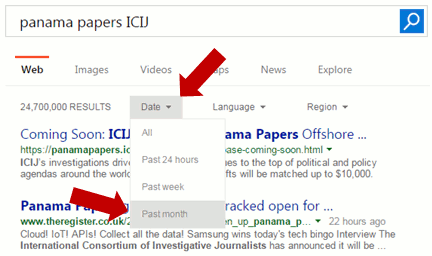
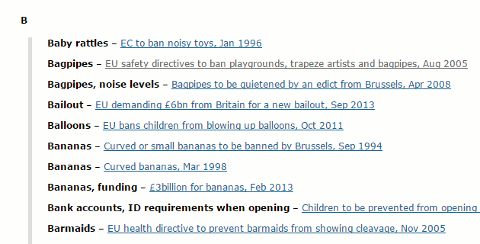
The UK version of Bing has not had a date option until now but bizarrely has added the old, limited US selection.
News and comments on developments in search and electronic resources. Once posted, the articles are not updated. Older postings may contain links that are out of date or no longer work.
Thursday, 28 April 2016
Bing extends date search option
The UK version of Bing has not had a date option until now but bizarrely has added the old, limited US selection.
Advanced Google workshop - Top Tips
1. Do not trust Google’s facts and answers
Google tries to provide facts and quick answers to your queries at the top and to the right of your results. These are computer generated extracts from pages and several different sources may be used to produce an “answer”. They are sometimes misleading or completely wrong. At the time of writing, the answer provided for a search on frugivore is an excellent example. (It explains why your cat is so fussy over its food – it is obviously craving its 5 a Day!) Always go to the original source to double check the information, but this is not always provided by Google.
2. Country versions of Google and /ncr
Country versions of Google give priority to the local content. This is a useful strategy when searching for research groups, companies and people that are active or working in a particular country. Use the standard ISO two letter country code, for example http://www.google.fr/ for Google France, http://www.google.it/ for Google Italy.
It is also worth trying your search in Google.com. Your results will probably be more international or US focused but you may see new search features or layouts in Google.com that are not yet available elsewhere. If Google insists on redirecting you to your own country version, go to the bottom right hand corner of the Google home page and you should see a link to Google.com. If there is no link then add ‘/ncr’ to the Google URL, for example http://www.google.com/ncr .
The downside of using country versions of any search tool is that the prioritised information is likely to be in the local language.
3. Search history
Your search history, which is recorded and available for you to view if you are signed in to your Google account, is used by Google to help personalise your results but it can also be useful as a record of past searches. If a user comes back to you having forgotten or lost the search and documents you gave them your search history should be able to help you find both. On any search results page click on the cog wheel in the upper right hand area of the screen and select History. You can then browse your history or select a date from the calendar (upper right and area of the History screen).
4. Verbatim
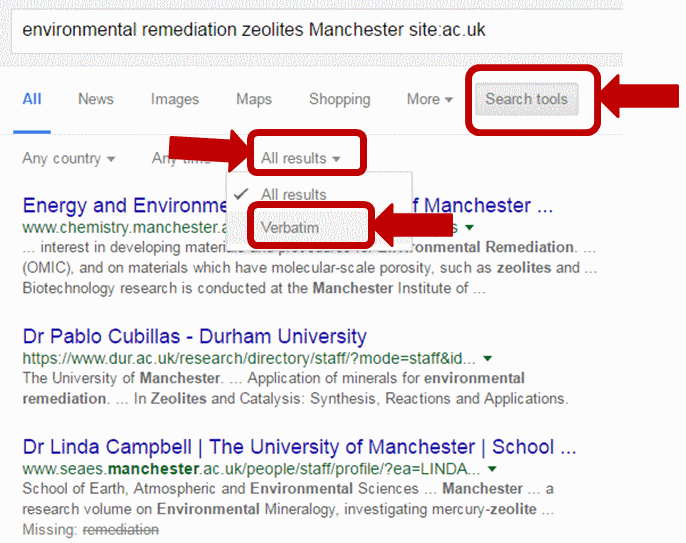
This is an essential tool for making Google carry out your search the way you want it run. Google automatically looks for variations on your terms and sometimes drops terms from your search, which is not always helpful. To use Verbatim, first run your search. Then click on ‘Search tools’ in the menu that runs across the top of your results page. A second row of options should appear. Click on ‘All results’ and from the drop down menu select Verbatim. Google will then search for your terms without any variations or omissions. Note that Google will search for documents and pages in which the words appear in any order. If you are searching on the title of a paper place the title within double quote marks to force an exact phrase match. If Google still alters your search then run Verbatim.
If you are carrying out in-depth research it is worth trying out Verbatim even if the “normal” Google results seem OK. You may see very different and possibly more relevant content.
5. filetype: command.
An important advanced search command that is available not only in Google but in many alternative search tools. Use the filetype: command to limit your research to PowerPoint for presentations, spreadsheets for data and statistics, or PDF for research papers and industry/government reports.
For example:
plasmonic nanoparticles filetype:ppt The command must be all lower case and there must be no spaces between the colon and the command or the file extension, otherwise Google will treat the command as a searchable word. Also you must search for pre and post Office 2007 file extensions separately as Google does not automatically pick up both.
For example
plasmonic nanoparticles filetype:ppt OR filetype:pptx Note that Google’s Advanced Search screen pull down menu for filetype: only searches for pre Office 2007 extensions.
6. Minus sign to exclude information
Use the minus sign immediately before a term to exclude documents containing that term, but use with care as you may lose valuable information. It can also be used with commands to exclude file formats or websites from your search.
For example:
occupational asthma UK site:gov.uk -site:hse.gov.uk
-site:nationalarchives.gov.uk7. Combine search commands
Combine multiple commands such as filetype: and site: to focus your search. Use the OR command to search for alternatives, for example:
occupational asthma UK site:ac.uk filetype:ppt OR filetype:pptx8.Personalise Google News
Personalise Google News (http://news.google.co.uk) page when signed in to your account and change what content is automatically displayed or add your own searches. Click on the Personalise button at the top of the right hand column.
9. Google Scholar Cite feature
Click on the Cite link under a reference in Google Scholar and Google will give you options to import a citation in MLA, APA, Chicago, Harvard or Vancouver style into BibTex, EndNote, RefMan or RefWorks. Note that if the article is only available online you may need to add a doi or a URL, and the date of access.
10. Use Google site: search on Google scholar
This is one I had not thought of but was recommended by one of the delegates as a way of using Google’s advanced search commands on Google Scholar instead of Scholar's own. (I have not had time to test this one out myself).
Essential non-Google Search Tools - Top Tips
This particular workshop will be re-run later in the year on September 7th. See the UKeiG training pages for further details.
1.Use more than one search tool
Different search tools have different coverage, search features and sort results differently. If you are doing in depth research use more than one to make sure you are covering all aspects and use a tool that is most appropriate for the type of information you require.
2. filetype: command
An important advanced search command that is available not only in Google but in many alternative search tools. Use the ‘filetype:’ command to limit your research to PowerPoint for presentations, spreadsheets for data and statistics, or PDF for research papers and industry/government reports.
For example:
home ownership UK filetype:xlsMake sure that filetype is all lower case and that there are no spaces before or after the colon.
Unlike Google, most of the alternative general search engines will automatically search for both the pre Office 2007 file extensions (xls, ppt, doc) as well as the current ones (xlsx, pptx, docx) regardless of whichever version you specify.
3. Behind the Headlines - NHS Choices
http://www.nhs.uk/news/Pages/NewsIndex.aspx
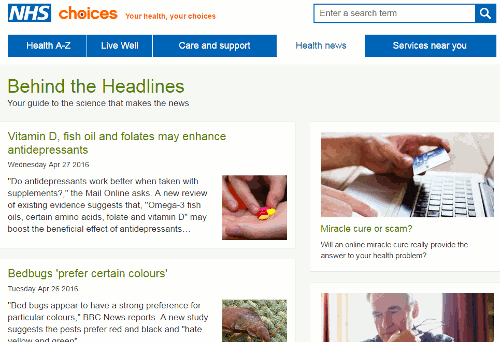
This is an excellent site for tracking down the truth and the research behind sensational, front page stories about medical breakthroughs. It explains in plain English what the background is behind the story and whether or not the claims made by the newspaper articles are valid.
4. Million Short http://millionshort.com/
If you are fed up with seeing the same results again and again give Million Short a try. Million Short enables you to remove the most popular websites from the results. Originally, as its name suggests, it removed the top 1 million but you can now choose to remove the top 100, 1000, 10K, 100K, or million from your search. The page that best answers your question might be on a site that is not be well optimised for search engines, or might cover a topic that is so specialised that it never makes it into the top results in Google or Bing.
There are filters to the left of the results enabling you to remove or restrict your results to ecommerce sites, sites with or without advertising, live chat sites and location. The sites that have been excluded are listed to the right of the results and you can, if you wish, view the excluded pages by site.
5. Carrot Search http://search.carrotsearch.com/carrot2-webapp/search
Carrot Search was nominated for the Top Tips for its clustering of results into topics (left hand side of the results screen) that enable you to filter and focus the search, as well as the visualisations of terms and concepts via the circles and “foam tree”. This is always a popular search tool with those who prefer visualisations rather than just text as a way of presenting and refining results. Click on the Circles and Foam Tree tabs at the top and to the left of the results.
6. Compound Interest http://www.compoundchem.com/
“Compound Interest is a site that aims to take a closer look at the chemical compounds we come across on a day-to-day basis. It also provides graphics for educational purposes, both for teacher and student use.” It is run by Andy Brunning, a chemistry teacher based in Cambridge.
Recent topics include:
The Chemistry of Camembert http://www.compoundchem.com/2016/02/10/the-chemistry-of-camembert/
Chemistry History: Teflon & Non-Stick Pans http://www.compoundchem.com/2016/02/04/teflon/
The Chemistry of an Electric Guitar http://www.compoundchem.com/2015/11/24/guitar/
7. Internet Archive: Wayback Machine http://archive.org/
Want to see what was on a website a few years ago or trying to track down a document that seems to have vanished from the web? Try the Internet Archive. Enter the URL of the website or document and you should then see a calendar of the snapshots that are in the archive. Choose a date from the calendar to view the page. The archive does not have everything but it is worth a try. See also the UK National Archives of old government websites and pages at http://www.nationalarchives.gov.uk/webarchive
8. UK Parliament http://www.parliament.uk/
Perfect for monitoring the progress of legislation through Parliament (http://www.parliament.uk/business/bills-and-legislation/). As well as following the progress of legislation you can view the documents associated with a Bill (explanatory notes, amendment papers, report stage procedures, select committee reports etc). RSS and email alerts are available for each Bill.
9. Tineye http://www.tineye.com/
Reverse image search tool for seeing where and when an image has been used. Either upload an image or enter an image URL. Sort the results by Best match (default), Most changed, Biggest image, Newest or Oldest. Browser plugins are available for Firefox, Chrome, Safari, IE and Opera.
10. Search for images by license
If you want to be sure that you are allowed to use an image for a project use a search tool that enables you to search by license. Bing has a license filter in its image search so that you need only view those that have the appropriate license. Run your search and use the drop down menu under License in the menu bar across the top of the results to apply a copyright filter.
Always go to the page hosting the image to check that the license does apply to the image you want and not to another one on the same page. (Google Images has a similar option).
Flickr Creative Commons (http://www.flickr.com/creativecommons) describes what the different licenses allow you to do and enables you to search for photos with that license.
Other tools that have Creative Commons or public domain images include:
Wikimedia Commons http://commons.wikimedia.org/ (but do check the full information on each image as there may be copyright restrictions under some jurisdictions)
MorgueFile.com http://www.morguefile.com/
Geograph http://www.geograph.org.uk/ “UK and Ireland photos of landmarks and buildings for every Ordnance Survey grid”
Nasa http://www.nasa.gov/
Saturday, 2 April 2016
Flickr no longer allows easy deletion of automatic tags
Flickr no longer allows users to easily remove the automatically generated tags that it adds to photos. Flickr has been using image recognition technology for a couple of years to automatically generate tags for users’ photos but didn't make them visible until May 2015. As well as new photos, the computer generated tags had been added retrospectively to all previously uploaded photos. My own experience is that many of the tags are useless and some are totally wrong. See my earlier posting Flickr pulls out all the stops with automatic tagging.
Until now, both users' and Flickr's tags could be deleted. Hover over a tag and a cross would appear in the upper right hand corner enabling you to delete that tag. The cross no longer appears on Flickr generated tags so they cannot be deleted that way. There is a work around which is to manually add a tag that is identical to the one you want to remove and then delete the tag you have just added. This also deletes the corresponding Flickr tag.
Several people have commented that there is an option under Settings, Privacy and Permissions that enables you to hide auto tags. This does exactly what it says on the tin:"hides" the tags. It does not remove them so they will still be used by Flickr's search.
Wednesday, 30 March 2016
Debunking Euromyths
The blog covers scare stories that have appeared in the UK press, some of which go back to 1992, and explains what the situation really is and the relevant legislation.
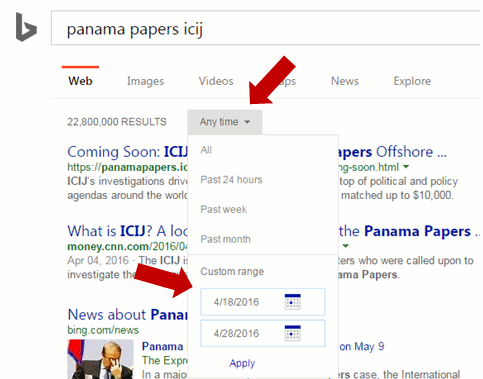
There is a neat A-Z index at http://blogs.ec.europa.eu/ECintheUK/euromyths-a-z-index/ so you can quickly check, for example, if the EU is about to ban bagpipes:
"As for banning bagpipes, Scots can rest assured that their favourite musical instrument is not under threat from EU proposals on noise pollution ... they are designed primarily for those who work with loud machinery for a sustained period – more than 87 decibels for eight hours in a row. The law ... will apply only to workers rather than audiences. If, in the highly unlikely event a bagpipe player is hired to play continuously for eight hours, and the noise created averaged more than 87 decibels, the employer would be obliged to carry out a risk assessment to see where changes can be made – tinkering with the acoustics in a hall to reduce echoes, for example. If that fails, personal protection such as earmuffs will need to be considered, but only as a last resort. Banning musical instruments is not an option. "
The blog is just one of many on the Europa website. A list can be found at Blogs of the European Commission.
Friday, 11 March 2016
Flickr pulls out all the stops with automatic tagging
This is the photo:
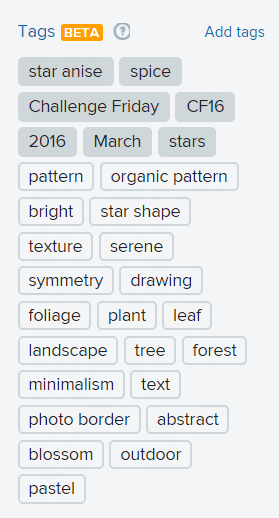
And these are the tags:
I deleted several of them before I thought of taking a screenshot for posterity but what is left gives you a flavour of the range of concepts that Flickr feels are relevant. Some of them I agree with (pattern, star shape, symmetry). Others I shall delete as they are of no help to anyone searching on them (foliage, leaf, landscape, tree, forest, blossom, pastel).
I do, though, rather like "minimalism" even though the structure and complexity of flavour and aroma of star anise is far from minimalist. It stays.
Thursday, 10 March 2016
Business information key resources and search strategies - Top 10
This is what they came up with.
- Get to know the key resources and starting points for different types of business information e.g. Companies House, OFFSTATS and go direct to those rather than Google. It will save you time in the long run.
- Verbatim. An invaluable tool for research when Google insists on rewriting your search and dropping terms. To make Google search for all of your terms without variation, but in any order, first run your search. Then click on ‘Search tools’ in the line of options above your results. In the second line of options that appears click on ‘All results’ and from the drop down menu select Verbatim. If you are carrying out in-depth research it is worth using Verbatim even if your “normal” Google results seem to be OK. You may see very different content in the Verbatim list.
- Combine advanced search commands such as site: and filteype: to focus your search on types of information (PDF reports, PPT presentations, spreadsheets containing data) and websites (government, academic, individual sites). Also try using the minus sign to exclude documents containing specific terms or sites that are irrelevant.
- Phil Bradley’s UK Newspapers Google Custom Search Engine. http://www.philb.com/nationaluknewspapers.html
A relatively new tool that enables you to search all of the major national UK newspapers and regional newspapers. A real time saver if you are searching for local information on a local business or entrepreneur and don’t want to have to track down all the local papers and search them one by one. - OFFSTATS - The University of Auckland Library http://www.offstats.auckland.ac.nz/ A good starting point for official statistical sources by country, region subject or combination of categories. All of the content in the database has been chosen and quality assessed by staff at The University of Auckland Library.
- Zanran http://zanran.com/ A tool for searching information contained in charts, graphs and tables of data. Enter your search terms and optionally limit your search by date and/or format type. Zanran comes up with a list of documents that match your criteria with thumbnails to the left of each entry. Hover over the thumbnail to see a preview of the page containing your data and further information on the document.
- Advanced Twitter Search. http://twitter.com/search-advanced Essential tool if you are using Twitter to look for news on product developments, announcements, conferences, discussions on technologies/companies, or how companies interact with customers.
- Wayback Machine http://www.archive.org/ Want to see what was on a website a few years ago or trying to track down a document that seems to have vanished from the web? Try the Internet Archive Wayback Machine at http://www.archive.org/. Enter the URL of the website or document and you should then see a calendar of the snapshots that the archive has. Choose a date from the calendar to view the page. The archive does not have everything but it is worth a try. See also the UK National Archives of old government websites and pages at http://www.nationalarchives.gov.uk/webarchive/
- OUsefulInfo, http://blog.ouseful.info/ “Trying to find useful things to do with emerging technologies in open education and data journalism”. Maintained by Tony Hirst, this blog has useful information and descriptions of what can be involved when dealing with and manipulating open data.
- DuckDuckGo http://duckduckgo.com/ This was not covered in the workshop but one of the participants recommended it as a useful alternative to Google. Aside from the absence of tracking and personalisation it provides different and a greater variety of results when compared with Google.
My next business information related workshop is Discover Open Data on the 7th April. The next advanced Google workshop (New Google, New Challenges) is on the 13th April and the Essential non-Google search tools is on the 12th April.