Thursday, 9 February 2012

Top search tips from London

Sixteen people attended the two half day search workshops that I ran on Monday, 6th February 2012. As usual, I asked them at the end of the session to come up with a list of what they thought they would find really useful. Below, in no particular order, is a combined list of top tips.

1. intitle:

If there is too much "noise" in your results list try searching for your terms in the title of the document. This will ensure that your subject is the main focus of the article. Prefix a single terms with intitle: or if you want all of your terms in the title use allintitle:

For example:

intitle:insulin

allintitle:diabetic retinopathy

2. Advanced search screen

If you are unsure about using advanced search commands use the advanced search screen. A link to this can usually be found under the cog wheel in the top right hand corner of the Google screen. Google has a bad habit of moving this link around periodically so bookmark the address in case the link disappears.

3. site:

Use the site: command to search within a single site or type of site.

For example:

diabetes diagnosis site:statistics.gov.uk

pancreatic cancer statistics site:nhs.uk OR site:gov.uk

4. The results page left hand menu

The menu on the left hand site of the results page has options that can be used to focus and narrow down your search. Open up the 'More' links to ensure you are seeing the full range of options. The menus change in content depending on the type of resource you are searching, for example images, blogs, news.

5. Check ad preferences and your dashboard

Check your ad preferences and your dashboard (if you have a Google account) to see what Google thinks you are interested in and what information Google has on you.

For your ad preferences go to http://www.google.com/ads/preferences/. Google monitors what you search and lists on this page the categories it thinks you are interested in. It then delivers targeted ads that reflect these interests. You can edit the categories, delete them or opt out altogether. If your computer is set up to regularly delete cookies you will not see any categories.

To see your dashboard, sign in to your Google account and go to http://www.google.com/dashboard/. This contains all of the information you have given Google about yourself plus other information such as your social contacts, which Google has collected from your various accounts such as Gmail and Google Reader. Clear out anything you don't need or use (you won't be able to do this for everything) and make sure you are not sharing anything that you want kept private for example docs and maps.

6. Web History

One of the things that Google uses to personalise your search results is what you have searched for and clicked on in the past. This is stored in your web history and there are two: one that records your history when you are not logged in to a Google account and one for when you are. You can disable the 'logged out' web history from the Web History link under the cog wheel in the top right hand corner of the Google screen. Your 'logged in' web history can be viewed and managed from within your dashboard http://www.google.com/dashboard/. Some people find the web history useful so you might want to keep it.

7. Verbatim

Google no longer automatically searches for all of your search terms and the plus sign can no longer be used in Google web search to force an exact match search. If you want all of your terms included in your search and to stop Google looking for variations, run your search and then use Verbatim in the menu on the left hand side of your results page. Click on 'More search tools' at the bottom of the menu and Verbatim is right at the bottom. Verbatim cannot be combined with the date options or 'Pages from the UK'

8. filetype:

Use filetype: to search for particular types of information or reports for example PowerPoints for presentations, spreadsheets for data and statistics or PDF for research papers and industry/government reports. Note that filetype:ppt will not pick up the newer .pptx so you will need to include both in your search, for example

filetype:ppt OR filetype:pptx

You will also need to include .xlsx if you are searching for Excel spreadsheets and .docx for Word documents.

9. Numeric range search 

Use this for anything to do with numbers - years, temperatures, weights, distances, prices etc. Use the boxes on the Advanced Search screen or just type in your two numbers separated by two full stops as part of your search:
macular degeneration statistics UK 2009..2012

10. Minus to exclude terms from a search

To exclude pages containing a term prefix the term with a minus sign.

11. Dictionary

For definitions of a term use the Dictionary option in the menu on the left hand side of your results page. (You will have to click on 'More search tools' at the bottom of the menu).

12. DuckDuckGo
Try DuckDuckGo (http://duckduckgo.com/) as an alternative to Google web search. No filtering, no personalisation and a lot less rubbish!

13. Search Translated foreign pages

For a different perspective, search for pages and sites in other languages. Use 'Translated foreign pages' in the results page side menu. This is another option that Google hides so to reveal it you will have to click on 'More search tools' at the bottom of the menu.

14. Tilde (~) for synonyms

Use the tilde (~) before a word to include synonyms in your search. This can be used with Verbatim if you want an exact match for most of your terms but are happy for Google to include variations on one or two of the others.

Monday, 30 January 2012

And the next Google killer is....Google!

Many of us have been saying for a while that the search engine that will kill Google is Google itself. It has come so close in the past, two of the more recent incidents being the removal of the plus sign from general web search and stopping the 'ANDing' of search terms. Prefixing search terms with the plus sign enabled searchers to disable Google's synonym and variation search so that it carried out an exact match search. It still works in Google Scholar but not in general web search; Google is now using the '+' prefix within Google+ to help users find Google+ business pages, for example +BASF will quickly take you to the BASF business page.  Google redeemed itself to some extent by hastily bringing in the Verbatim option, which can be found in the left hand menu of your results page. This will run your search exactly as you specify it (Google: Verbatim for exact match search http://www.rba.co.uk/wordpress/2011/11/18/google-verbatim-for-exact-match-search/). However, while it works with Google commands such as 'filetype:' and 'site:' it gives up as soon as you start using some of the options in the left hand menu on the results page, such as date.

And now enter Google+ and Search Plus Your World (SPYW). If you decided to add Google+ to your Google account Google has seriously messed up altered the way it handles your search if you are logged in. It now incorporates and gives priority to results from your Google+ network. (For more details from Google see Search, plus Your World - Inside Search http://insidesearch.blogspot.com/2012/01/search-plus-your-world.html). At present it is only available if you are signed in on Google.com and searching in English. "Search Plus Your World" is now the default and personalizes your results based on both your own behaviour and social connections, and content that has been shared with you through Google+.  Phil Bradley has written an excellent posting on how this works (Why Google Search Plus is a disaster for search http://philbradley.typepad.com/phil_bradleys_weblog/2012/01/why-google-search-plus-is-a-disaster-for-search.htmll).

Initially I was in two minds about SPYW. I thought I might find it useful if I wanted to check what people in my Google circles were saying about a particular issue but then realised that most of them prefer to post on Twitter rather than in Google+ and Google+ does not cover Twitter! The Search+ results include
  • listings from the web
  • pages from the web that have been given priority because of your search behavior
  • pages from the web given priority because of your social connections
  • both public and private (or limited) Google+ posts, photos and Google Picasa photos
When it comes to serious research Search+ includes far too much irrelevant information. So how easy is it to turn it off? If you are logged in when you run your search you will see a message above your results that tells you the number of personal results and "other results” that have been found. There is also a toggle that enables you to switch between personalised and unpersonalised results. You can also switch it off permanently within your search settings.


You can of course just log out of your Google account before you run a search, or never sign up for Google+ in the first place. But Google is making the latter increasingly difficult. Let's look at the results that might be popping up on your screen and as an example I'll use a search on Phil Bradley, search and social media expert and President of CILIP. First of all a search on Phil Bradley before Search+ arrived:


On my screen I see pages from his web site, his blog and a Wikipedia entry (which is not the Phil Bradley I am looking for!). When I sign in to a Google account that has Google+ associated with it I see something completely different:


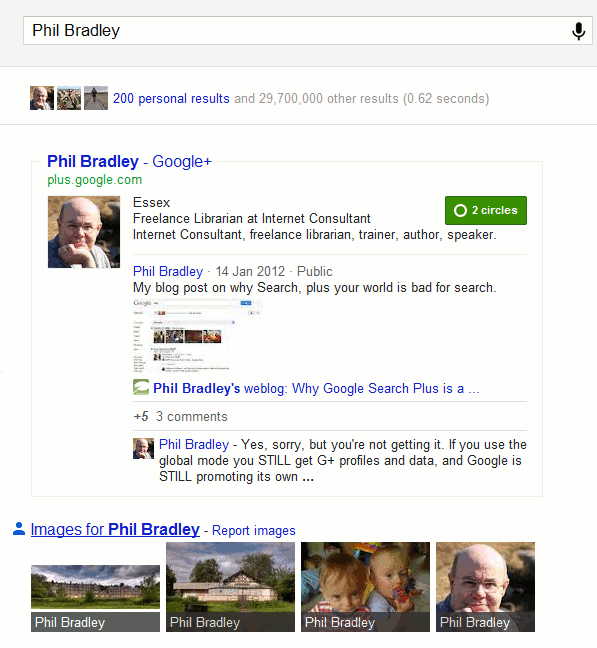
Phil's Google+ profile is given priority above everything else and takes up most of the screen regardless of whether or not it is the most relevant or most up to date (Real-Life Examples Of How Google's "Search Plus" Pushes Google+ Over Relevancy http://searchengineland.com/examples-google-search-plus-drive-facebook-twitter-crazy-107554).  And don't think you can escape with a Google account that does not include Google+. Google has ways of enticing you to "upgrade":


Even worse, if you sign up now for a new Gmail, YouTube or Blogger account you are automatically joined to Google+ (http://searchenginewatch.com/article/2140440/New-Gmail-YouTube-Blogger-Users-Join-Google-by-Default).

Search+ has even tainted the suggestions that pop up as you type in your search:


Phil's Google+ profile is given prominence and if you click on the link without having an account yourself your are invited to join:


To see what the suggestions should look like a group called Focus on the User (http://www.focusontheuser.org/) has produced a bookmarklet for Chrome, Firefox and Safari and extensions for Chrome and Firefox. This tries - and succeeds most of the time - to display your search results without the intrusion of Google+ results. For my search on Phil his Google+ profile is replaced with Twitter.


When I run a search on my own name my Google+ entry is supplanted by my LinkedIn profile.

"What Google should be" does not, though, remove the extra "content" that Search+ sometimes adds to the right of your results. Run a subject search and you may see "People and Pages on Google+" that are supposedly related to your search terms.


I have not yet found these entries to more relevant than standard search results and the link "Learn how you could appear here too" indicates that Google sees this as another way of persuading people and organisations to join Google+. Switching it off is not easy. It is still there if you are logged out of your Google account. It is still there if you add &pws=0 to the search URL (in fact &pws=0 does not seem to work any more at all for depersonalising results). It does disappear, though, if you use Incognito in Chrome. The intrusion of Google+ is most obvious when running searches with just one or two terms or more consumer biased searches. As soon as you start building more complex searches involving filetype: or site: for example, or research more scientific subjects then Google+ takes a back seat.

Search+ is not all that is affecting how Google presents results. Google is simplifying its privacy policies and combining user data from all of its services (Official Google Blog: Updating our privacy policies and terms of service http://googleblog.blogspot.com/2012/01/updating-our-privacy-policies-and-terms.html). It sounds innocent enough but I've already spotted major changes. Google knows I live in Reading because I have told it and I do find that useful when I am carrying out local searches for restaurants, builders etc. Google has now decided, though, to bombard my YouTube home page with videos about Reading.


The videos of the Reading railway station redevelopment are vaguely interesting but I see enough of that in real life on a daily basis when I pass through the centre of town. The football videos are of no interest to me whatsoever. So the crossover of content has already started and I am not looking forward to what Google decides to put in my web search results as a consequence of my YouTube activity!

It is becoming increasingly difficult to make Google behave. Using advanced search commands is one way but many searches do not require them. The best method I have found so far is to use Chrome as your browser and open an incognito window. This depersonalises your results, ignores your web history and existing cookies, and leaves no traces of your search activity. Alternatively, since Google has clearly lost the plot when it comes to search, try another service. The three that I would currently recommend are Bing (http://www.bing.com/), DuckDuckGo (http://duckduckgo.com/) and Blekko (http://blekko.com/).

Saturday, 7 January 2012

Google Transit takes the scenic route

I travel a lot for both business and leisure and I use public transport whenever possible. The plus side to this is that if it is a longish journey - for example Reading to Manchester - I can settle down on the train and get on with some work. The down side is that I have to know my way around the transport networks, not just in the UK but also in the other countries I visit.

After over 20 years of business travel I have a range of tools and timetables bookmarked on my laptop plus the really useful stuff inside my head gained from experience. For example, the easiest route is not always the quickest: a single cross country stopping train may take longer but the seemingly quicker alternative of three changes can be seriously stress inducing and take longer if there are delays, signals failures, "incidents" and you miss your connections.

I recently spotted that two of my clients link to Google Transit (http://www.google.com/transit) on their map and directions pages so I thought I would give it a go. You do not have to go to the Google Transit page to start using this; if you are already on Google Maps and are looking for directions from A to B, choose the middle "By public transport" icon. So let's try a journey from Reading railway station to Milton Keynes.


Well I didn't expect that: a 3 hour journey using 3 buses. Running the journey through the Google Transit page itself the journey time increases to around 3.5 hours and the number of buses to 4.


Google is well known for giving different results for the same type of search depending on the route you take but I was perplexed by Google's insistence that I have to travel by bus. OK, it's Saturday so there are probably engineering works and buses are probably the best option. I checked the National Rail web site (http://www.nationalrail.co.uk/):


No problem it seems. My train journey via London would take just under 2 hours. Perhaps bus transport is Google's default option? Underneath the 'B' location is 'Add Destination - Show options'. Click on this and from the 'Prefer' box you can choose Any mode of public transport, Bus, Underground, Train, Tram/Light rail. The box underneath offers Best route (no definition as to what 'best' means), Fewer transfers, Less walking. No matter what combination of options I selected Google insisted that bus is the only option.


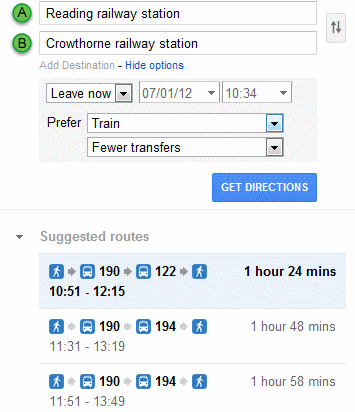
Perhaps Google is confused by the cross-London element of my journey even though Underground is one of the 'Prefer' options. Let's look at a simpler journey: Reading to Crowthorne. I frequently travel along this route and it is a straightforward journey by rail taking 14 minutes as confirmed by National rail.


Google, however, insists that it requires two buses and 1.5-2 hours!


I tried other routes and it seems that Google, in the UK at least, thinks that public transport means bus despite the 'Prefer' options it offers. This could be useful, though, if there is a rail strike and you need to identify alternative means of transport. Or you could go straight to Traveline (http://traveline.info/).

Friday, 30 December 2011

Google shows postcode boundaries - sort of

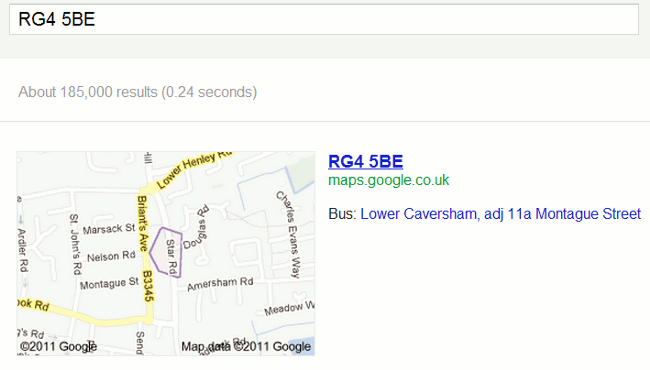
Google has started showing UK postcode area boundaries but not in Google maps as one would expect. Using the standard Google search box type in your postcode and at the top of your results Google shows you a map with the boundaries of the postcode area.


Although the boundaries are in roughly the right area, they are not accurate. In this example, the coverage of RG4 5BE extends north and south to the top and bottom of Star Road. Others have reported similar discrepancies in their areas. As a general indication of the location of a postcode area it is fine but do not rely on Google to identify which streets or parts of streets are covered by it. Google also gives information on the nearest bus stop, which in this case is correct but not the only option. If you click through to the full sized Google map the boundaries disappear and they do not appear at all if you do the search straight away within Google Maps. You do, though, see more information on the public transport options.


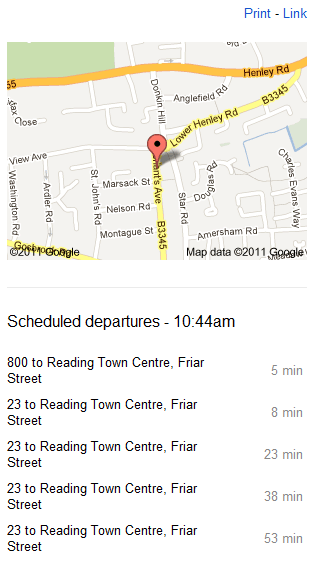
Alternative bus stops are given and the numbered routes listed. I was rather puzzled by the number 74 and 74 A, which  have never seen, but a quick check revealed that it is the "football" bus that runs once a day and only when there is a match at the Madjeski Stadium. The scheduled times for the next buses are as accurate as the bus company timetables provided via Traveline and Transportdirect. I watched three buses arrive and compared it to Google's schedule: the number 800 was 7 minutes late, the first number 23 was 6 minutes late and the second on time so Google is not using real time data.

Overall, it's not bad. Just remember that the postcode boundaries are approximate so if you need something more precise use the Royal Mail web site. The bus timetable will not tell you if a bus is delayed or cancelled but if you are contemplating moving to the area it is a quick way of assessing how good (or bad) the local public transport is.

Thursday, 29 December 2011

Official companies register for the Ukraine

The Ukrainian official companies register can be found at http://irc.gov.ua/ua/Poshuk-v-YeDR.html. The interface and information is in Ukrainian only but Google's translation option does a good enough job to help you through the site. If you use Google Chrome as your browser you can enable its automatic translation prompt by going to Options, Under the Bonnet, and ticking the Translate box. Many thanks to Ladymyr Bondar for alerting me to the site.


Friday, 9 December 2011

Online Information pre-conference workshop: Searching without Google

The slides for my workshop "Searching without Google", 28th November 2011, are available on authorSTREAM and Slideshare


There is also an addendum to the presentation that summarises some of the questions and answers covered throughout the day together with "top tips" and sites that the participants themselves suggested. This is also available on authorSTREAM  and Slideshare

The text of the addendum is reproduced below.

Tools for creating your own search engine

Several people said they will investigate setting up a custom search engine for their preferred sources and frequently used web sites. Google's custom search engine is at http://www.google.com/cse/ and Blekko.com lets you set up 'slashtags' to create lists of sites for searching. One person said that they are going to try both and compare ease of use and results.

What can one do when the link to the Google's advanced search screen disappears altogether?

The link to Google's advanced search screen has been moved to the drop down menu underneath the cogwheel in the upper right hand corner of your screen, but several reported that it had even vanished from there for a couple of days last week. Next time you use the screen bookmark its URL so that you can go directly to it (of course Google can always change that!). Also learn the advanced search commands e.g. filetype: site: etc. so that you can type them into the standard search box.

There is a list of commands at http://www.rba.co.uk/search/SelectedGoogleCommands.shtml (also a PDF version)

(The GoogleGuide list of commands at http://www.googleguide.com/advanced_operators_reference.html was last updated in 2008 and contains commands no longer in use)

Tools for monitoring social media and alerting you when a subject is mentioned

Although Google and Bing both include social media in their search results it is often better to use a tool designed specifically for the job. All three of the following offer RSS alerts for searches.
Topsy.com –  searches tweets, videos and photos on Twitter, and now Google+

SocialMention.com (can be slow at times) – blogs, Twitter, bookmarks, video, audio

Icerocket.com – blogs, twitter, Facebook, images

Are there still some directories alive and updated e.g. DMOZ? Or is the war of directories vs search engines over?

The Yahoo directory is still online although it is not easy to find and it has not been updated for several years. Similarly, some sections of DMOZ appear not to have been updated for at least a year and the entries under some headings look like advertising. The day of the mega-directory may be over but specialist and subject specific listings are still being developed. They do, though, require considerable time and effort to maintain and inevitably some are forced to close because of a lack of funding e.g. Intute.

Are there good tools for events search by subject, region, date?

The events databases that some of us accessed via services such as DataStar have long gone so it is not possible for example to search for events on nanotechnology taking place next year between June and September in Europe. Possible alternative search strategies include:

- identifying major events venues and their calendars
- locating relevant trade and industry newsletters, portals, magazines that may list events in their sectors
- relevant trade and professional bodies and associations

Are there tools that search the live web rather than using indexes of cached pages?

Biznar.com, Mednar.com and some social media search tools search the "live" web but they are limited to searching a small number of sites and are slower than Google and Bing in returning results. There are no free public search tools that search the entire web live – it would take far too long – and by the time the search engine would have finished the information would be out of date!

Searching for scientific publications that are not published in major English language journals

Google and Google Scholar are still a good starting point for this type of search, but it was suggested by several of the workshop participants that Open Access journals could also be investigated as well as national digitised collections and subject specific listing and portals.

Searching news in other languages (alternatives to Google News)

Country versions of Google News give priority to local content but you can identify news sources in individual countries at the Newspaper & News Media Guide http://www.abyznewslinks.com/. You cannot search the publications from this site but it will tell you what is available and the language of publication.

What will be the trend of the next 5 years? More competition? More takeovers of the smaller search engines? More specialist tools?

All of that! Many smaller specialist search tools continually emerge and many of them quickly disappear or are bought up by the competition. It is impossible to predict exactly what will happen, or even if Google will remain the dominant search tool on the web. If Google's popularity starts to wane it probably will not be because a "Google-killer" arrives on the scene but because Google goes too far in trying to take control and automatically "improve" results for users. Many of us feel that it is already going in that direction.

Top tips and tools to try back at work

  1. Custom Search Engines – use Google CSE (http://www.google.com/cse/) or set up a 'slashtag' on Blekko.com so that you can quickly and easily search those sites you regularly use. Note: they will not include password protected sites or sites where you need to conduct a database search

  2. Biznar.com – real time federated search of selected key business resources

  3. Chemspider.com – brings together chemical information from a wide range of resources. Maintained by the Royal Society of Chemistry

  4. Investigate image search sites other than Google. (Multicolr http://labs.ideeinc.com/multicolr/ was specifically mentioned

  5. Paper.li – gather together tweets and/or Google+ posts containing links based on keywords or from a user and their twitterstream. Results are presented in an easy to read newspaper style.

  6. http://www.zanran.com/ – searches for data and statistics contained in graphs, charts and tables

  7. http://duckduckgo.com/  – alternative search engine that does not customise or personalise your web results

  8. http://integrals.wolfram.com/ - Wolfram Mathematica online integrator. Ideal for maths homework.

  9. http://www.coremine.com/ – Norwegian initiative providing an interesting visual interface to the biomedical literature

  10. Central Index of Digitized Imprints (zvdd) http://www.zvdd.de/ Access to and search options for German digitized works from the 15th Century to the present. Collections are listed at http://www.zvdd.de/dms/browsen/. See also http://www.europeana.eu/portal/  "to explore the digital resources of Europe's museums, libraries, archives and audio-visual collections"

Sunday, 20 November 2011

Yahoo Site Explorer closes - try Blekko instead

A reminder that Yahoo Site Explorer is closing down tomorrow (November 21st ) and I assume that the link and linkdomain commands will go with it, although they are not specifically mentioned (http://www.ysearchblog.com/2011/11/18/site-explorer-reminder/). Webmasters are being told to use Bing Webmaster Tools. This enables you to analyse links to your own domains but is no use if you want to find who links to other web sites as part of research. Bing, or Live.com as it then was, removed its link and linkdomain commands in November/December 2007 and Yahoo was left as the only reliable alternative. The link command enabled you to find who linked to a specific page on the web and linkdomain found links to anywhere on a specified web site. Both were useful ways of finding other sites containing similar content and discovering what others were saying about a page. Google's link command is useless as it picks up a minuscule number of results, which now leaves Blekko (http://blekko.com/) as the only realistic alternative.

Blekko enables you to track down linked pages in two ways but both lead to the same results. The first is to use their slashtags '/links' and '/domainlinks' with a URL or domain name. For example http://www.rba.co.uk/sources/registers.htm /links will find pages that link to my official company registers page whereas http://www.rba.co.uk/ /domainlinks finds all inbound links to my site rba.co.uk.

The second route is via your search results. Below each entry is a downwards pointing arrow. Click on this and select 'links' from the pop-up box.


You will then see a list of sites that link to that page.

To view inbound links to the whole of the web site click on the seo option below the result and you will see some statistics together with the total number of inbound links.


Click on the inbound links number and Blekko presents you with a list of domains containing links to yours and how many.


To see exactly where the links are located and where they go to on your site just click on the number in the links column.


I have only looked in detail at a couple of sites but Blekko seems to do a good job and is certainly far superior to Google. The Blekko data on my own site seems to correspond with that available from Bing Webmaster Tools but of course I cannot compare other sites in the same way. My initial thoughts are that for link searching Blekko is definitely worth adding to your research toolkit.